Wallet
For Enterprise and Business users, only Client Admins and Super Admins can access this page.
Overview
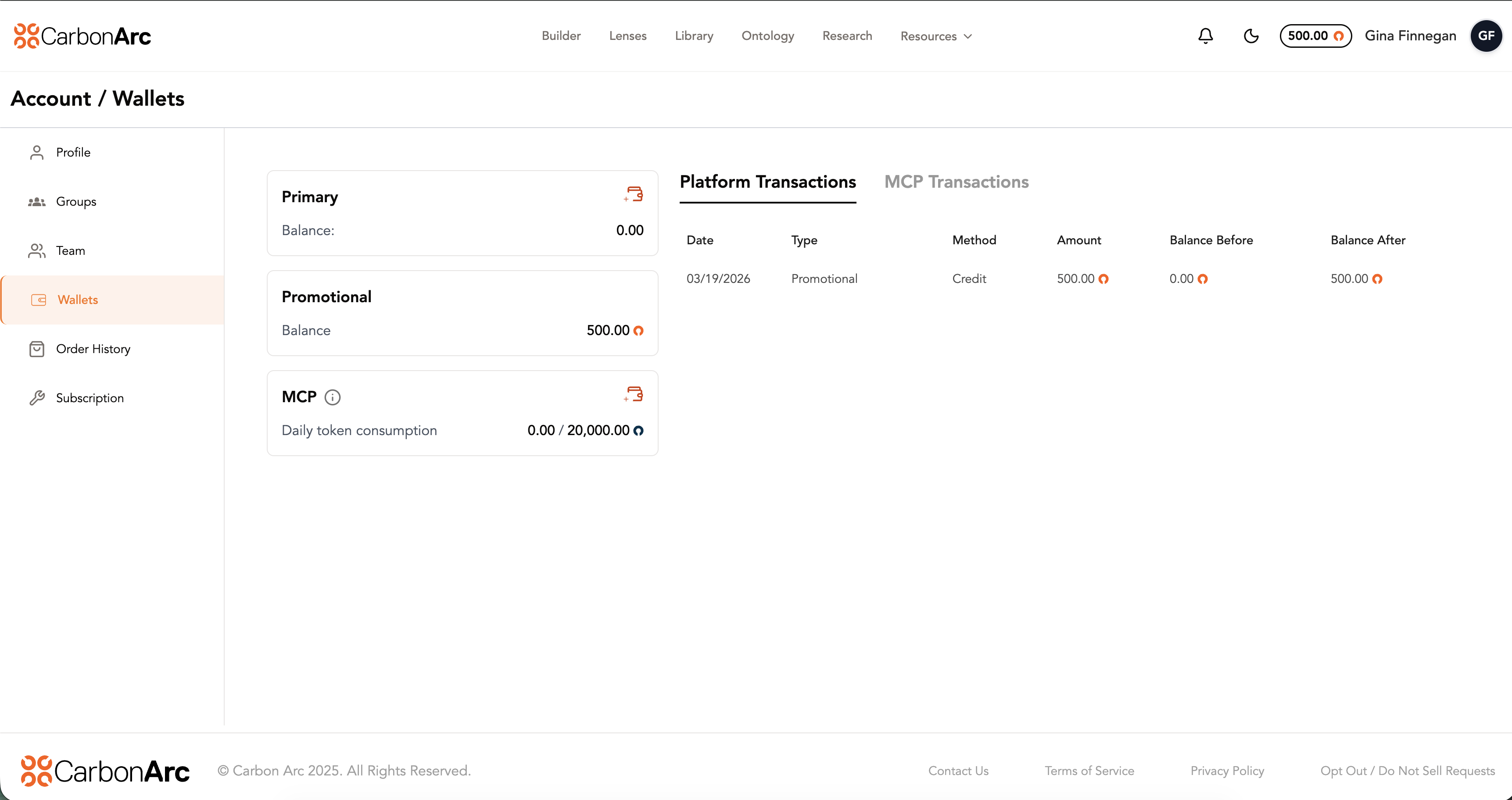
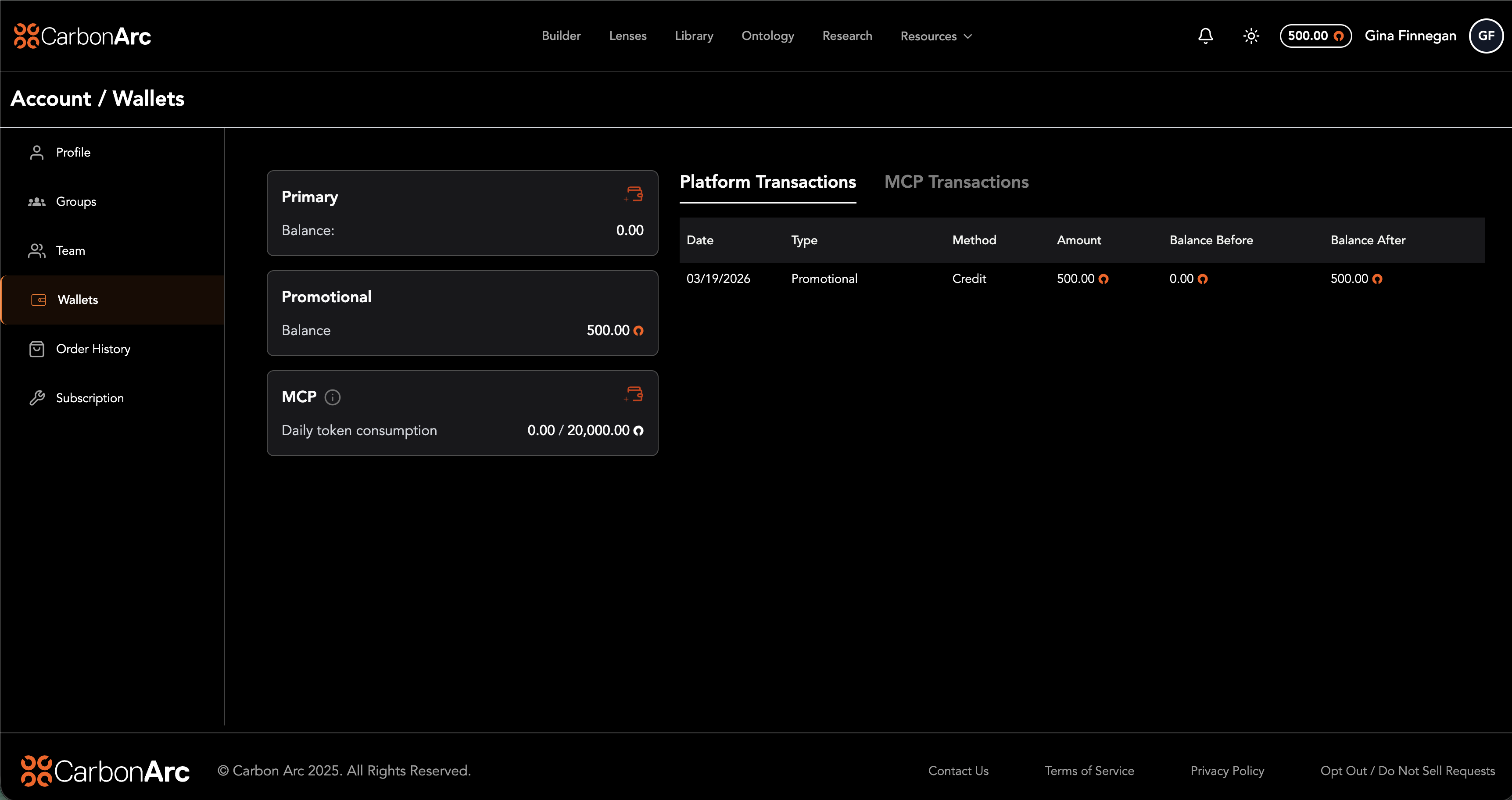
The Wallet page provides clients with visibility into their token balances and usage, as well as the ability to purchase additional tokens for their account.
Tokens are managed at the account level. For plans that support teams, all team members draw from the same balance. For Professional plans, the account holder is the sole user and all tokens are allocated exclusively to them.
Access: Only Client Admin and Super Admin roles can view the Wallet
Navigate to: My Profile → Wallet
Core Concepts
What is a Wallet?
A wallet is a virtual container that holds tokens (the currency used in the platform). Tokens are used to purchase frameworks via the Builder or SDK. There are two types of wallets:
Primary Wallet (Purchased)
- Tokens purchased by the user
- Main wallet for spending
- Never expires
- Directly funded by user
- Value: $1 USD per token
- Non-Refundable: Tokens cannot be refunded
MCP Wallet
Carbon Arc MCP tokens govern usage of Carbon Arc's MCP Server either natively through Lenses or via your preferred LLM. MCP tokens are dedicated for use with Carbon Arc's MCP Server and cannot be used to purchase frameworks in Builder or programmatically. They are tracked separately from platform tokens.
Daily MCP Tokens (Included) Each subscription includes a daily MCP token allotment that automatically resets every 24 hours.
Daily MCP tokens:
- Are system-issued and refreshed every 24 hours
- Do not affect the Primary Wallet balance
Primary MCP Tokens (Purchased)
Once the daily limit is reached, additional usage can continue through purchased Primary MCP tokens.
Primary MCP tokens:
- Can be purchased to supplement the daily MCP token allotment
- Are only consumed after the daily allotment is exhausted
- Never expire
- Value: $1 USD per token
- Non-Refundable: Tokens cannot be refunded
Wallet Components
Primary Wallet Card
Displays the main purchased wallet with:
- Balance: Current token balance
- Minimum Balance: Minimum required balance (if set)
- Maximum Balance: Maximum allowed balance (if set)
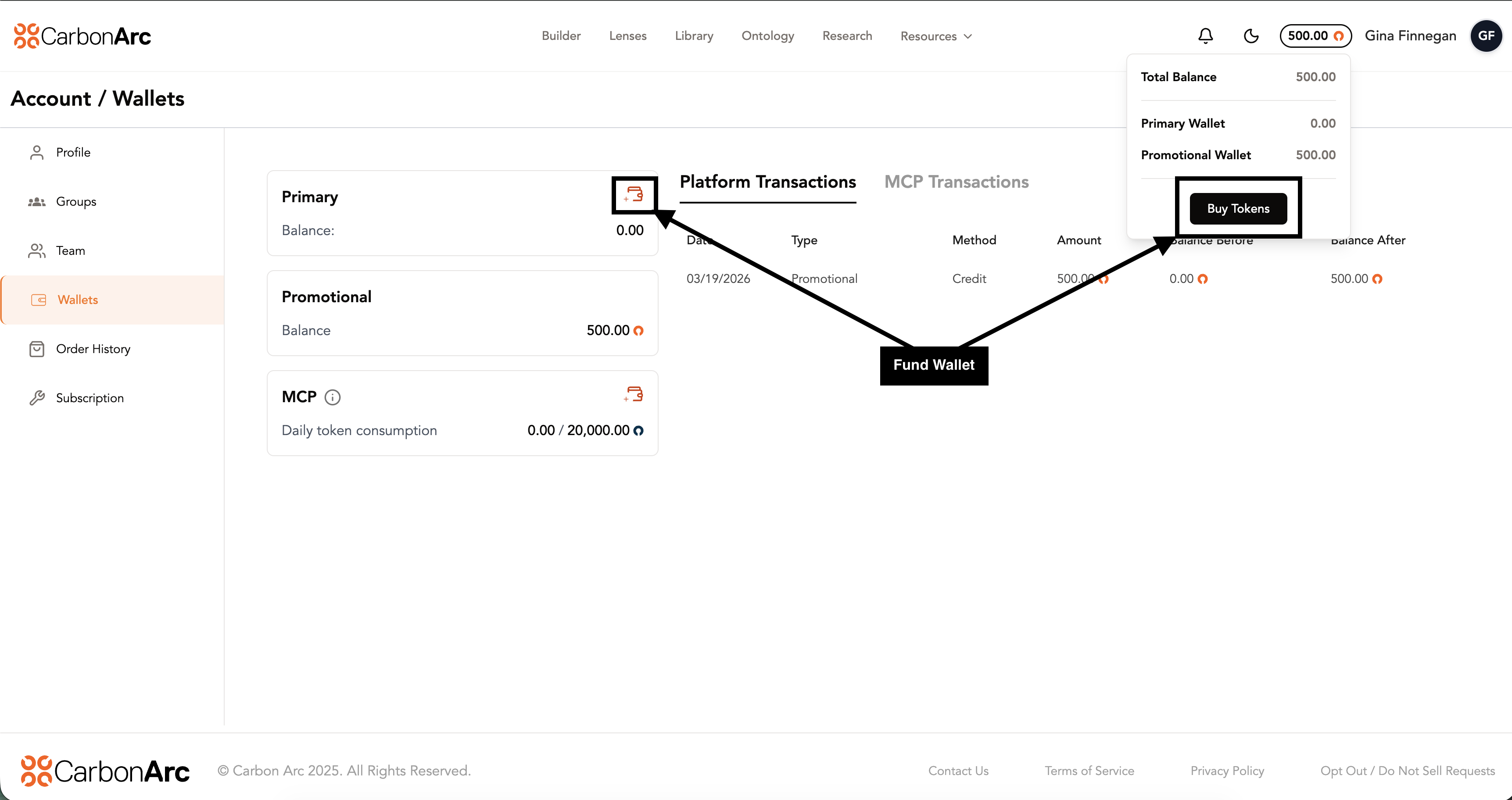
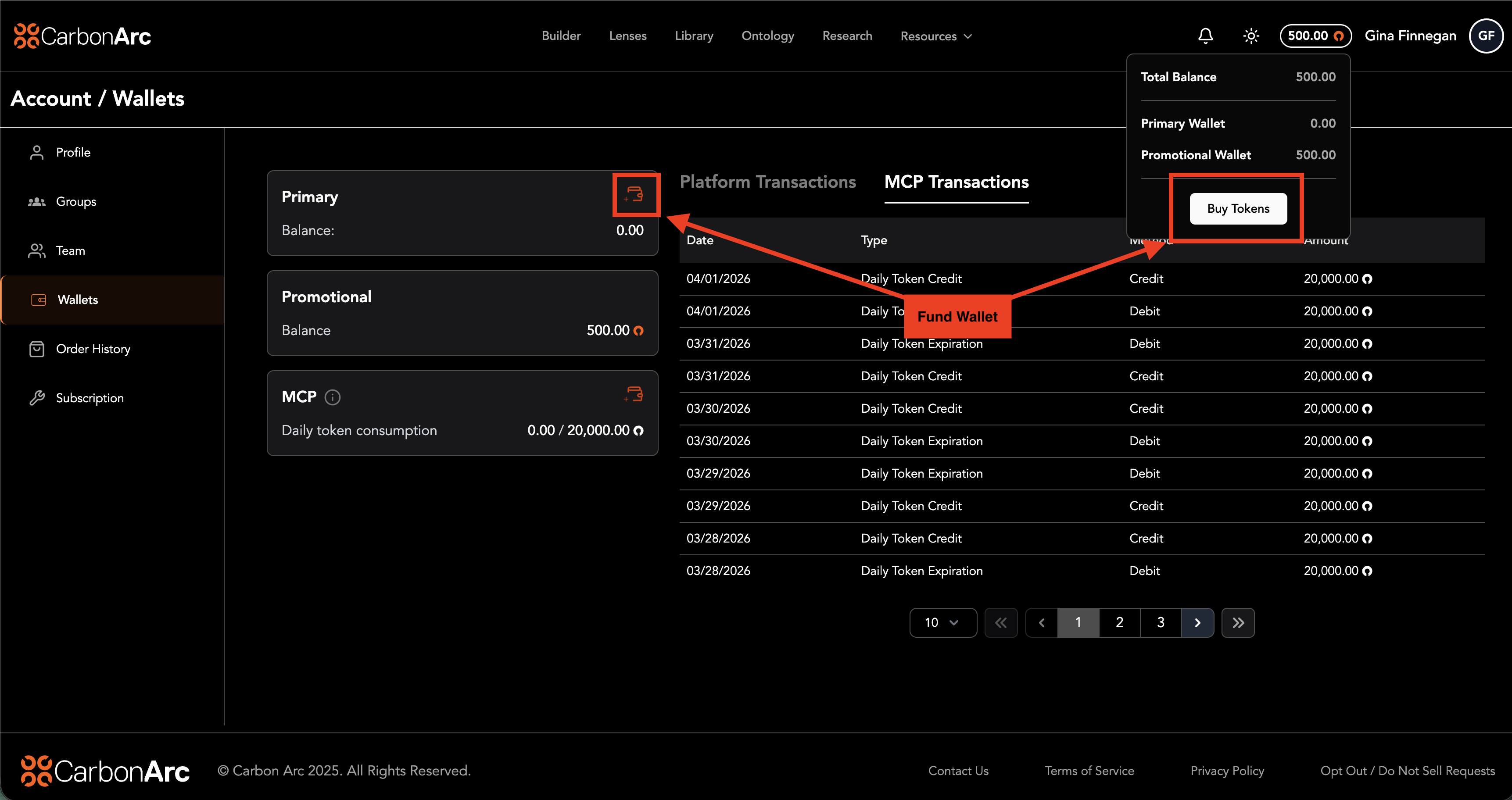
- Fund Wallet Button: Opens purchase modal
MCP Wallet Card
Appears if an MCP subscription exists. Displays the usage shown as the number of tokens used out of the daily allocation (e.g., 30 / 500 is 30 used of 500 daily tokens). Also displays the purchased Primary MCP token balance, if any.
Platform Transactions Table
Displays transaction history for the Primary Wallet (purchased platform tokens).
- Date: Transaction timestamp
- Type: Transaction description
- Method: Credit or Debit. Purchased tokens appear as credit; tokens spent appear as debit.
- Amount: Token amount
- Balance Before: Balance before the transaction
- Balance After: Balance after the transaction
MCP Transactions Table
Displays transaction history for purchased Primary MCP tokens.
- Date: Transaction timestamp
- Type: Transaction description
- Method: Credit or Debit. Purchased tokens appear as credit; tokens spent appear as debit.
- Amount: Token amount
Note: Both tables display transaction history only. To view full order details, go to the Order History tab.
Purchasing Tokens
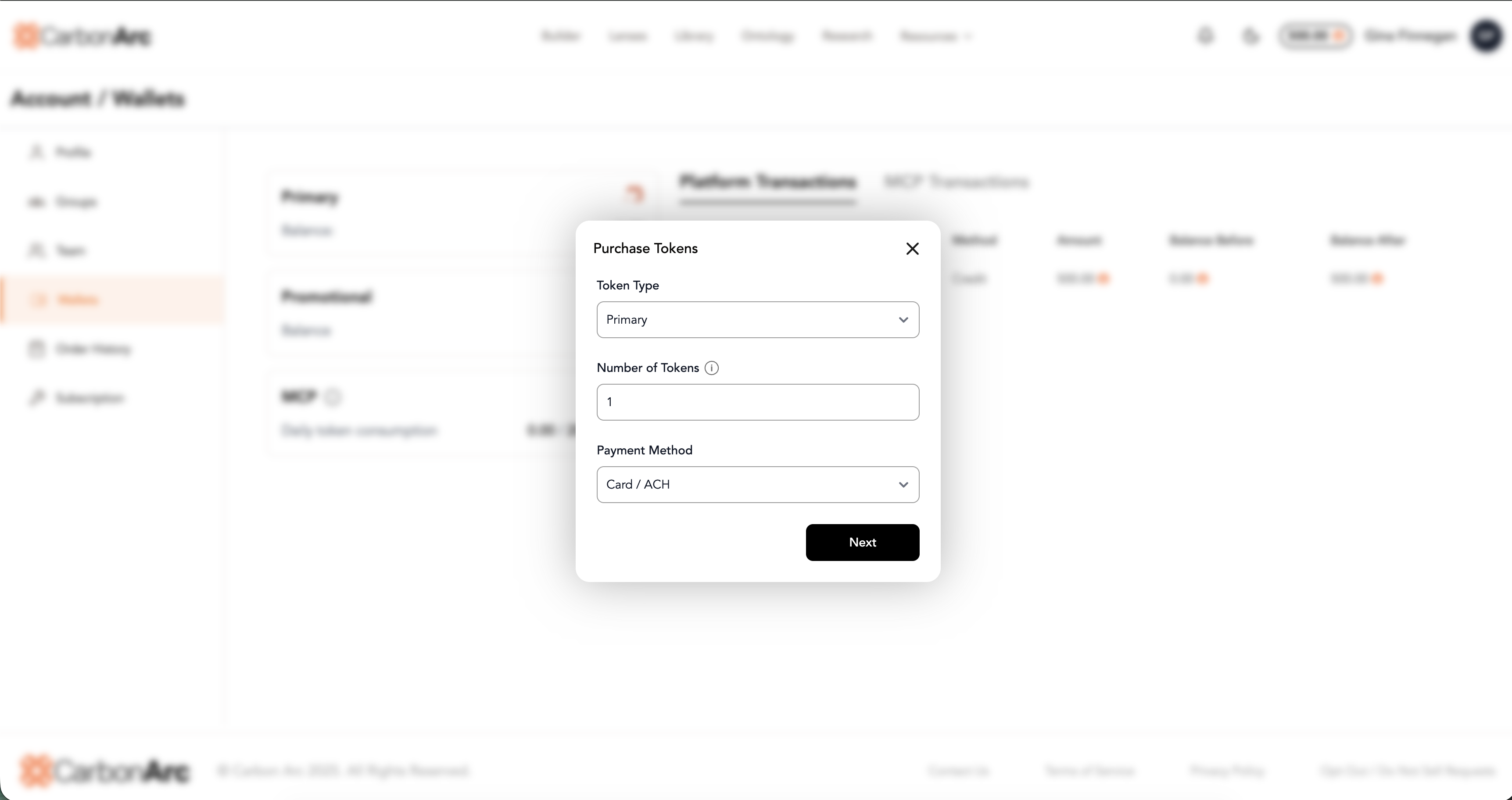
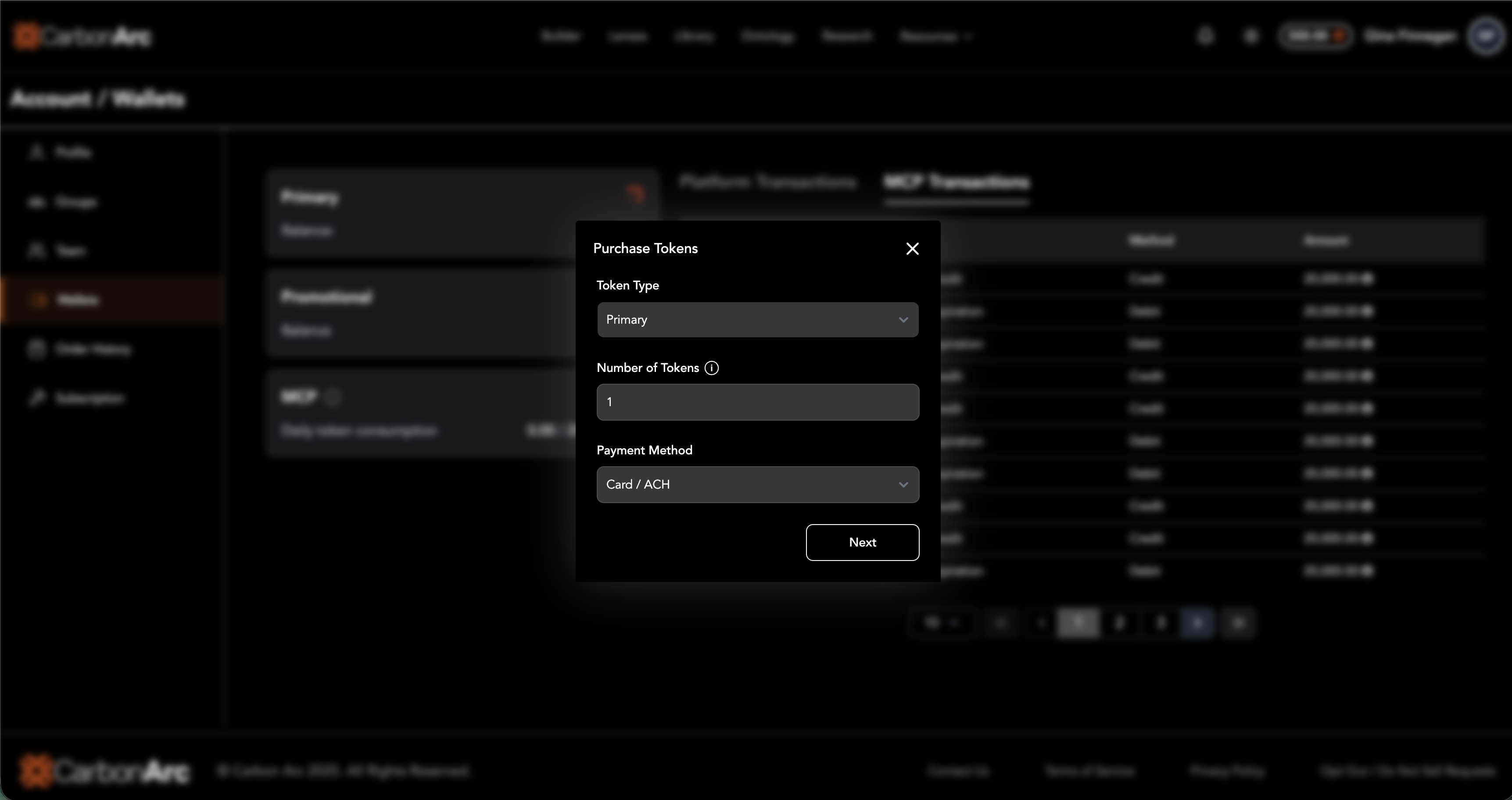
Step 1: Open the Purchase Modal
Click the Fund Wallet button on either the Primary Wallet card or the MCP Wallet card.
Step 2: Select Token Type
Use the dropdown to choose the type of token to purchase:
- Platform — tokens for use in Builder and SDK
- MCP — tokens for use with Carbon Arc's MCP Server and Lenses
Step 3: Enter Token Amount
- In the Number of Tokens field, enter how many tokens you want to buy
- Minimum: 1 token
- Pricing: $1 USD per token
- Tokens never expire
Step 4: Select Payment Method
Choose from:
- Card / ACH: Pay immediately with credit card or bank transfer
- Invoice: Receive an invoice for payment (if available)
Note: Invoice option may be disabled depending on your subscription plan.
Step 5: Complete Purchase
For Card / ACH Payment:
- Click "Next"
- Complete the secure payment form
- Submit your payment
- You'll be redirected to a success page
- Transactions may take 2-3 minutes to clear before tokens are issued in the wallet
For Invoice Payment:
- Click "Next"
- An invoice is created
- Click the link to view/download your invoice
- Tokens are added immediately
FAQs
Why can't I see the Wallet page?
Only Client Admins and Super Admins have access. Check with your organization's administrator if you need access.
How are tokens shared across my team?
Tokens are allocated at the account level and shared with every team member.
Can I buy more MCP tokens?
Yes. Each subscription includes a daily MCP token allotment that resets every 24 hours. Once the daily limit is reached, additional usage continues through purchased Primary MCP tokens, which never expire and are only consumed after the daily allotment is exhausted.
How much do tokens cost?
Tokens are $1 USD each.
Do tokens expire?
Purchased tokens never expire. Promotional tokens may have expiry dates, which are shown in the wallet.
Can I get a refund?
No, tokens are non-refundable once purchased.
Who can purchase tokens?
Only Client Admins and Super Admins can purchase tokens for their organization.
Can I transfer tokens?
Tokens stay in your organization's wallet and cannot be transferred between accounts.
What payment methods are accepted?
Credit Card / ACH, or Invoice (if enabled for your plan).
Why did my payment fail?
Check your payment method details, ensure sufficient funds, try a different payment method, or contact support if issues persist.
Why are tokens I just purchased not appearing?
Tokens are issued immediately after payment but Credit Card / ACH transactions may take 2–3 minutes to process. If tokens do not appear after 5 minutes, refresh the page or contact support@carbonarc.co.
Can I set spending limits?
Spending limits are managed at the User or Group level by your administrator.
Where can I see all my transactions?
Platform token activity is displayed in the Platform Transactions table and MCP token activity is displayed in the MCP Transactions table, both located on the Wallet page.