Claude Setup Guide
This guide walks you through setting up Carbon Arc's MCP Server with Claude (Anthropic's AI assistant).
Jump directly to the Carbon Arc connector page here: claude.ai/directory/connectors/carbonarc. Carbon Arc is listed in Claude's connector directory, so there's no need to add it as a custom connector.
Video Walkthrough
Watch this quick video to see the full setup process:
Requirements
- A Claude account
- A Carbon Arc platform account
Setup Instructions
Step 1: Open the Claude App
Launch the Claude desktop app or visit claude.ai.
Step 2: Navigate to Connectors
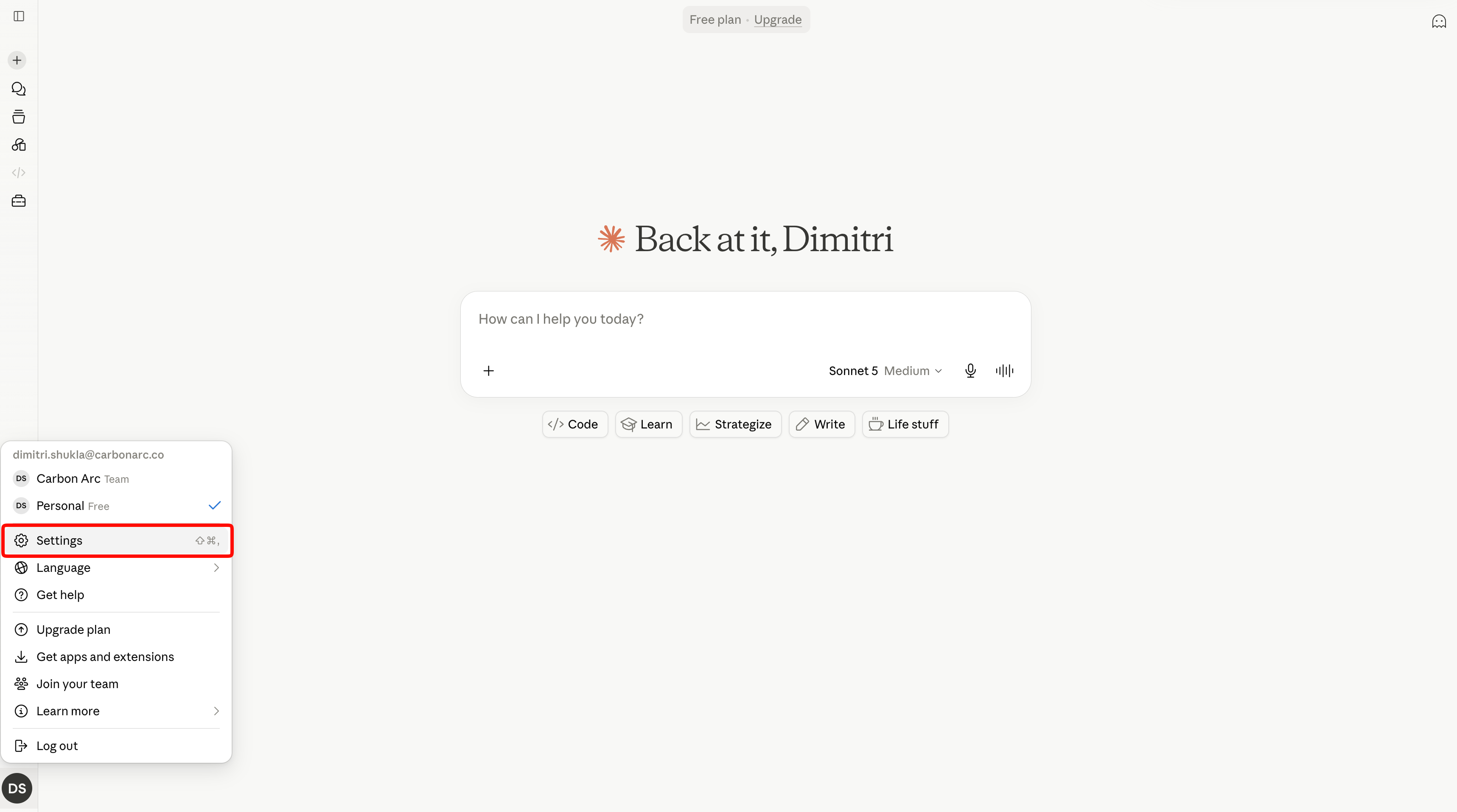
Go to: Settings → Connectors
Step 3: Browse the Connector Directory
Click Browse connectors to open the connector directory, then search for Carbon Arc.
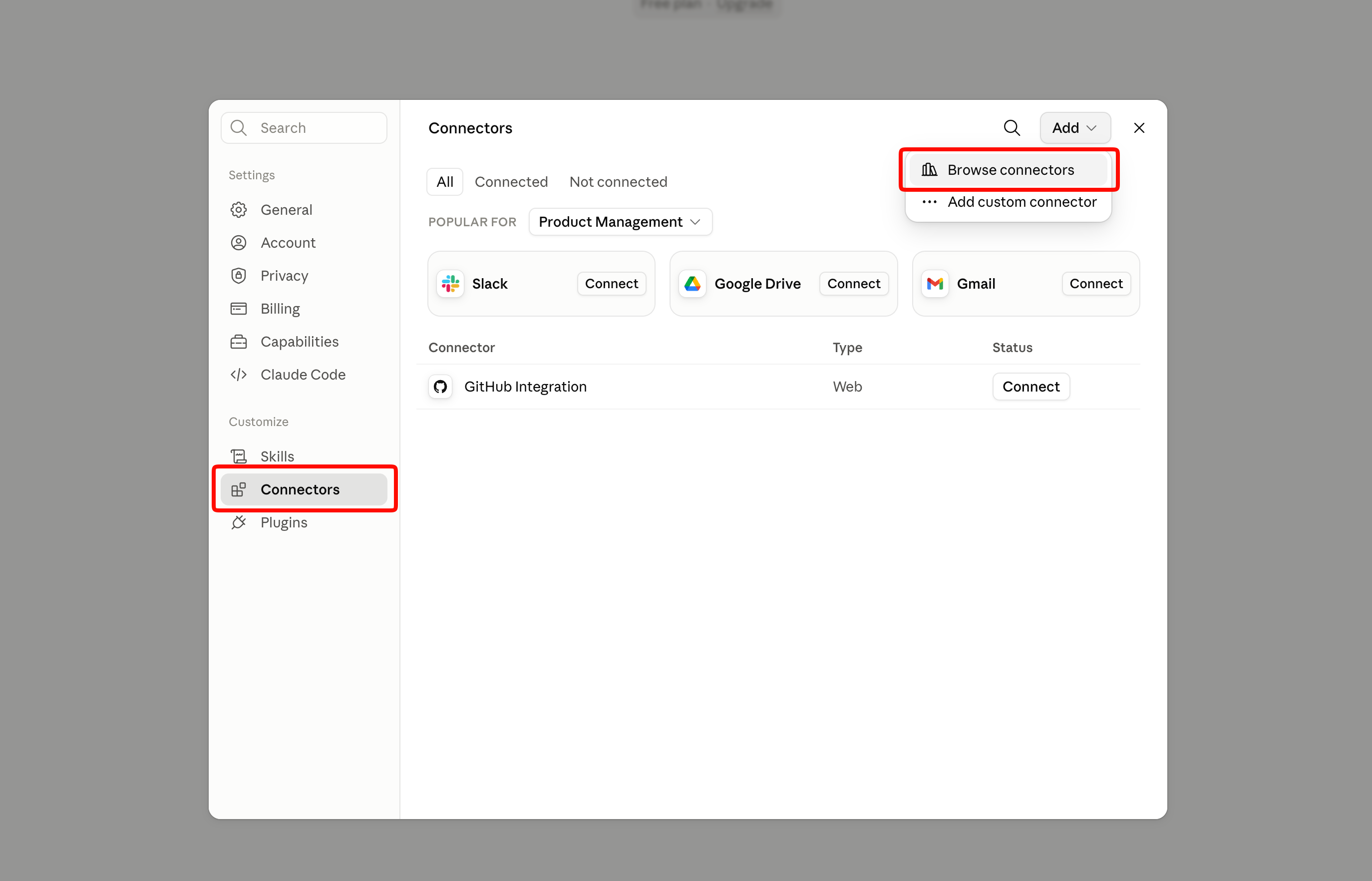
You can jump straight to the Carbon Arc listing using this direct link: claude.ai/directory/connectors/carbonarc
Step 4: Connect the App
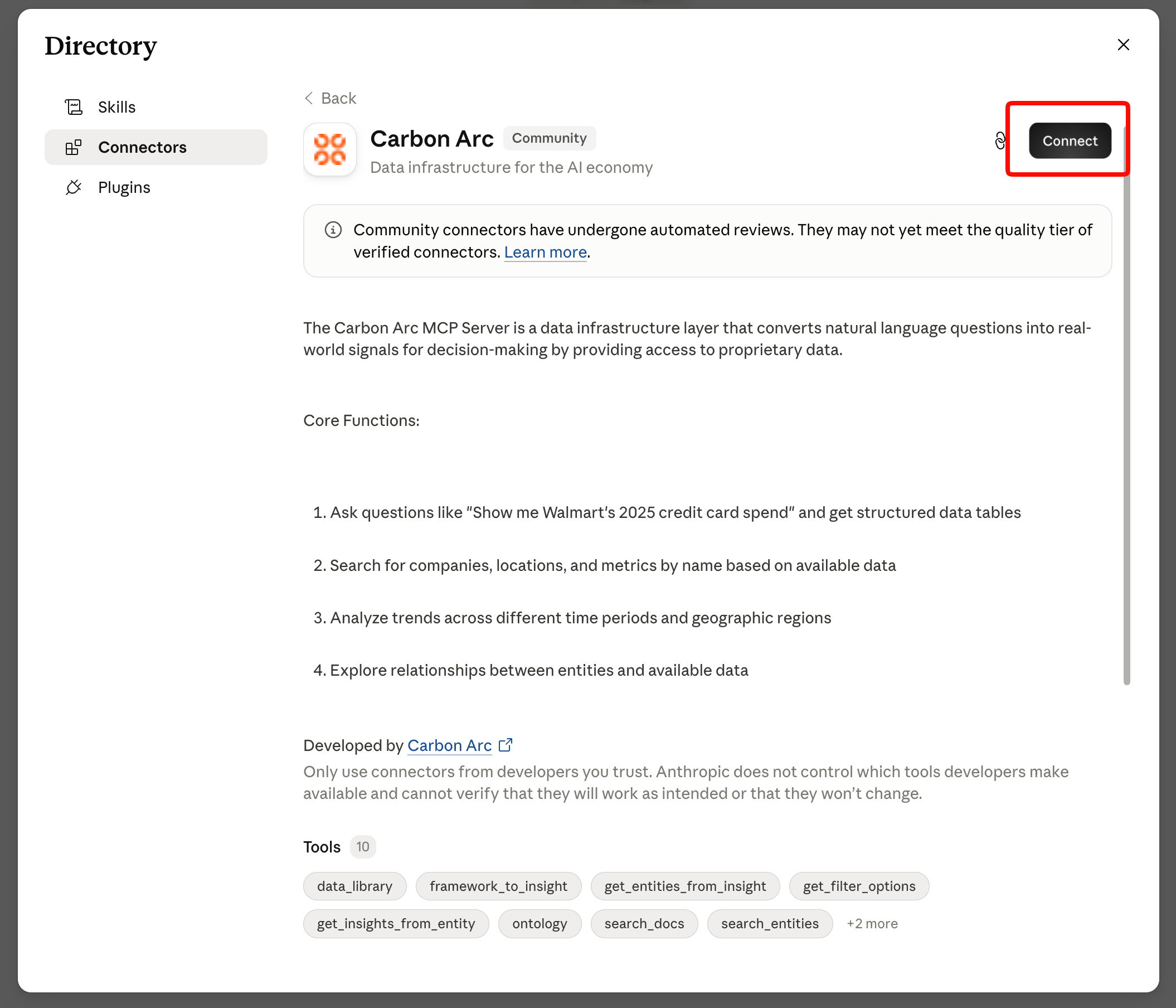
Click on the Carbon Arc listing, then click Connect to add it to Claude.
Step 5: Authenticate
A browser window will open. Log in with your Carbon Arc credentials.
Step 6: Verify Connection
Once connected, the tool will appear under Connectors in your Claude app.
Step 7: Start Querying
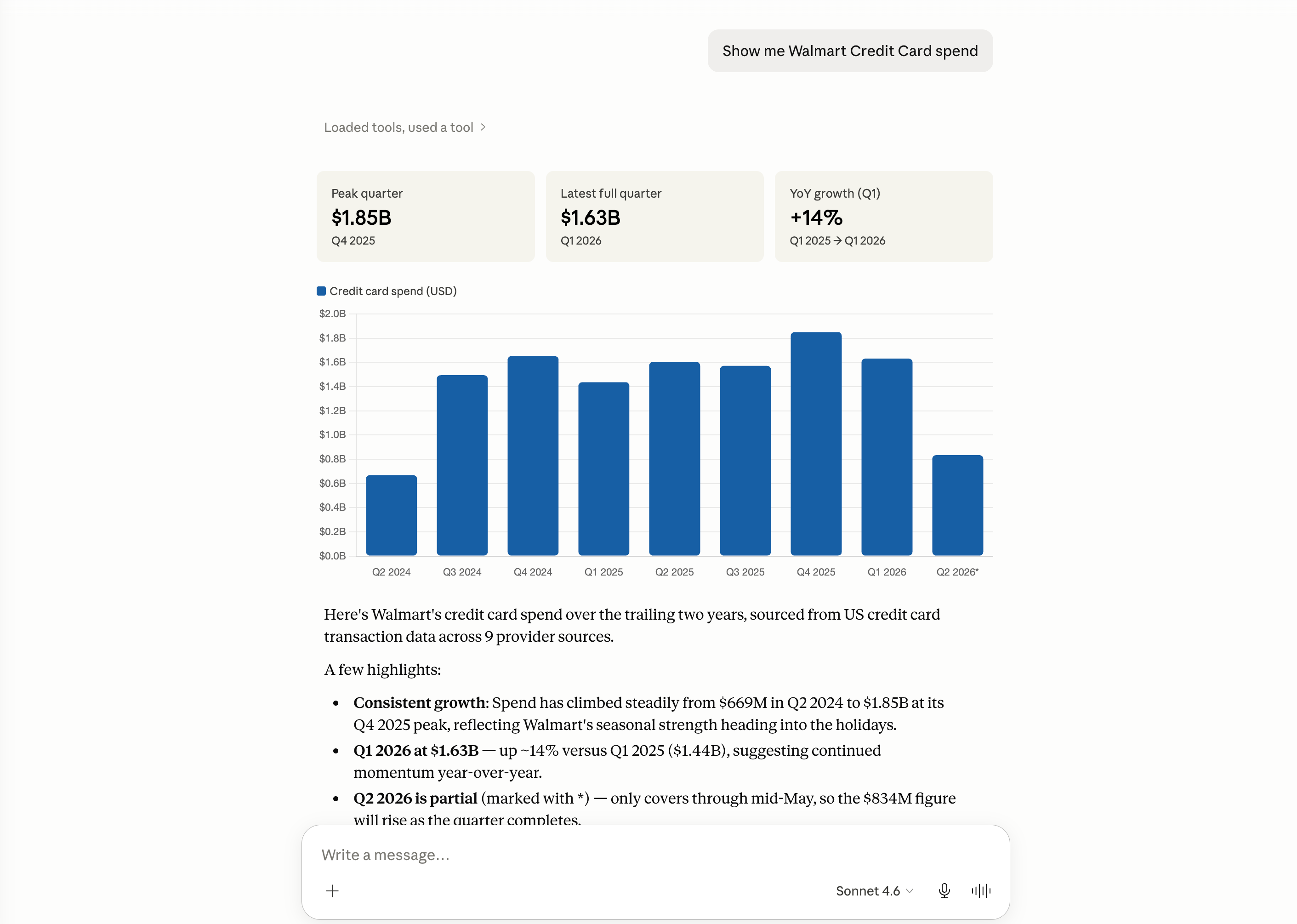
Open a new chat and start asking questions like:
"What was Walmart's card spend in Q1 2024?"
Adding Research Tools (Optional)
To access Research tools (Entity Research, Forecast, Acquire, Retain, Target, Upsell), add a second connector:
Step 1: Add Custom Connector
Navigate to: Customize → Connectors → Add custom connector
Step 2: Configure the Research Connection
| Field | Value |
|---|---|
| Name | CarbonArcResearchMCP |
| Remote MCP Server URL | https://mcp.carbonarc.ai/research |
Step 3: Connect and Authenticate
Click Add and log in with your Carbon Arc credentials when prompted.
Once connected, you'll have access to both the Core tools and Research tools in Claude.
Tips for Claude
- You can allow Claude to call tools unsupervised for uninterrupted conversations, or require permission for each call
- If Claude skips the MCP tools, add "use mcp tools" to your prompt
- All responses include structured data that Claude can use for follow-up questions
Next Steps
- Learn about MCP Best Practices
- Explore the MCP Tools available