Lenses
Lenses is Carbon Arc's native AI-powered analysis tool, built directly into the platform. Powered by a mix of Claude models (primarily Sonnet 5) and connected to the Carbon Arc MCP Server, Lenses lets you query data using natural language — no external AI subscription required.
Choose from specialized AI agents (personas) designed for different roles and workflows. Get deeper insights with context-aware analysis tailored to your needs.
Contact us at support@carbonarc.co to request access.
How It Works
Every Lenses response is derived from three sources working together:
| Source | Role |
|---|---|
| Your prompt | The natural language question you submit, enhanced by your selected persona's pre-programmed instructions |
| MCP Server data | Structured data accessed through Carbon Arc's proprietary data stack |
| LLM | Claude synthesizes and summarizes using persona-specific instructions — it does not introduce new data |
Lenses orchestrates the same MCP tools available through non-native access (Claude, ChatGPT), automatically selecting and chaining the right tools based on your question and active persona.
Personas
When you open Lenses, you can choose an AI agent optimized for your role. Each persona tailors the analysis style, language, and output format to match your workflow.
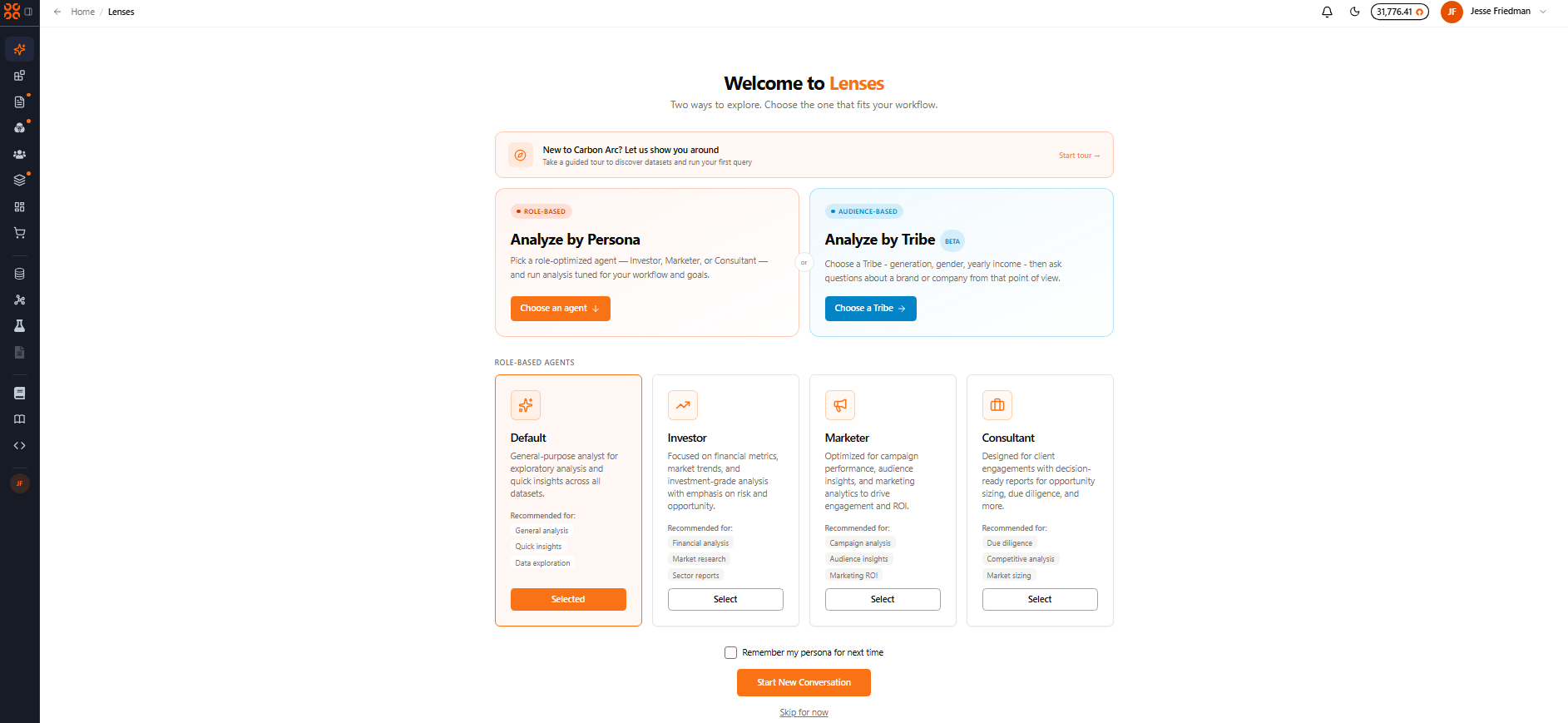
You can switch personas at any time using the dropdown at the top of the chat. Check the "Remember my persona for next time" option to save your preference.
Research Mode
Lenses includes a Research Mode toggle at the top of the chat interface. When enabled, Lenses performs deeper, more detailed analysis — think of it as a "think harder" mode.
| Mode | Best For | Response Time |
|---|---|---|
| Standard | Quick lookups, single-metric checks, exploratory questions | Faster |
| Research | Reports for Earnings Prep, competitive deep-dives, multi-entity comparisons, etc. | Slower, more detailed |
Toggle Research Mode on or off at any time using the slider at the top of the chat.
If you're using a non-native MCP client like Claude or ChatGPT, Research Mode is not available as a built-in toggle. To access deeper analysis, you'll need to connect the Carbon Arc Research Connector (https://mcp.carbonarc.ai/research) as a separate MCP endpoint and explicitly request Research Mode in your prompt. See the Non-Native MCP Setup Guide for instructions.
Getting Started
Lenses is accessible directly from the Carbon Arc platform — no setup or external accounts needed.
Step 1: Navigate to Lenses
Click Lenses in the platform navigation bar, or select the Lenses tab on the discovery page.
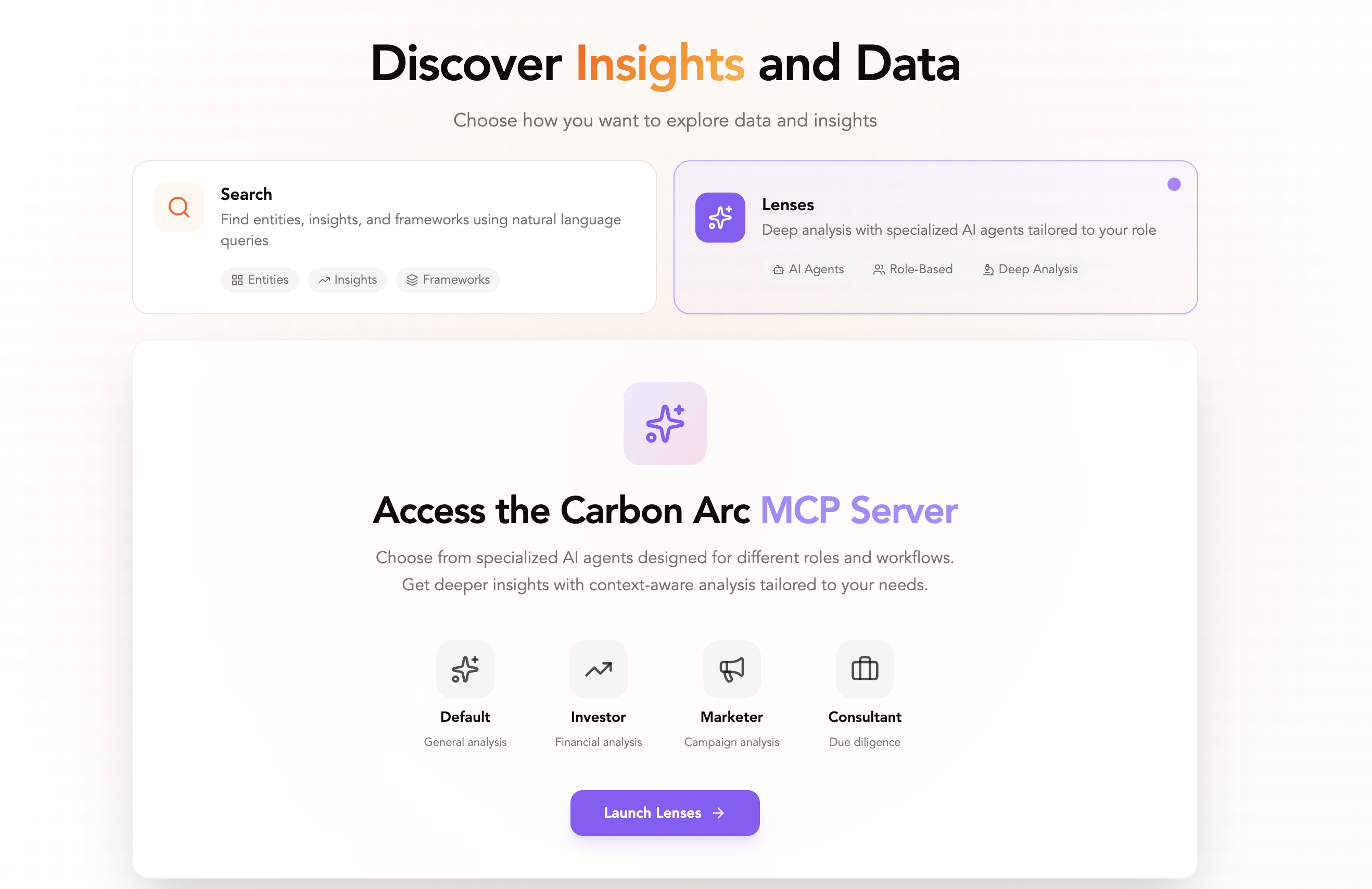
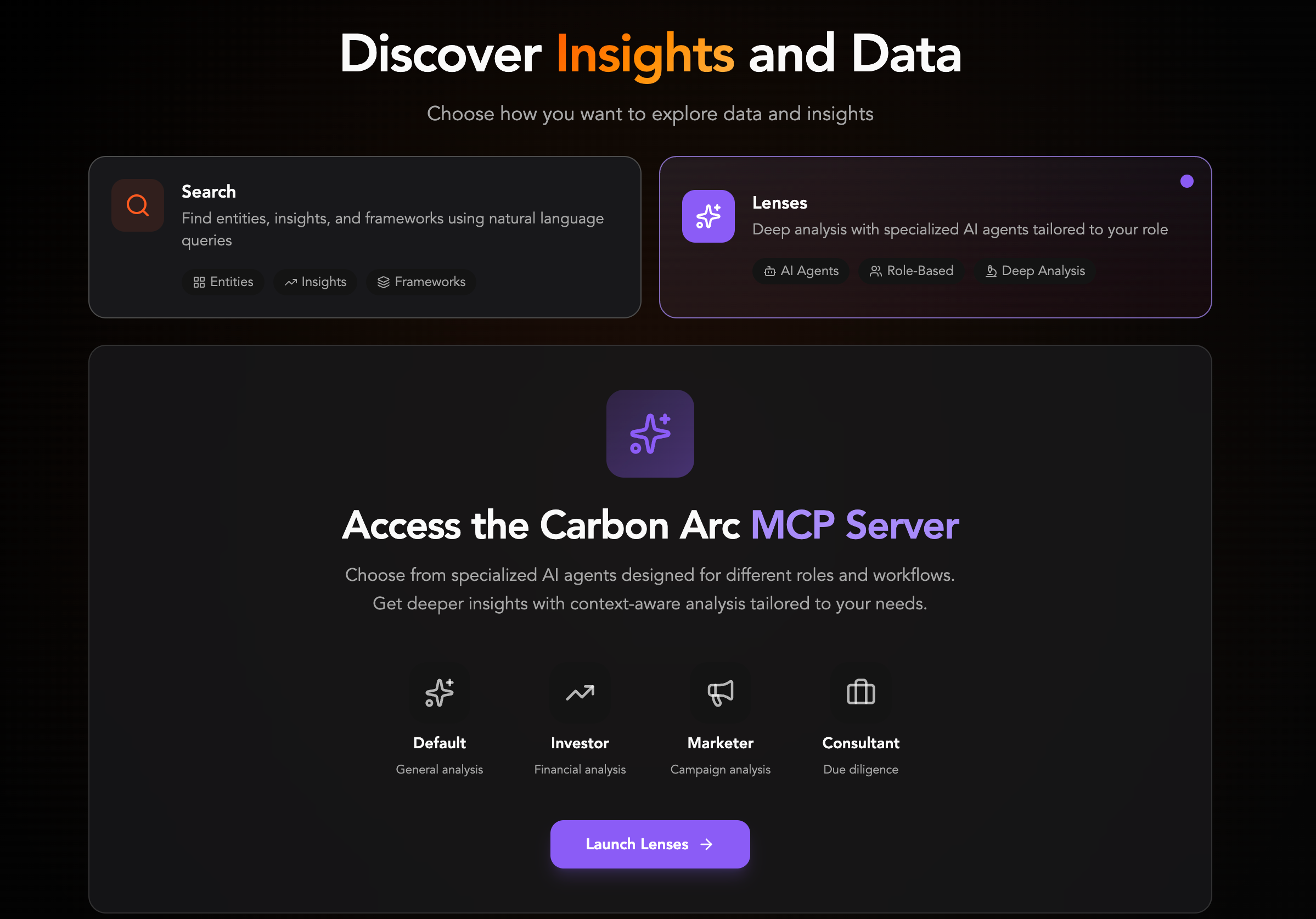
Step 2: Choose a Persona
Select the persona that best matches your role (Default, Investor, Marketer, or Consultant). You can also click Skip for now to use the Default persona.
Step 3: Start a Conversation
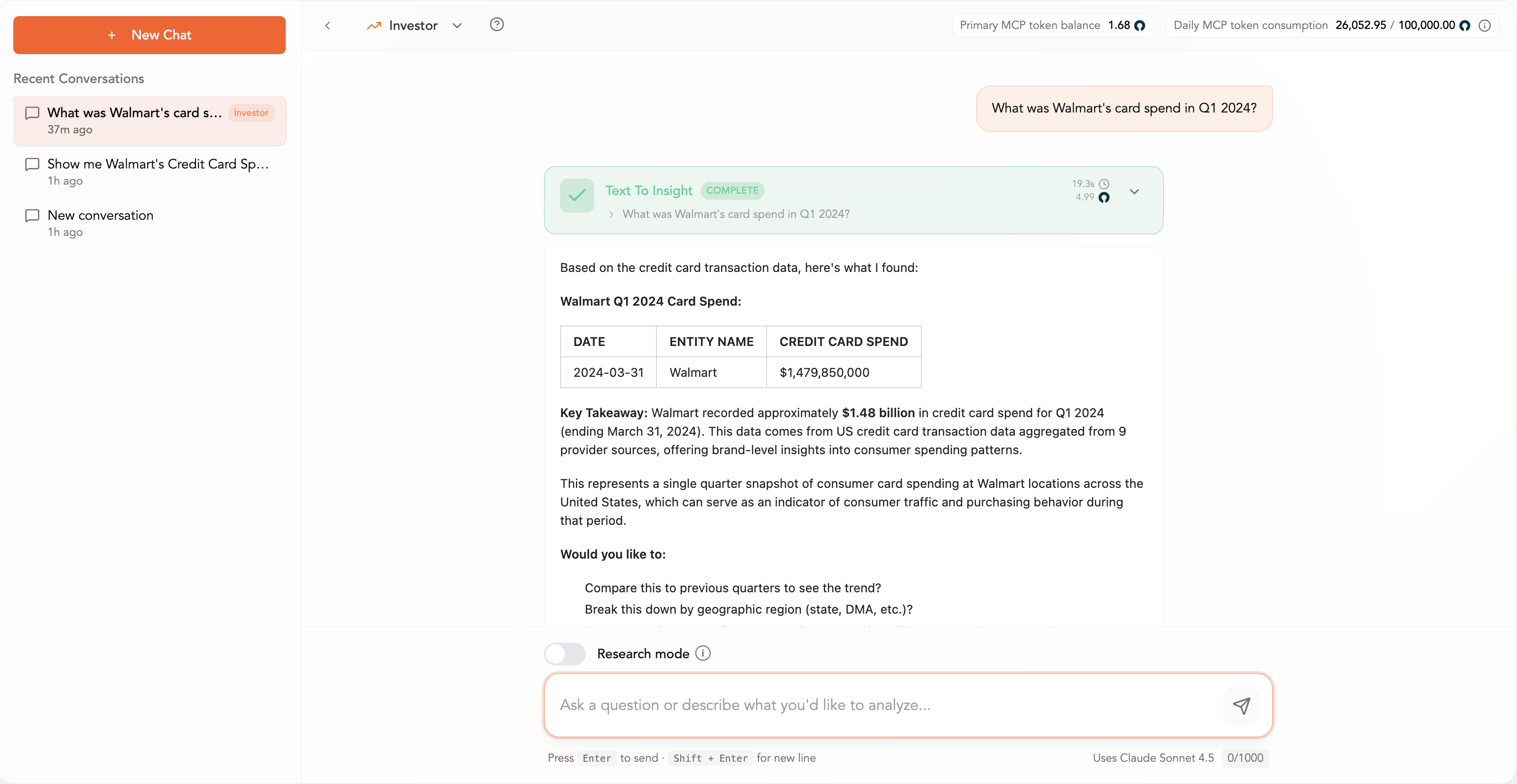
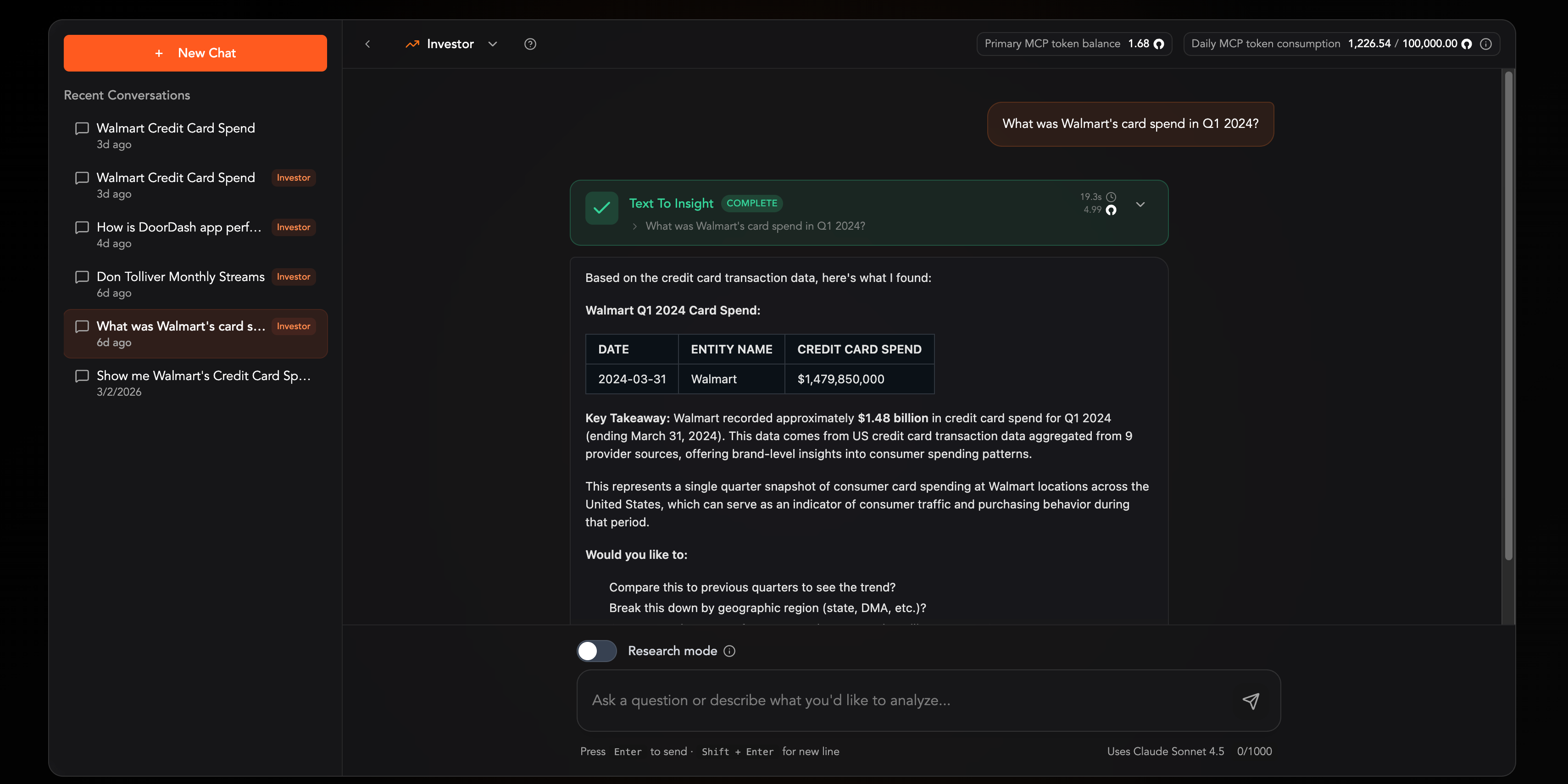
Type your question in the chat input and press Enter. Lenses will automatically select the right MCP tools and return structured, formatted results.
Step 4: Review Results and Follow Up
Lenses returns formatted insights with key takeaways and suggested follow-up questions. Continue the conversation to dig deeper.
Next Steps
- Learn about Lenses Best Practices for effective querying
- Explore Tribes — audience analytics you can launch from the Tribes persona, then continue in Views
- Explore the MCP Tools available