Groups
The Groups feature is available exclusively for Enterprise and Business plan users.
Overview
The Groups feature lets you organize users and set usage limits across your organization. This guide explains how to work with groups in the platform, including platform consumption limits and MCP daily token limits.
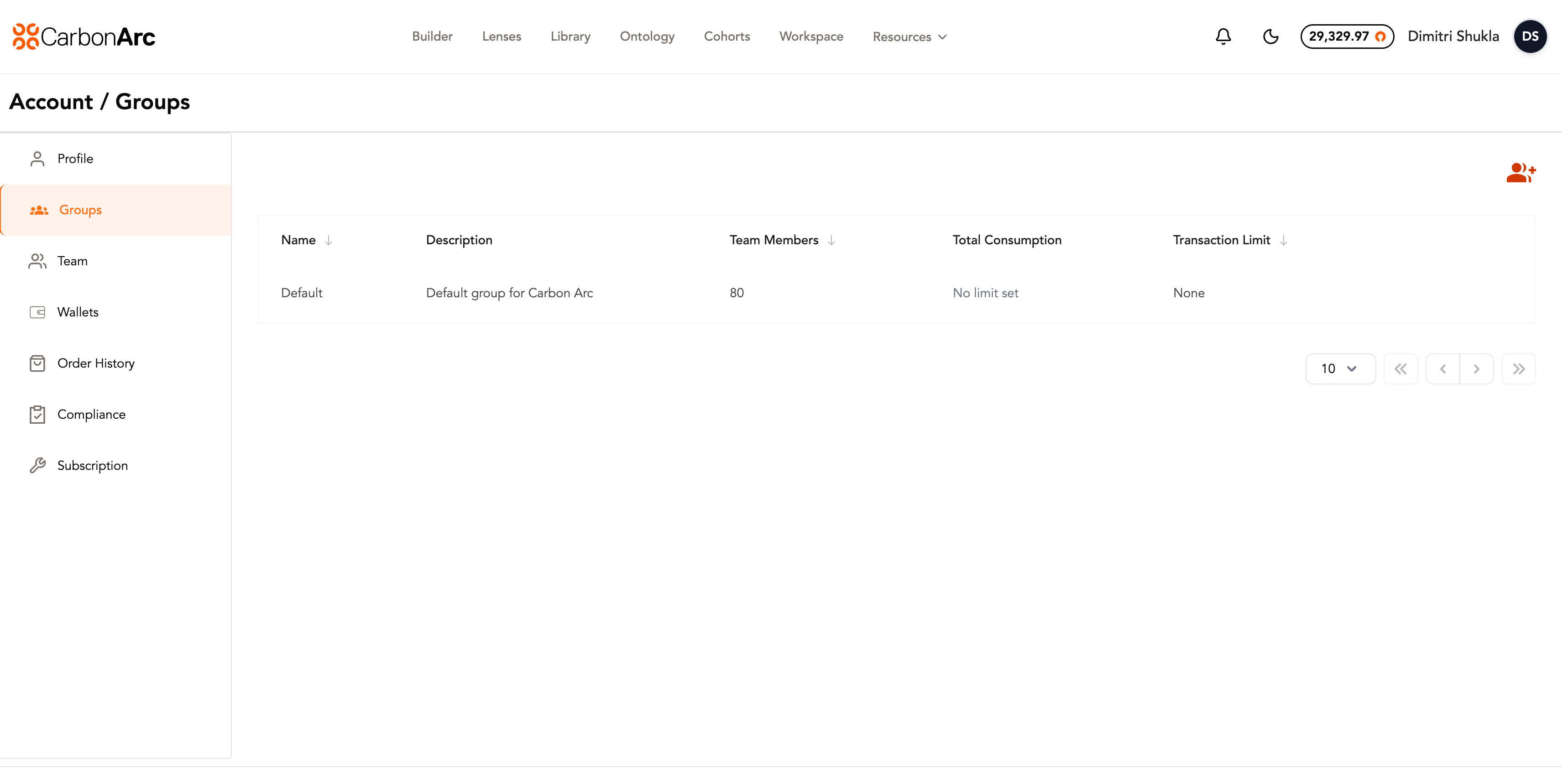
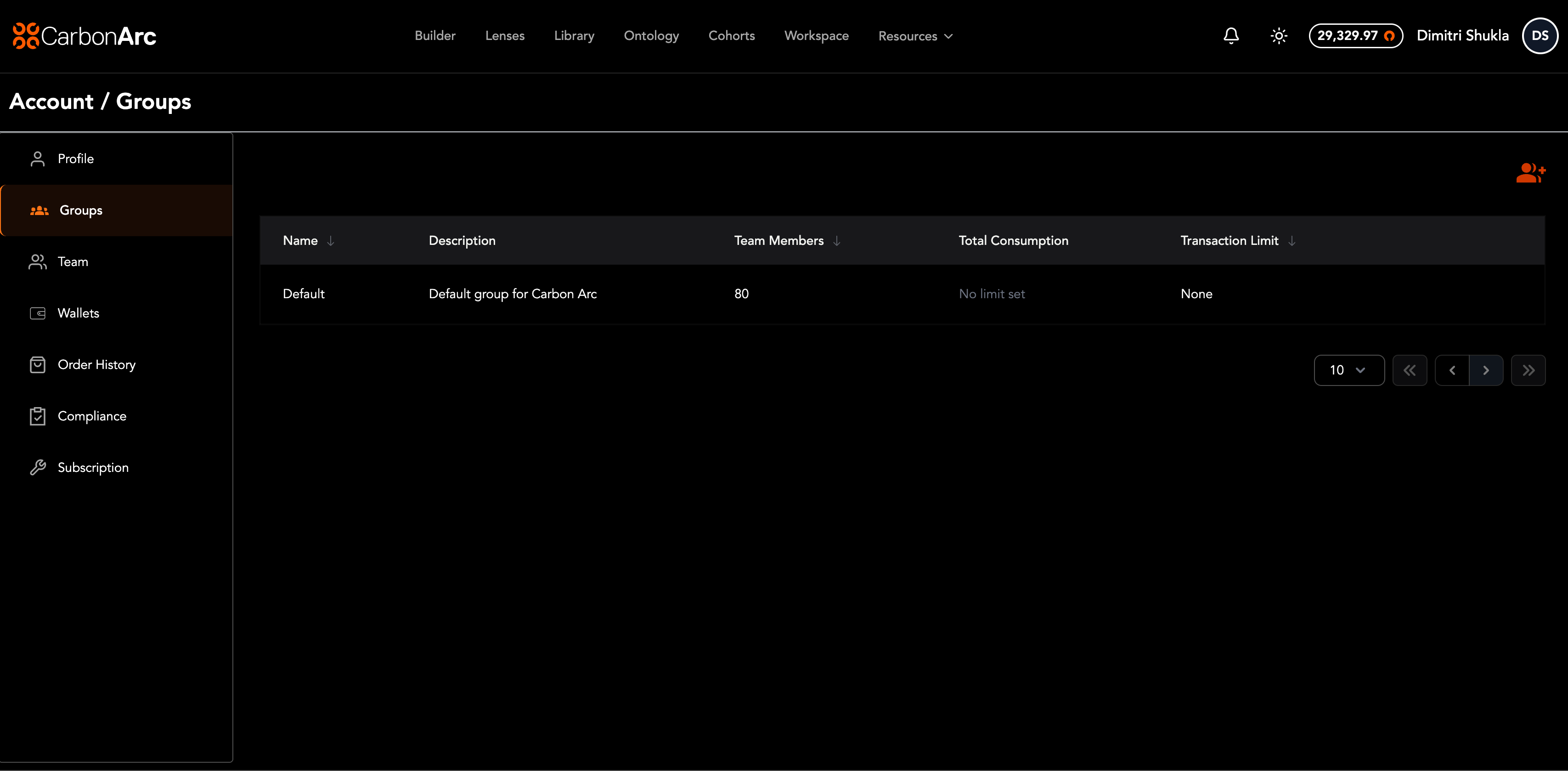
Groups can carry Block User or Block Administrator access, but this only applies to Enterprise organizations with Block enabled. See Block Roles & Access for details.
Core Concepts
- Groups: Organizational units that help you organize users into groups and apply spending limits to each.
- Default Group: Automatically assign new users to a default group.
- Transaction Limits: The maximum number of platform tokens a user in the group can spend in a single transaction.
- Group Consumption Limit (platform): The total number of platform tokens that all members of a group can spend collectively—not per user.
- MCP Maximum Consumption Limit per Period: The total number of MCP tokens that all members of a group can consume collectively each day.
- MCP access: Admins can revoke or restore MCP access for a group. Revoking MCP access removes members’ ability to consume MCP tokens and blocks their access to Lenses.
- Role-Based Access: Only Client Admins and Super Admins can manage groups; as a regular user, you can view group membership and limits.
Create a New Group
Only Admins can create, edit, and manage groups.
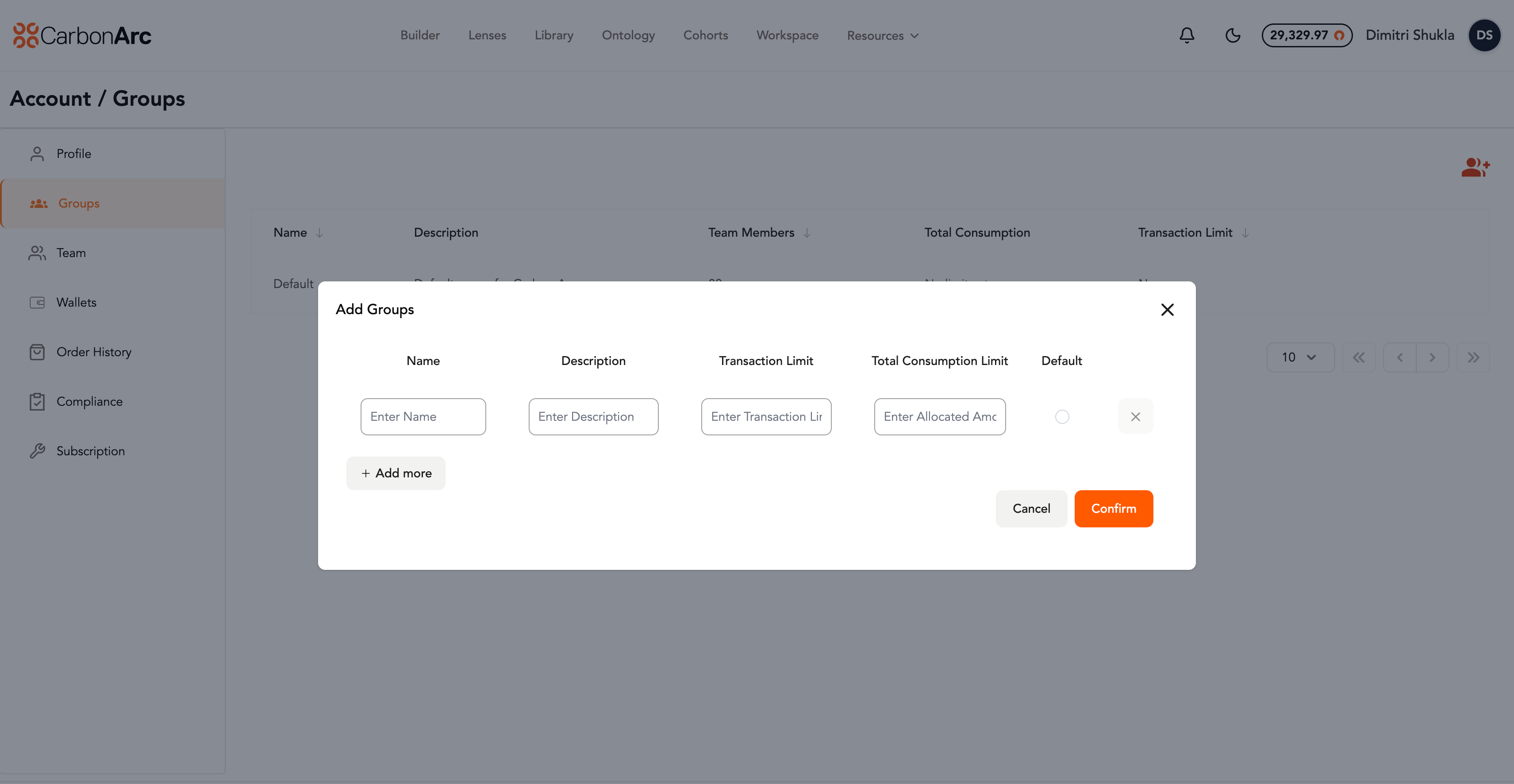
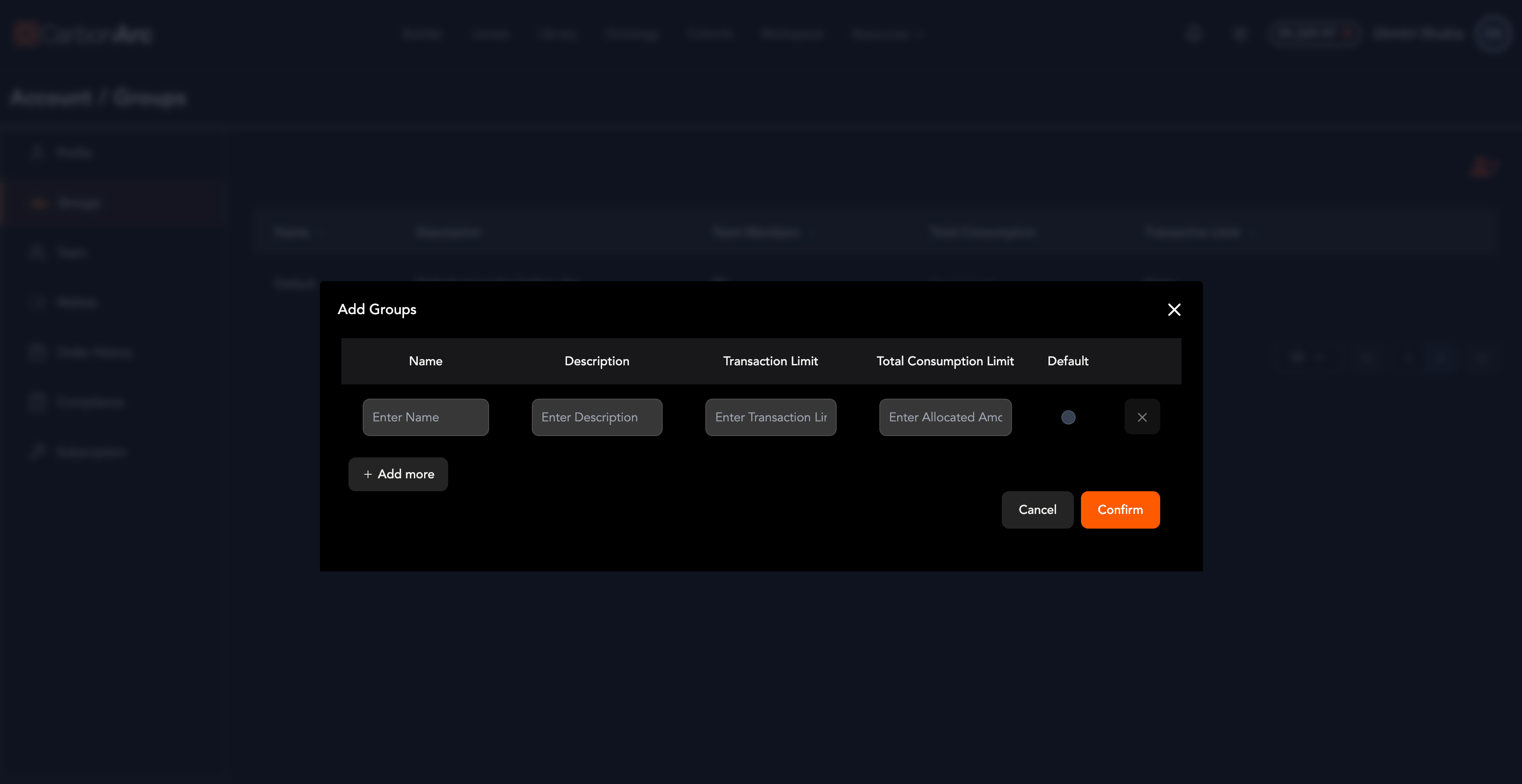
- Select the Add Groups icon in the top right of the page.
- Enter a Name for the group.
- (Optional) Enter a Description, Transaction Limit, Total Consumption Limit (platform), and Maximum Consumption Limit per Period (MCP).
- (Optional) Set MCP access for the group (on by default, or revoke access).
- If changing the default group, toggle the Default field to ON.
- Select Confirm to save or + Add More to create additional groups.
Assign Team Members
- Navigate to the Team page.
- Hover over the team member and select the edit icon on the right side of the table. Or multi-select users from the list to bulk assign to a group.
- Select a group from the Assign Group dropdown.
- Select Save to save your changes.
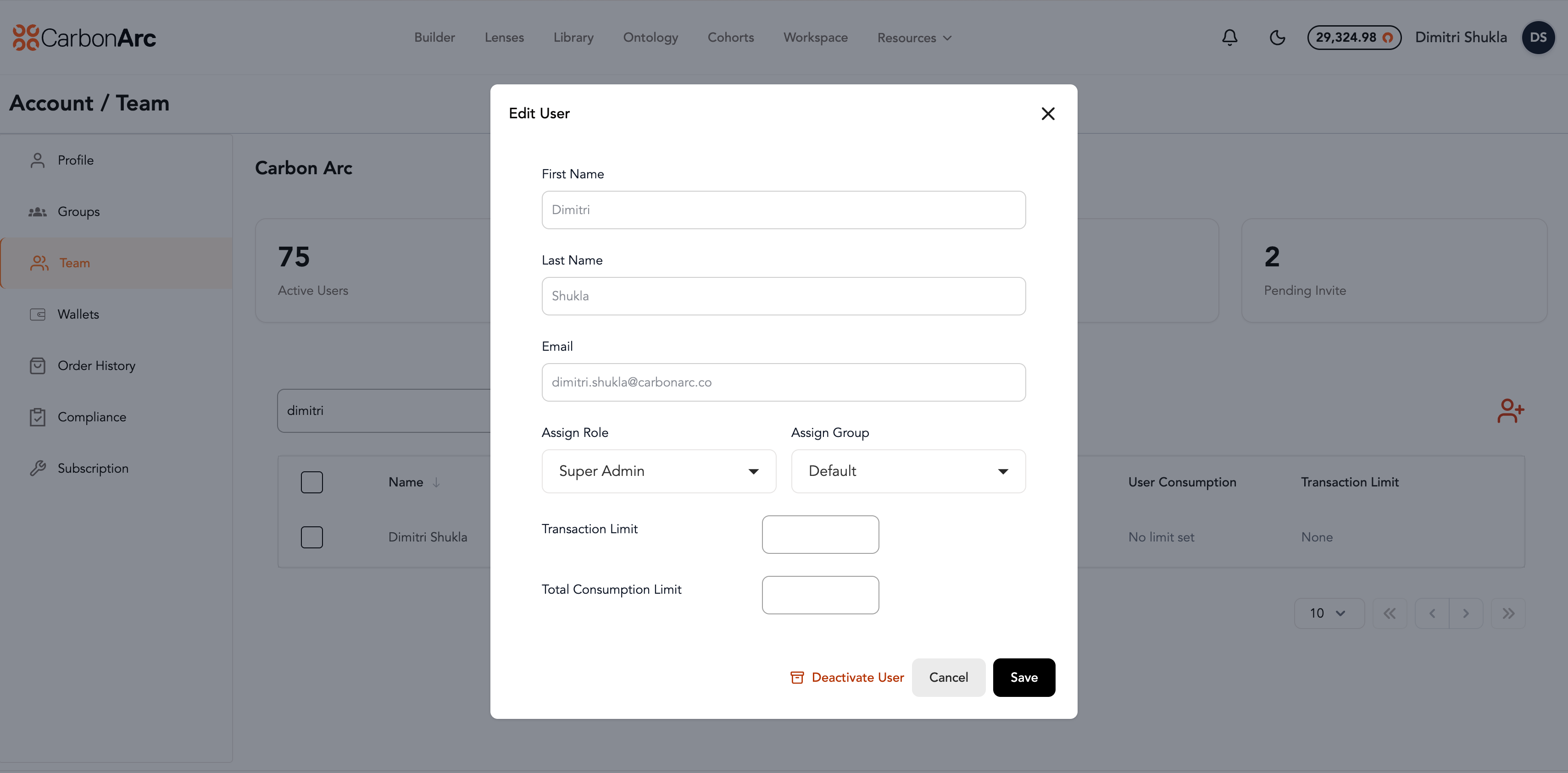
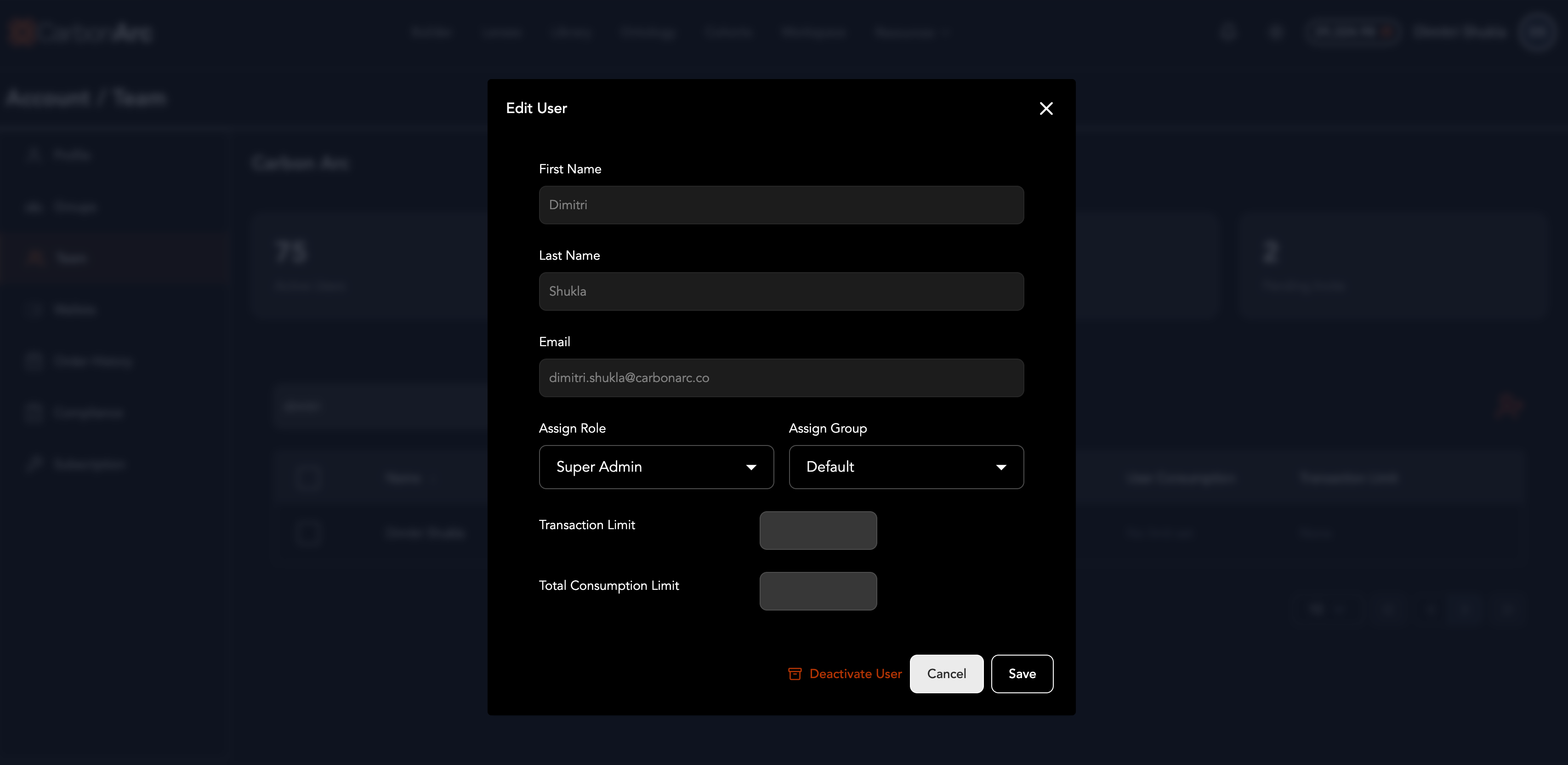
For more on inviting users, editing limits, and bulk updates, see Team.
Edit Groups
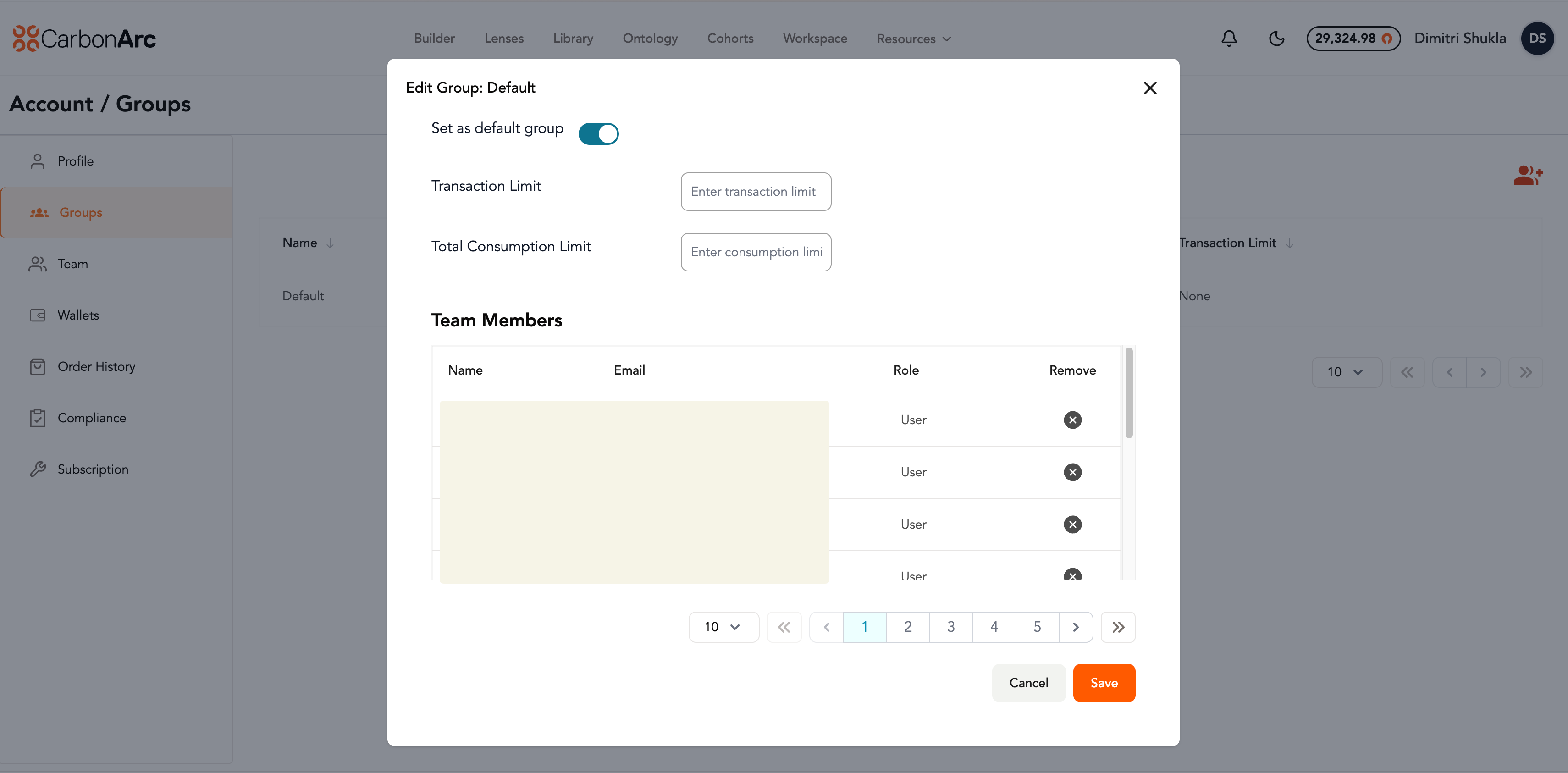
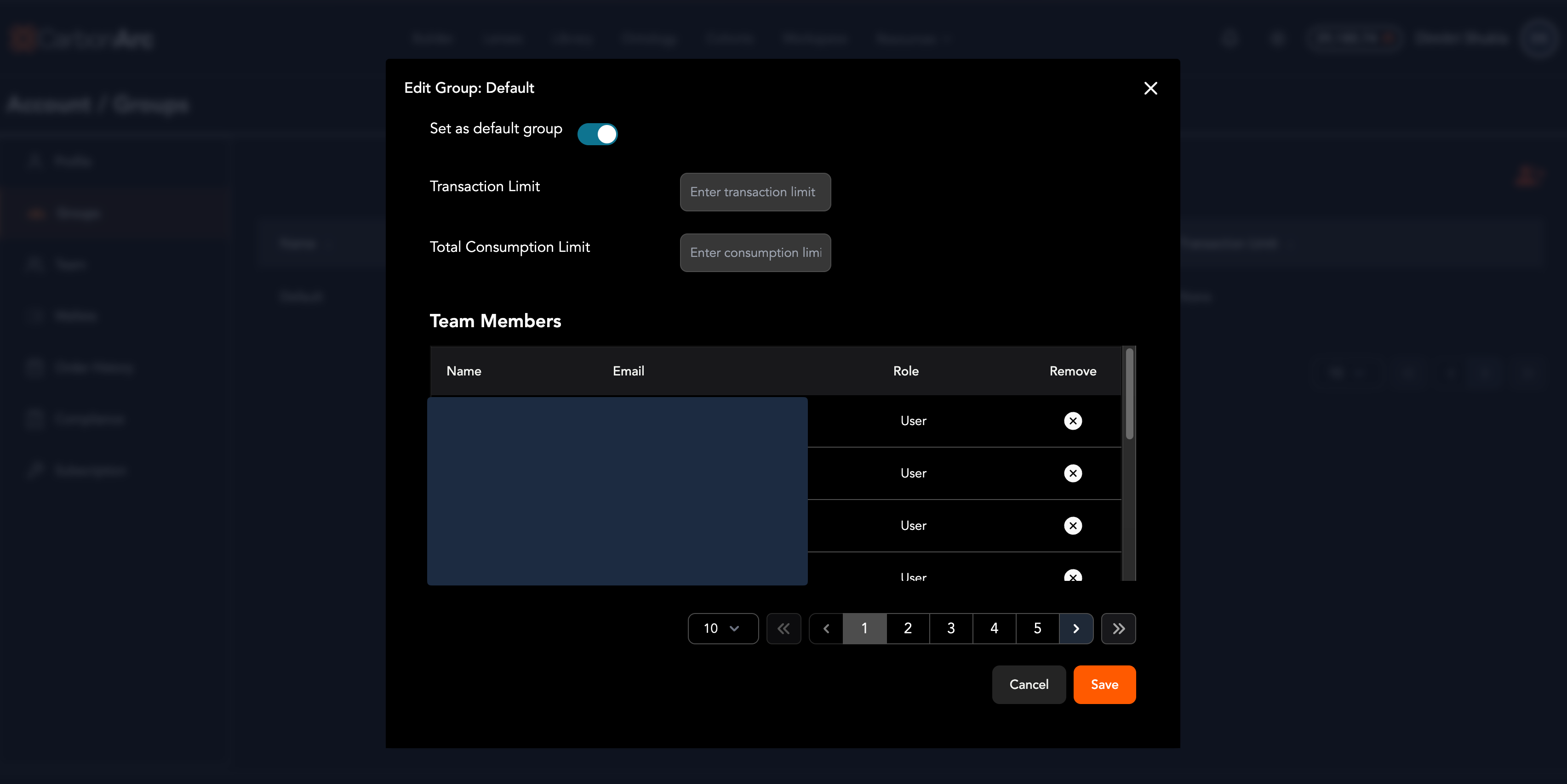
- Hover over the group and select the edit icon on the right side of the table.
- A modal will appear where you can:
- Set the group as a default
- Add/Remove/Edit Transaction Limit (platform, per transaction)
- Add/Remove/Edit Total Consumption Limit (platform, collective for the group)
- Add/Remove/Edit Maximum Consumption Limit per Period (MCP daily tokens, collective for the group)
- Revoke or restore MCP access for the group
- View/Remove Team Members
- Select Save to save changes.
Assign Group-Level MCP Limits and Access
When editing a group, Admins can apply MCP controls in addition to platform limits.
Maximum Consumption Limit per Period
- Open the group edit modal.
- Enter the total number of MCP tokens the group can consume in the Maximum Consumption Limit per Period field. Note that this limit is collective.
- Leave the period dropdown as Daily (it is inactive and auto-defaulted to daily). Currently, daily is the only supported period.
The limit resets each day at 12:00 AM Eastern Time, when the account’s normal MCP daily limit also resets. It applies to MCP usage in Lenses and external AI assistants (such as Claude or ChatGPT).
Applying a group MCP limit controls how many MCP tokens from the account’s overall token limit that group can consume. It does not create a separate MCP token pool for the group.
Revoke or restore MCP access
Admins can turn MCP access off or on for a group. Revoking MCP access:
- Removes members’ ability to consume MCP tokens
- Blocks their access to Lenses
If MCP access is revoked at the group level, users in that group cannot have MCP access turned back on at the individual level. Group-level revoke takes precedence. To restore access for those users, restore MCP access on the group first, then manage any individual user settings as needed.
Restoring access at the group level returns MCP and Lenses access for group members (subject to any individual user MCP access settings that remain revoked).
Understanding Usage Limits
When usage limits are applied to a group, every user in that group inherits those limits.
- Platform limits apply to data purchased in the Builder or through the SDK.
- MCP limits apply to Lenses and to external AI assistants that use the Carbon Arc MCP Server (for example, Claude or ChatGPT).
Collective group limits
Whenever a platform total consumption limit or an MCP daily limit is set at the group level, it applies to the collective consumption of that group.
Example: set a group MCP limit to 2,000 tokens with five users in the group. Those five users share the 2,000 token budget for the day. It does not mean each user gets 2,000 tokens.
Platform limits
-
Transaction Limits:
When a transaction limit is set for a group (e.g., 100 tokens), any user in that group can only consume 100 platform tokens per transaction in Builder or the SDK. -
Total Consumption Limit:
Setting a total consumption limit for a group is like setting the total spend or budget for a team in Builder or the SDK. For example, if a consumption limit is set for 1,000 tokens, all team members in that group cannot exceed a total spend of 1,000 platform tokens.- The total consumption for a group cannot be reset. However, you can reset an individuals total consumption which effect the total consumption of the group they are in.
- To allow additional spending after the limit is reached, you can edit the group and increase the limit.
Note: If a user is moved from Group A to Group B, their consumption while in Group A applies to Group A’s consumption limit (if any).
Group vs user limits
-
Group vs User Transaction Limits:
Usage limits can be assigned at both the User and Group level. If a user has both a User Transaction Limit and a Group Transaction Limit, the lowest limit will apply when consuming tokens. -
Group vs User Consumption Limits (platform and MCP):
If a consumption limit is applied to both the user and their group, whichever limit is reached first will apply. You also cannot assign an individual user a higher consumption limit than a group limit they already belong to.- Example: If a group has a 1,000 token limit that has already been reached, and a user has a 500 token limit, even if the user has only consumed 400 tokens, they will still be blocked from spending tokens because the group limit has been reached.
For user-level platform resets, MCP daily limits, and the Team Consumption tab, see Assign User-Level Limits.