Codex Setup Guide
This guide walks you through setting up Carbon Arc's MCP Server with Codex (OpenAI's coding assistant).
Requirements
- A Codex account
- A Carbon Arc platform account
Setup Instructions
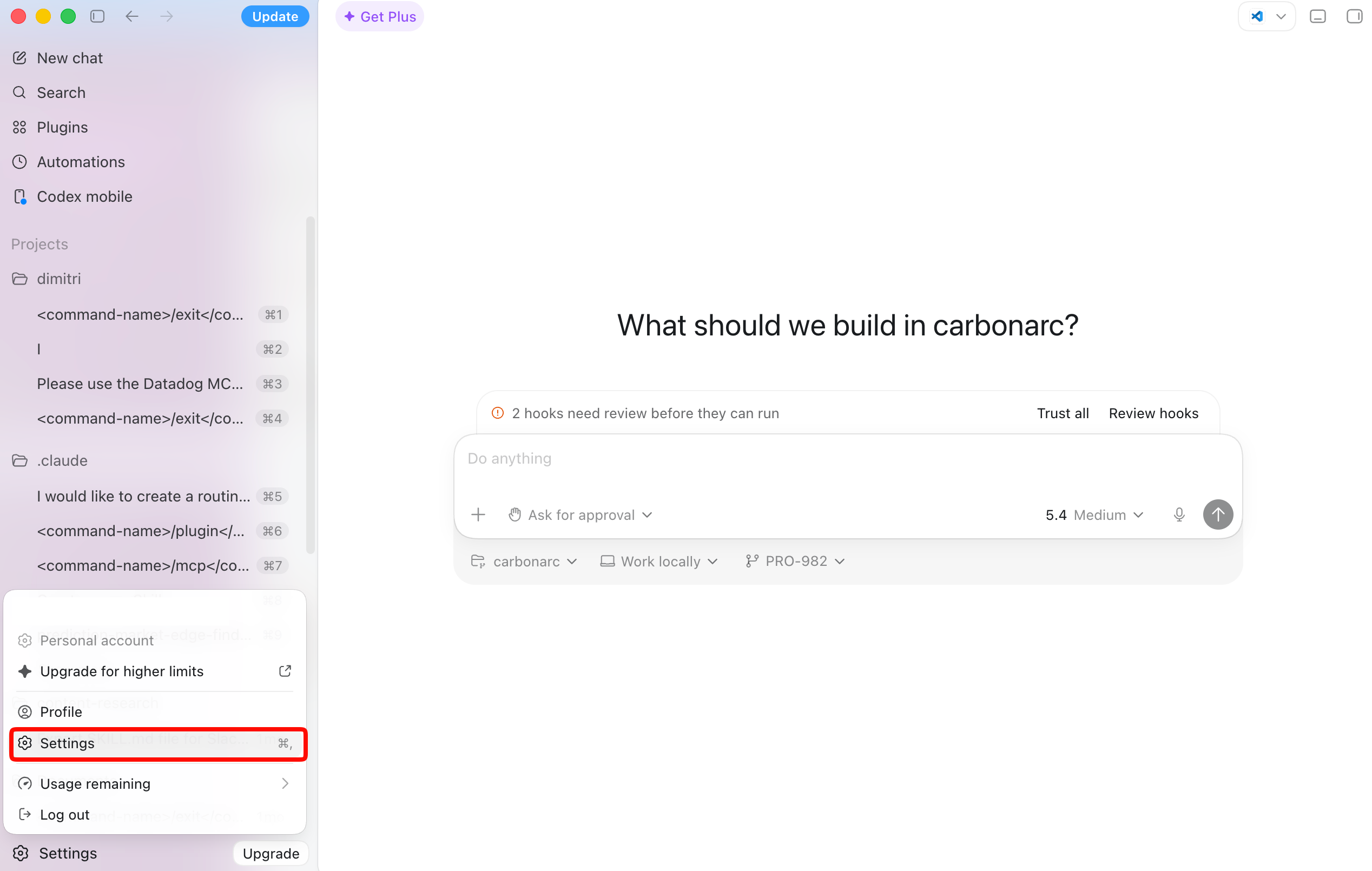
Step 1: Open Settings
In Codex, click on the Settings icon in the bottom left and navigate to Settings → Settings.
Step 2: Navigate to MCP Servers
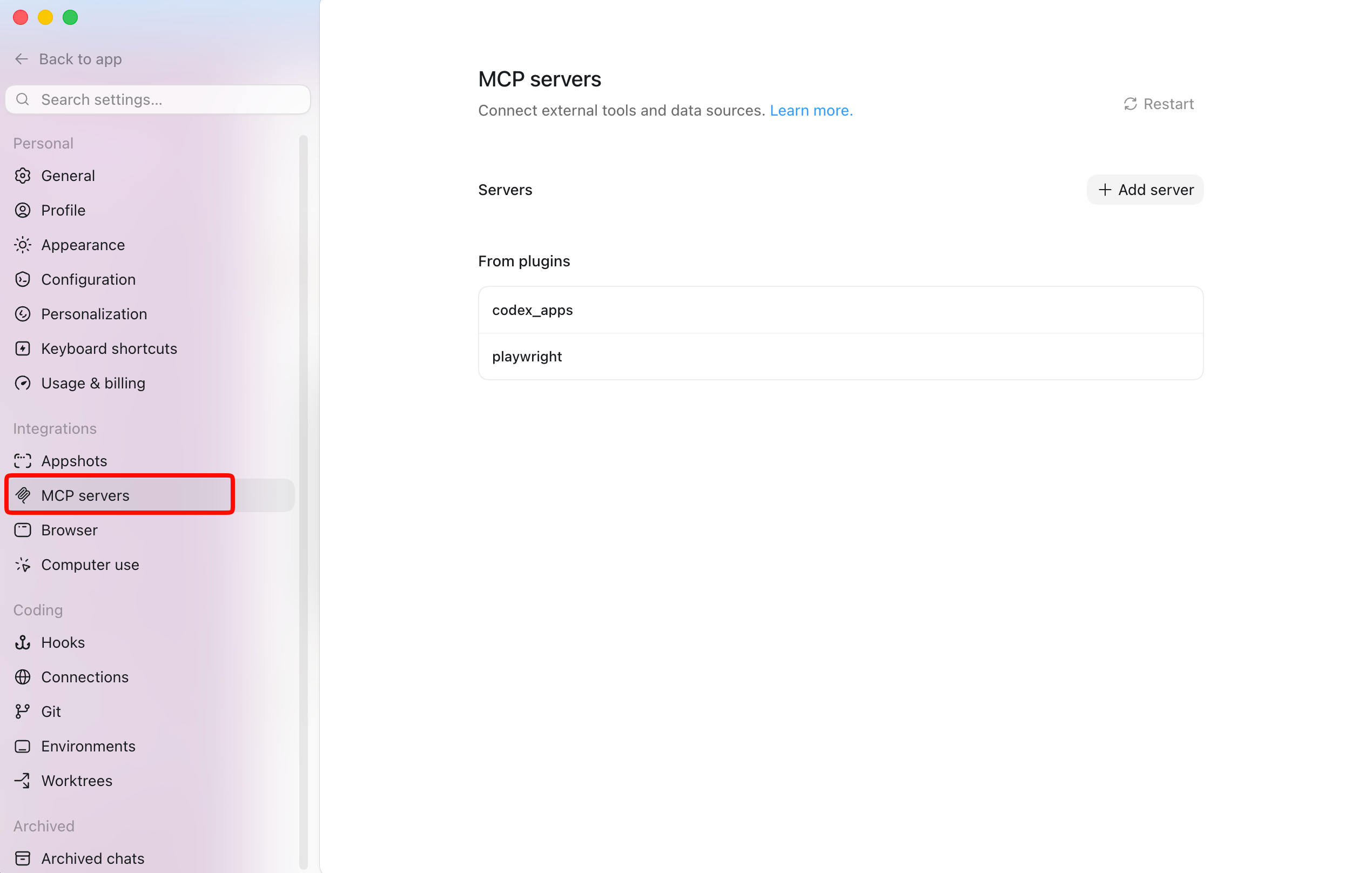
Click on the MCP servers tab in the Integrations section.
Step 3: Select Streamable HTTP option
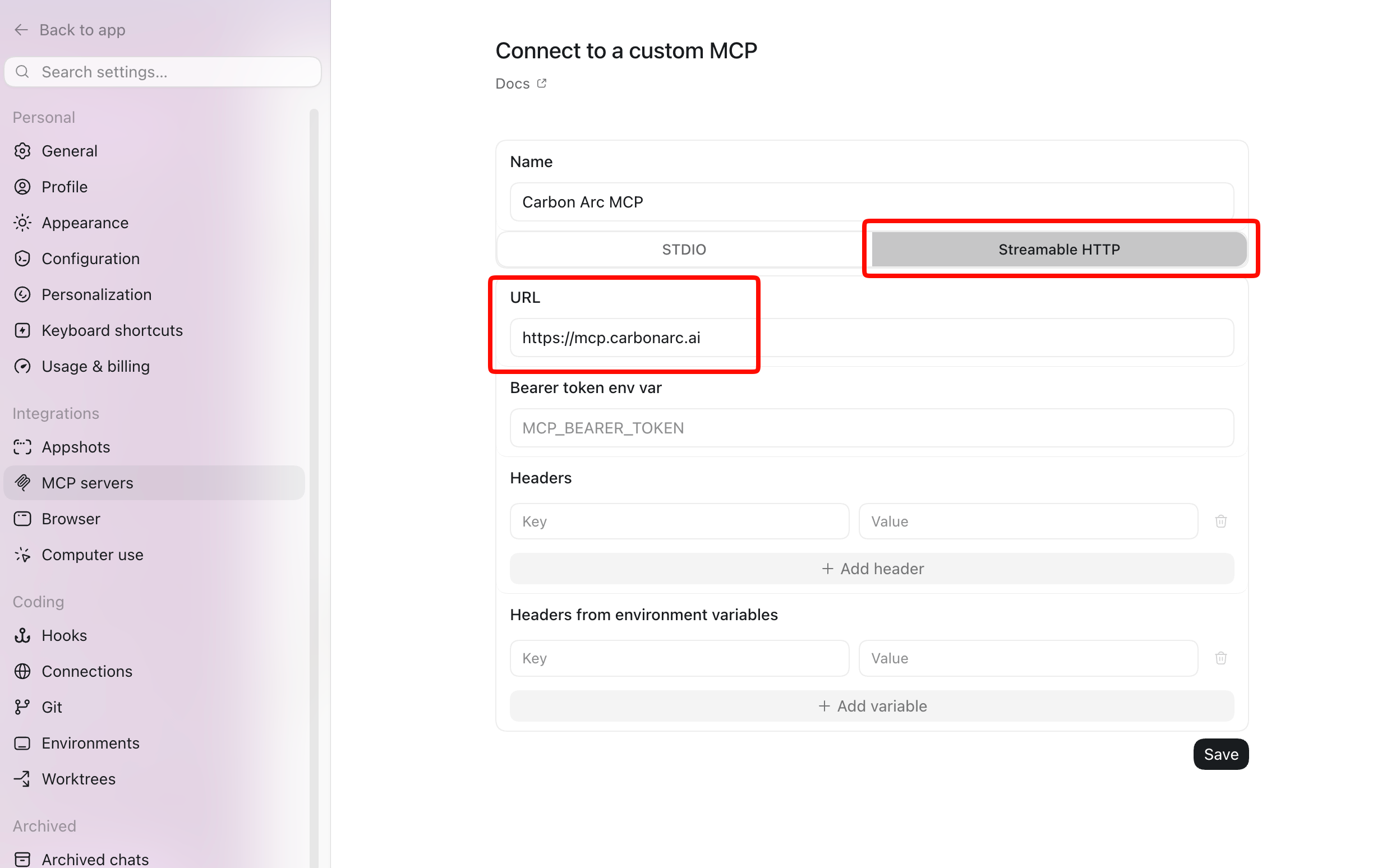
Click Add server, then select Streamable HTTP as the connection type.
Step 4: Enter the MCP Server URL
Enter the Carbon Arc MCP Server URL:
| Field | Value |
|---|---|
| URL | https://mcp.carbonarc.ai |
Step 5: Authenticate
You have two options to authenticate:
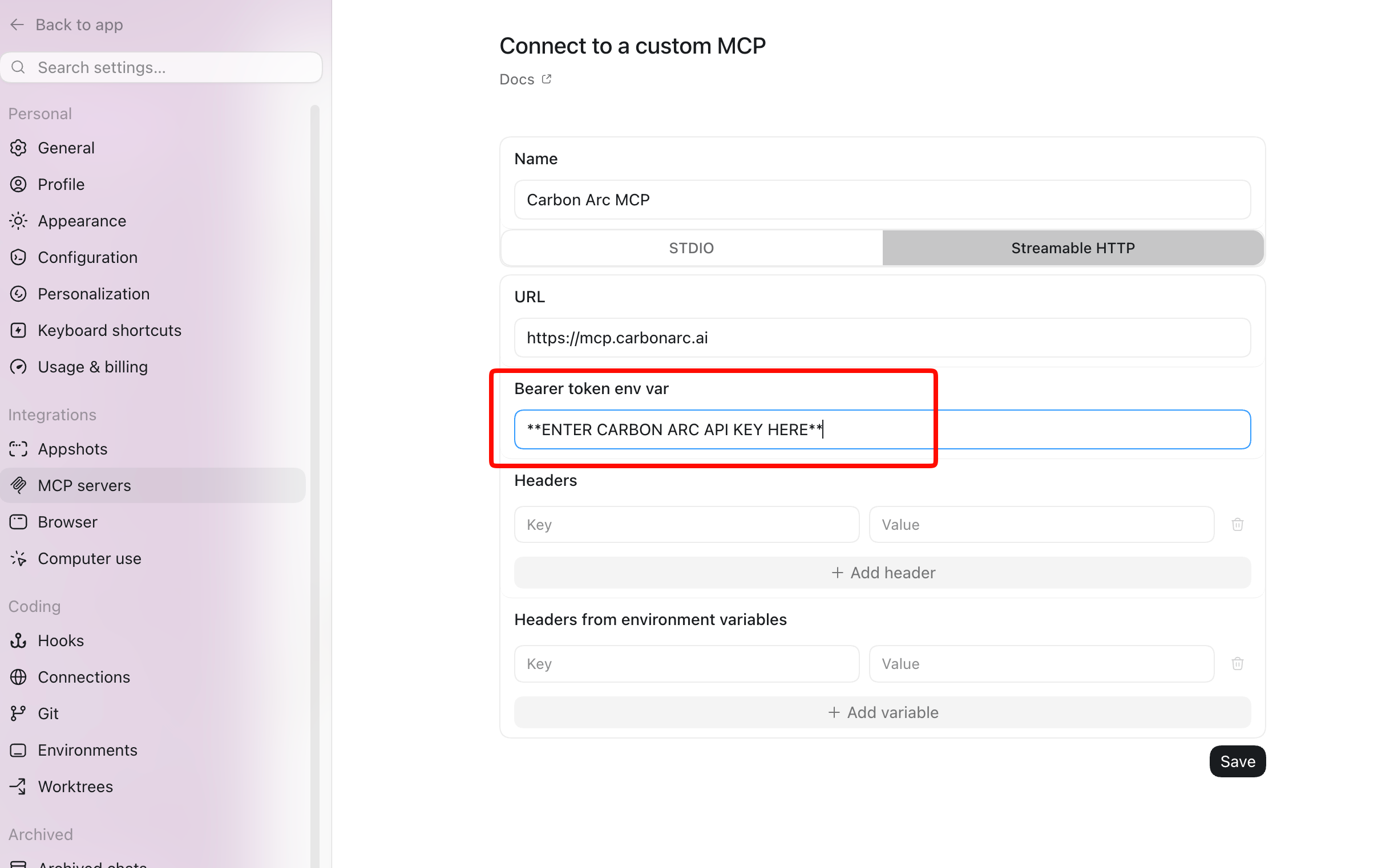
Option A — API Key (Bearer Token)
In the MCP server configuration, enter your Carbon Arc API Key in the Bearer token environment variable field. You can find your Carbon Arc API key on your Carbon Arc profile page.
Option B — Sign In via Browser
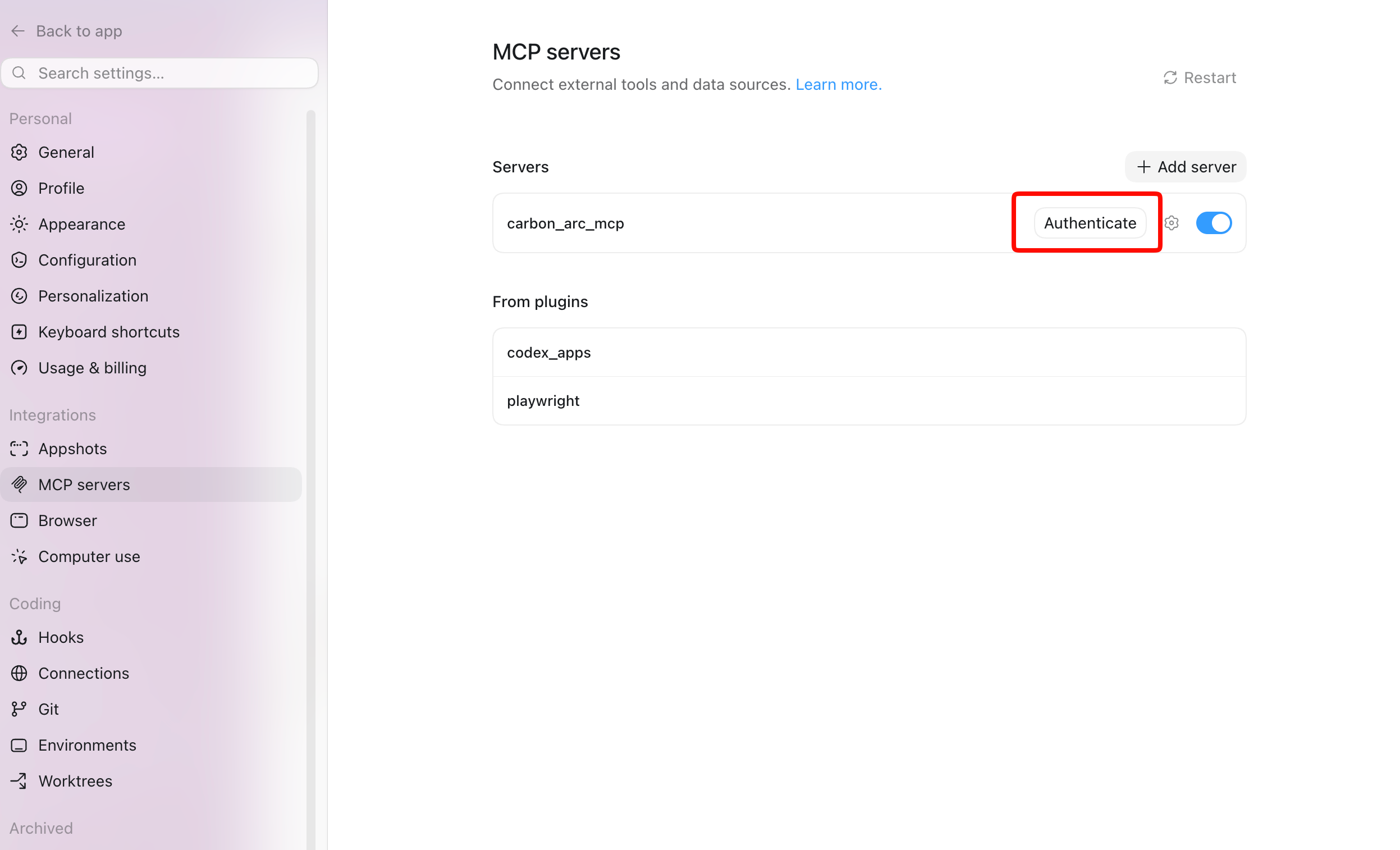
Save the MCP server after entering the URL, then click Authenticate. A browser window will open — sign in with your Carbon Arc credentials.
Tips for Codex
- If Codex doesn't use the MCP tools, try adding "use mcp tools" to your prompt
- All responses include structured data that Codex can use for follow-up questions
- You can ask Codex to explain or visualize the data it retrieves
Next Steps
- Learn about MCP Best Practices
- Explore the MCP Tools available