PowerPoint Plug-in Setup
The Carbon Arc MCP PowerPoint Plug-in uses the Claude Add-in for PowerPoint combined with your configured Carbon Arc MCP connectors to bring the power of the Carbon Arc MCP Server directly into Microsoft PowerPoint. Query Carbon Arc data and surface insights directly into your presentation.
Contact us at support@carbonarc.co to request access.
Video Demo
See the Carbon Arc MCP PowerPoint Plug-in in action:
What Can You Do?
With the MCP PowerPoint Plug-in, you can:
- Query Carbon Arc data — Pull insights and entity data directly into your slides
- Build data-driven presentations — Populate charts and talking points backed by institutional-grade data on real-world outcomes
- Surface insights on demand — Compare companies and track performance without leaving your presentation
Getting Started
Requirements
Before you begin, make sure you have:
- A Claude account with the Carbon Arc MCP connectors configured — see the Claude Setup Guide if you haven't set this up yet
- A Carbon Arc platform account
- A Microsoft 365 account with access to PowerPoint
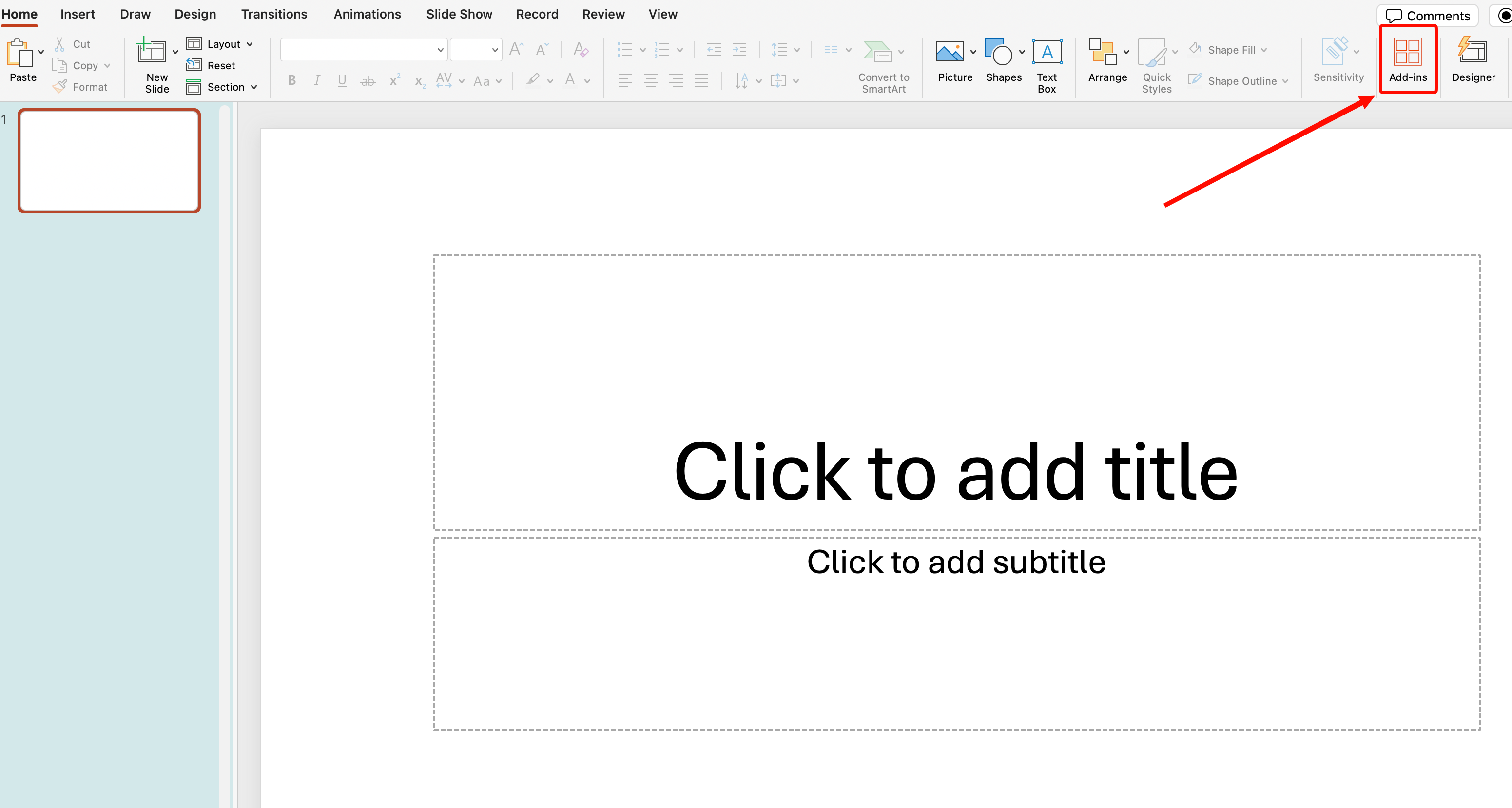
Step 1: Open the Add-ins Menu
In PowerPoint, go to the Home tab and click Add-ins.
Step 2: Install the Claude Add-in
Search for Claude in the Add-ins store and install it.
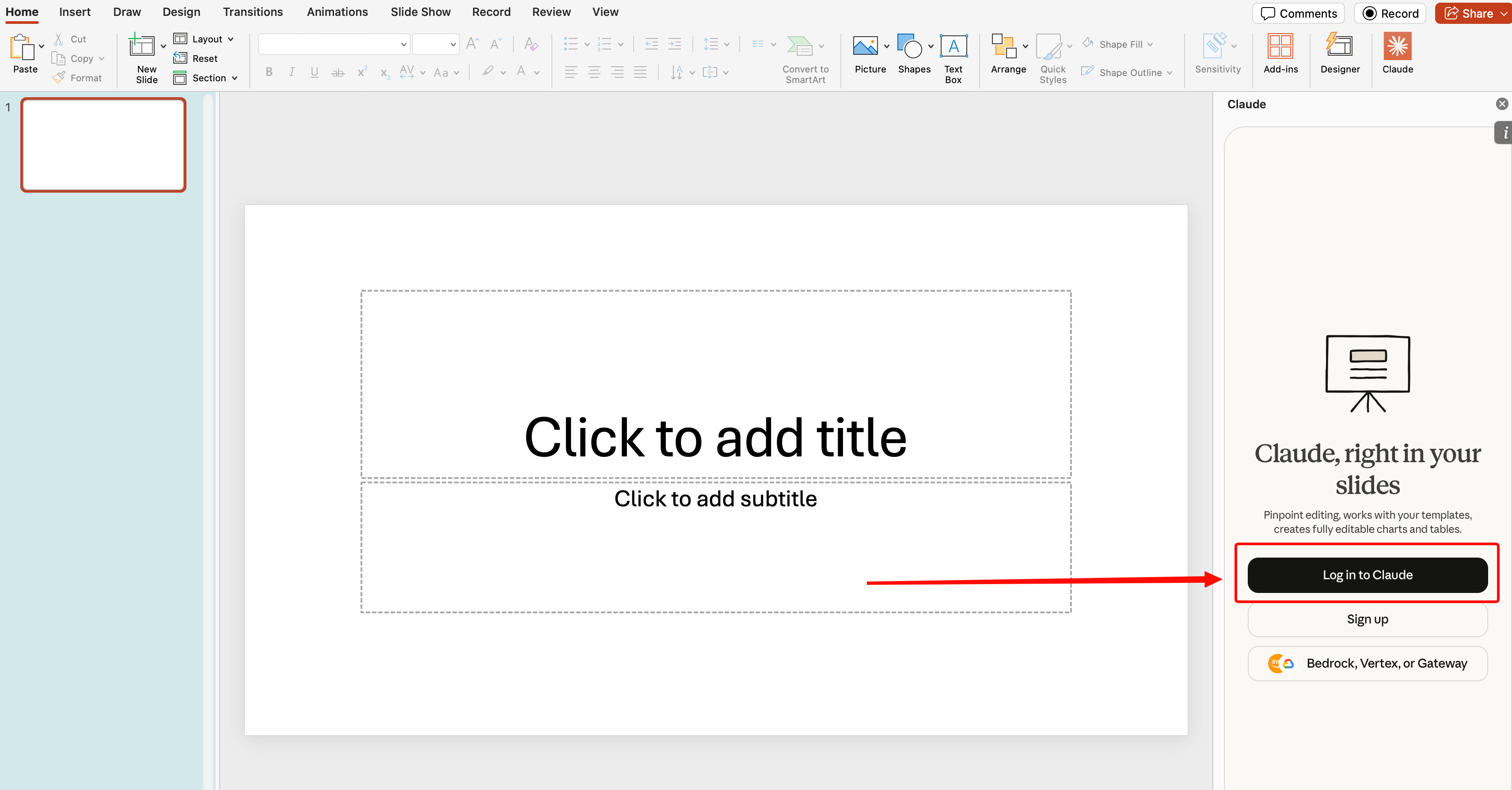
Step 3: Sign In to Claude
Open the Claude add-in panel and sign in with your Claude account credentials.
Step 4: Start Querying Carbon Arc Data
With your Carbon Arc MCP connectors already configured on your Claude account, you can start asking natural language questions directly in PowerPoint. Results will populate into your presentation.

The setup steps are identical for the Excel plug-in. See the Excel Plug-in Setup page for reference.