ChatGPT Setup Guide
This guide walks you through setting up Carbon Arc's MCP Server with ChatGPT (OpenAI's AI assistant).
Video Walkthrough
Watch this quick video to see the full setup process:
Requirements
- A ChatGPT account
- A Carbon Arc platform account
Setup Instructions
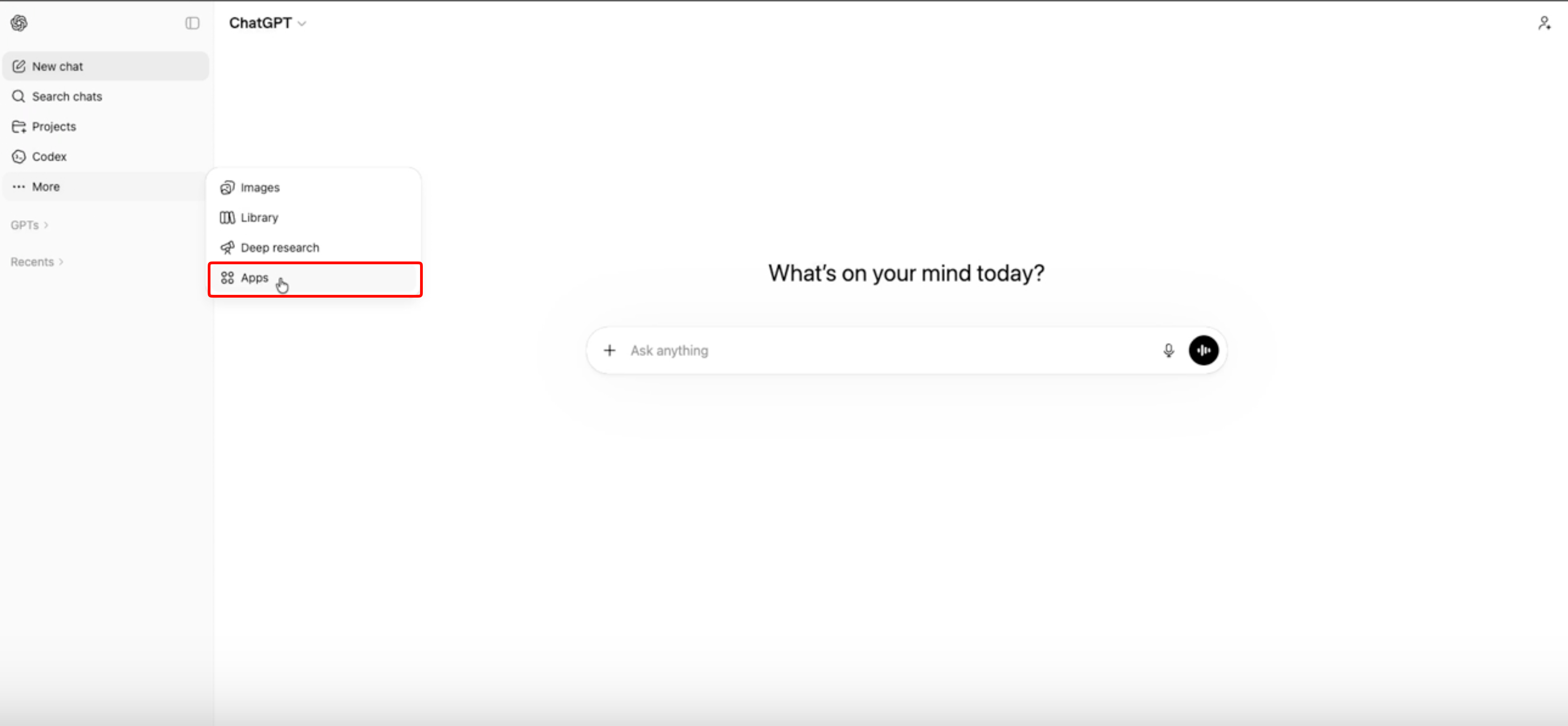
Step 1: Open ChatGPT Settings
Go to More → Apps in your ChatGPT application.
Optional
Turn on Developer Mode for additional features.
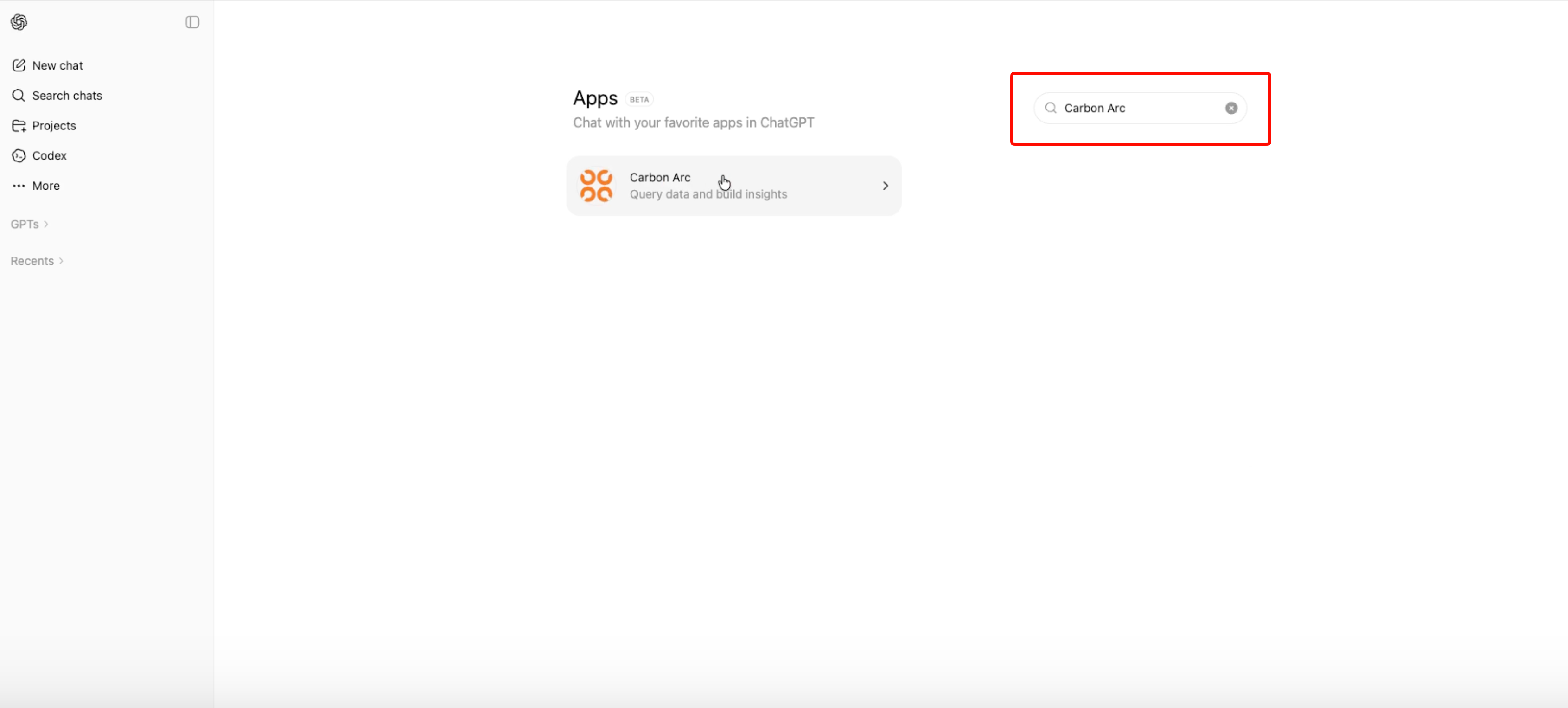
Step 2: Search for Carbon Arc
In the Apps section, search for Carbon Arc to find the app listing.
Step 3: Connect the App
Click on Carbon Arc in the search results, then click Connect to add it to ChatGPT.

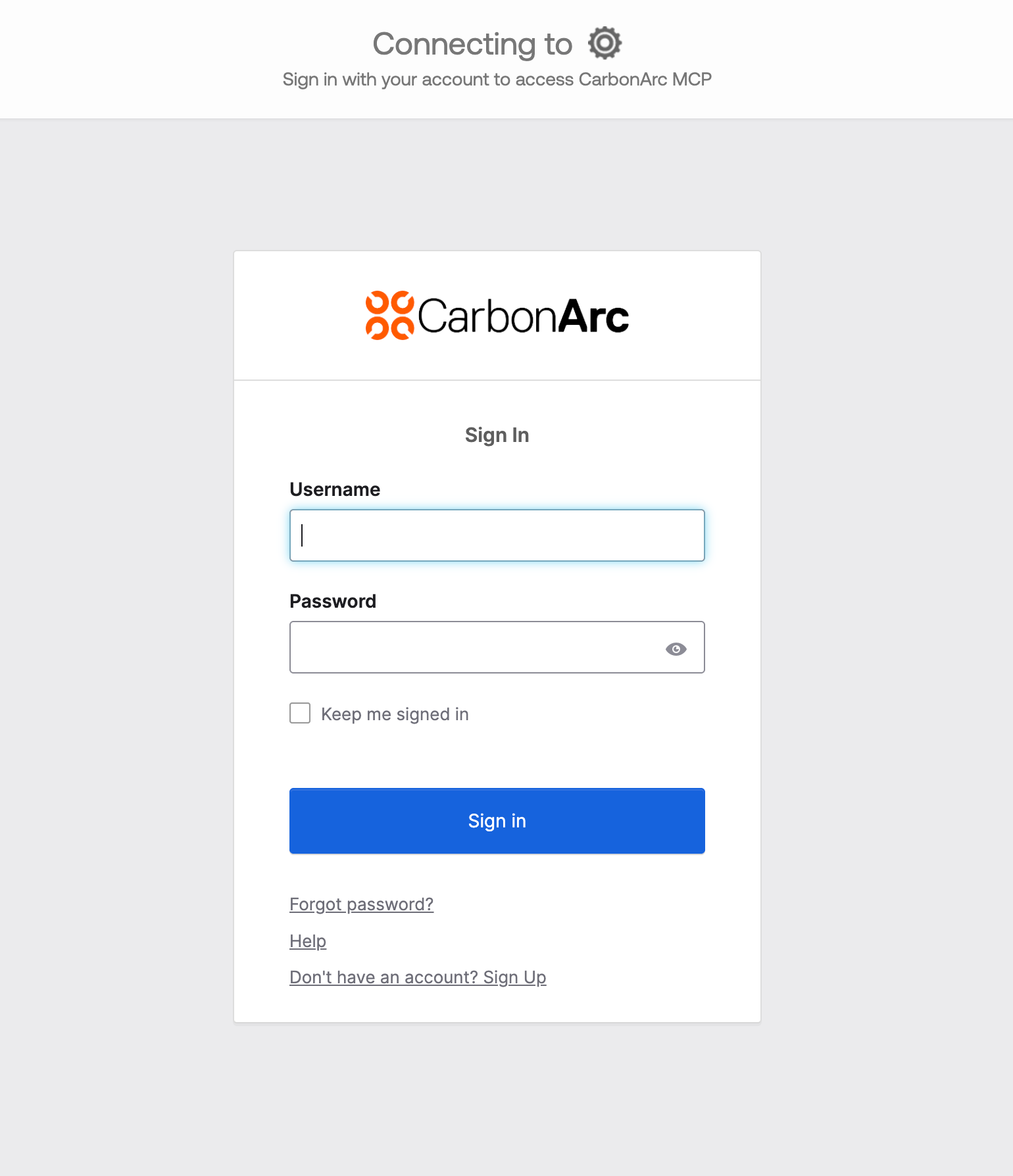
Step 4: Sign In at Carbon Arc
When prompted, sign in with your Carbon Arc credentials to authenticate. If you don't have a Carbon Arc account yet, you can create one by clicking Don't have an account? Sign Up.
Tips for ChatGPT
- Make sure to select the Carbon Arc MCP tool using the + menu before prompting
- If ChatGPT doesn't use the MCP tools, try adding "use mcp tools" to your prompt
- All responses include structured data that ChatGPT can use for follow-up questions
- You can ask ChatGPT to explain or visualize the data it retrieves
Next Steps
- Learn about MCP Best Practices
- Explore the MCP Tools available