Perplexity Setup Guide
This guide walks you through setting up Carbon Arc's MCP Server with Perplexity (Perplexity AI's assistant).
Video Walkthrough
Watch this quick video to see the full setup process:
Requirements
- A Perplexity account
- A Carbon Arc platform account
Setup Instructions
Step 1: Open Perplexity Connectors
Go to All Settings → Connectors in your Perplexity application.
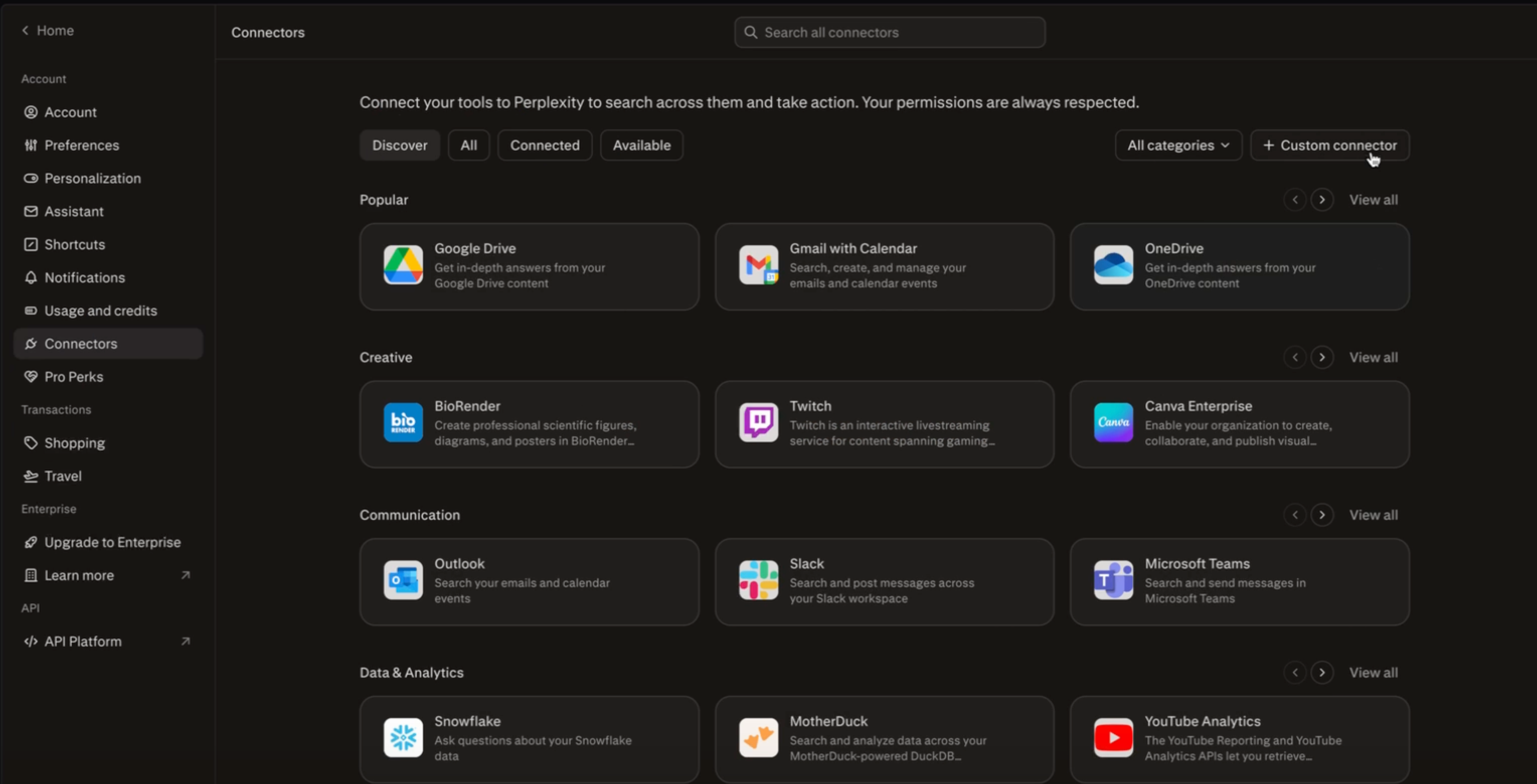
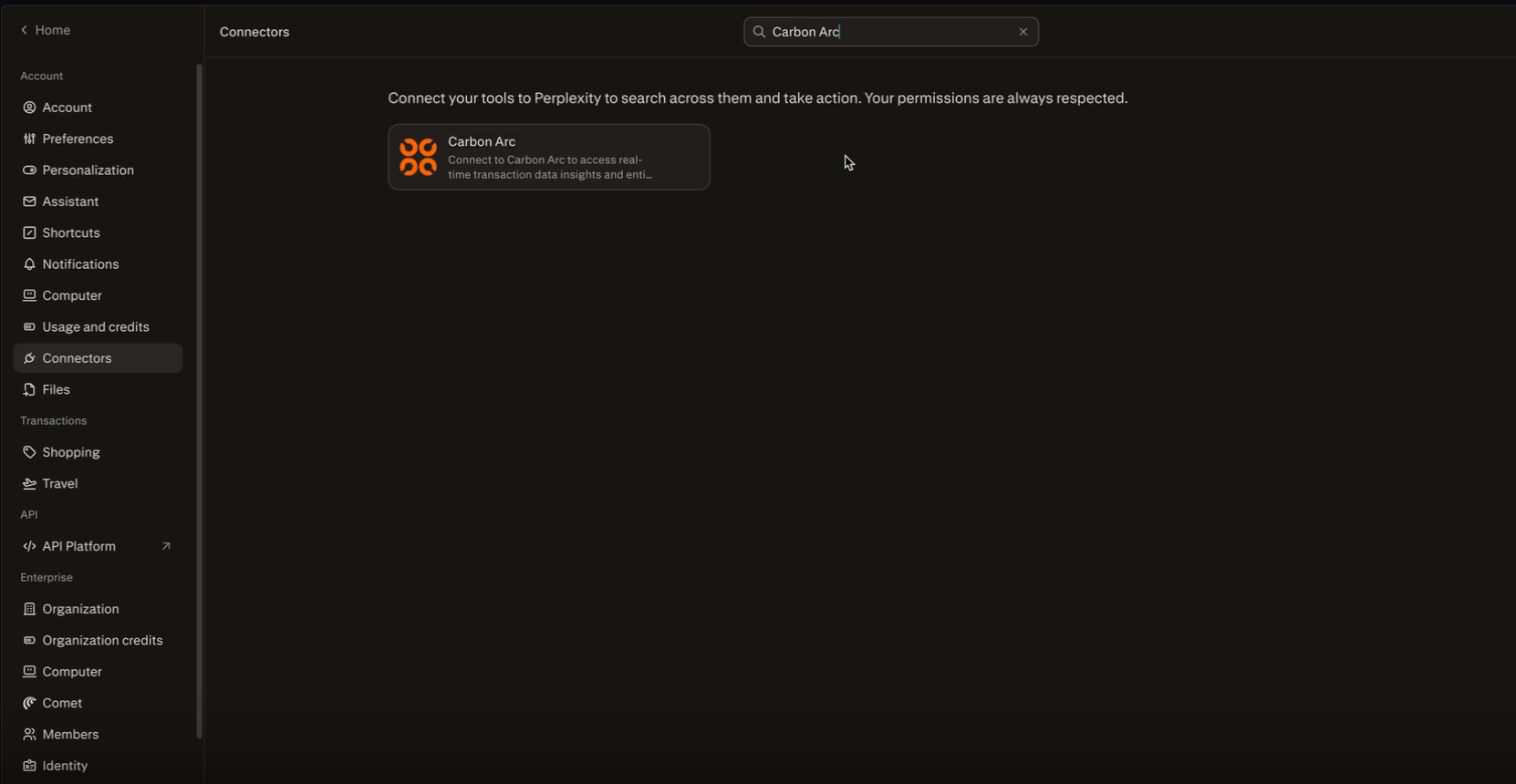
Step 2: Search for Carbon Arc
In the Connectors section, search for Carbon Arc to find the connector listing.
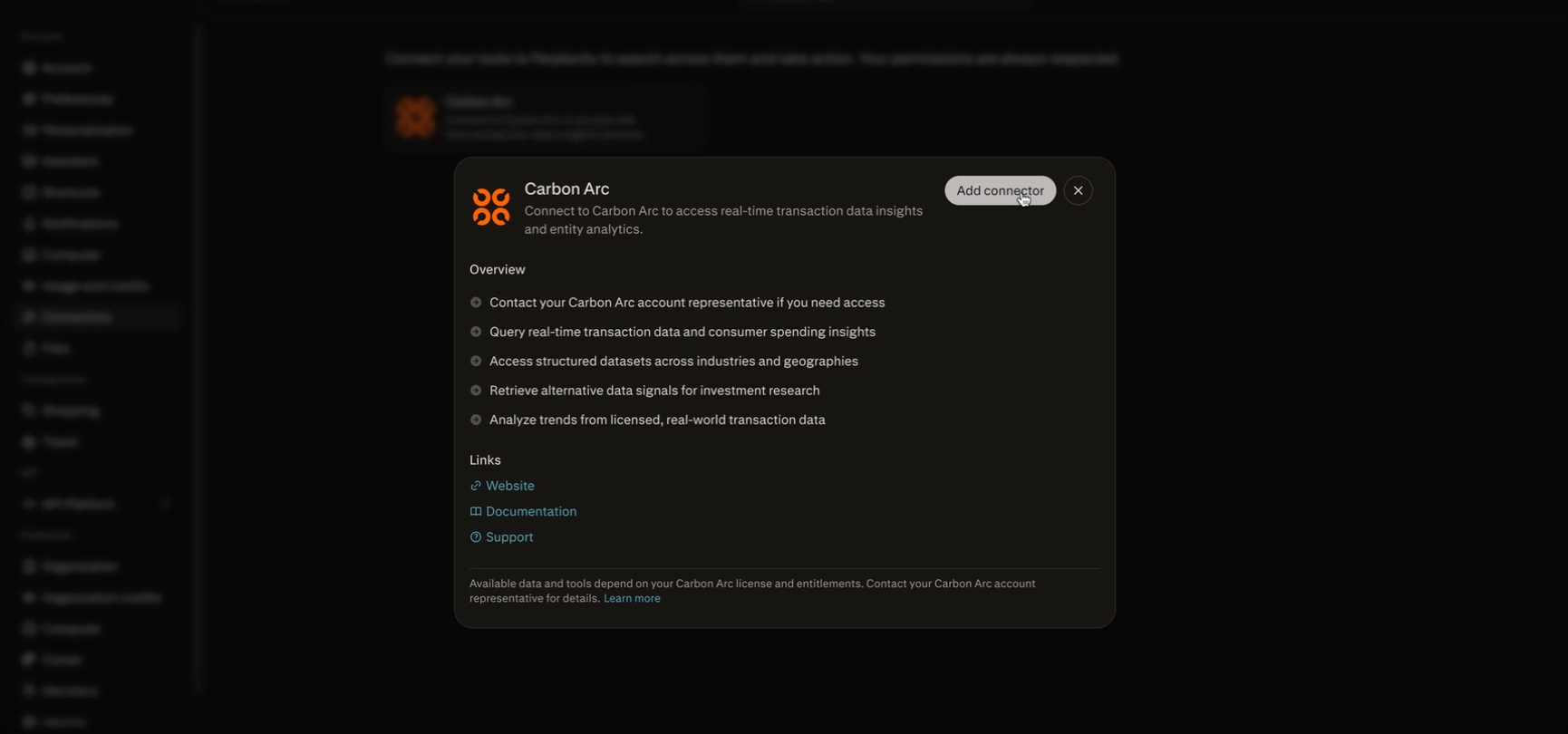
Step 3: Add the Connector
Click on Carbon Arc in the search results, then click Add connector to add it to your Perplexity.
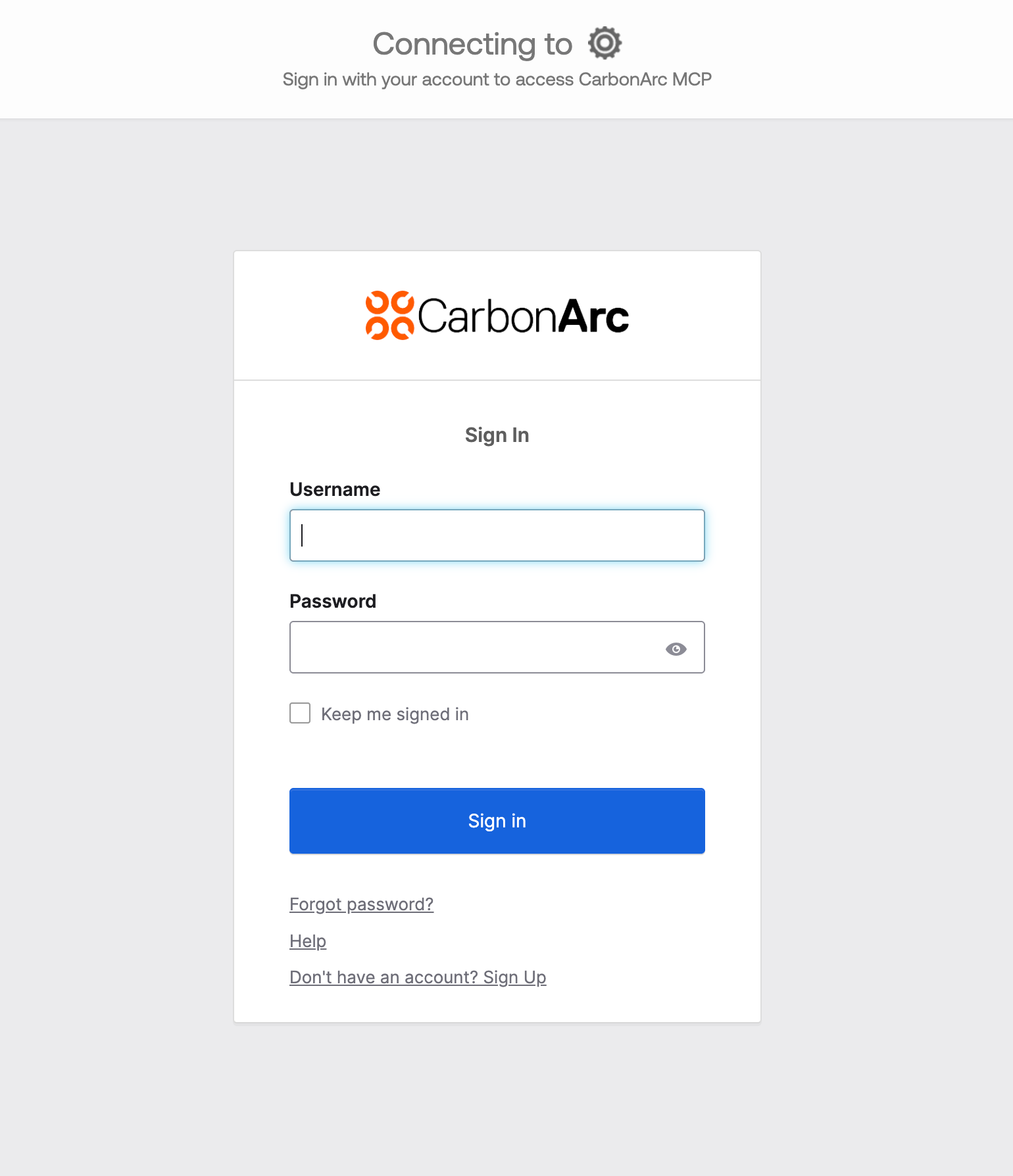
Step 4: Sign In at Carbon Arc
When prompted, sign in with your Carbon Arc credentials to authenticate. If you don't have a Carbon Arc account yet, you can create one by clicking Don't have an account? Sign Up.
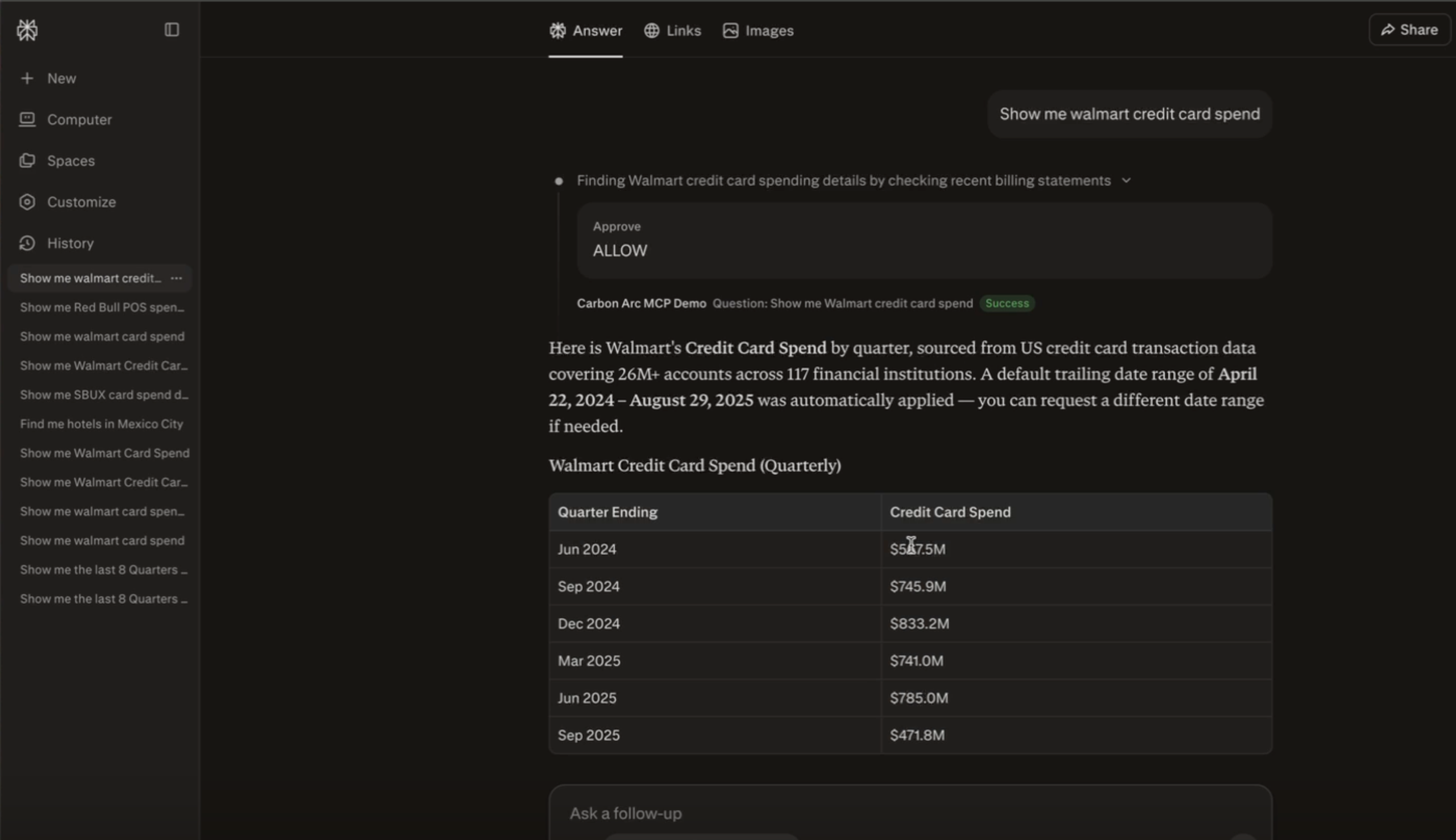
Step 5: Start Querying
Open a new chat and start asking questions like:
"Show me Walmart Credit Card Spend"
Tips for Perplexity
- If Perplexity doesn't use the MCP tools, try adding "use mcp tools" to your prompt
- All responses include structured data that Perplexity can use for follow-up questions
- You can ask Perplexity to explain or visualize the data it retrieves
Next Steps
- Learn about MCP Best Practices
- Explore the MCP Tools available