Order History
Overview
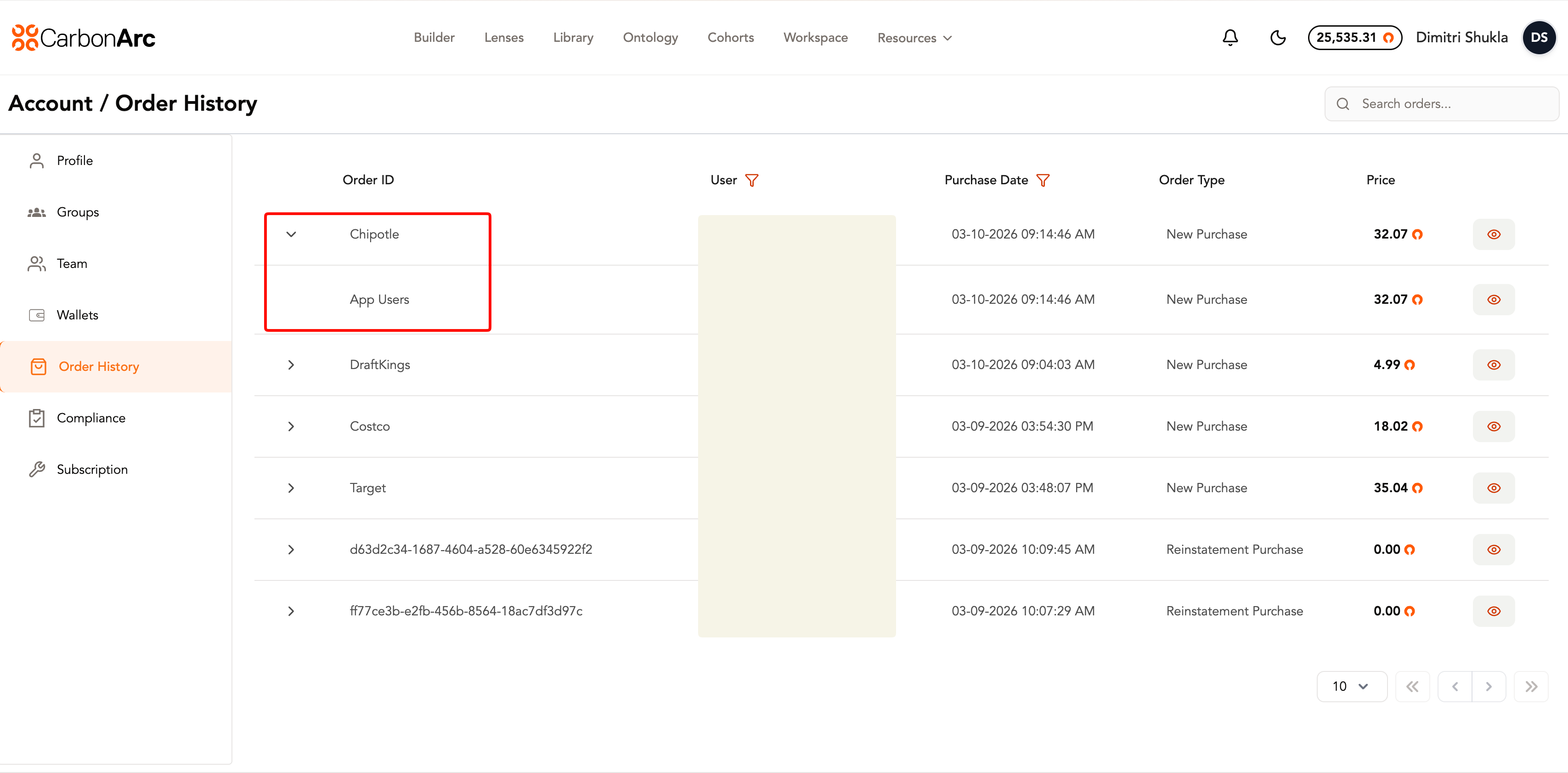
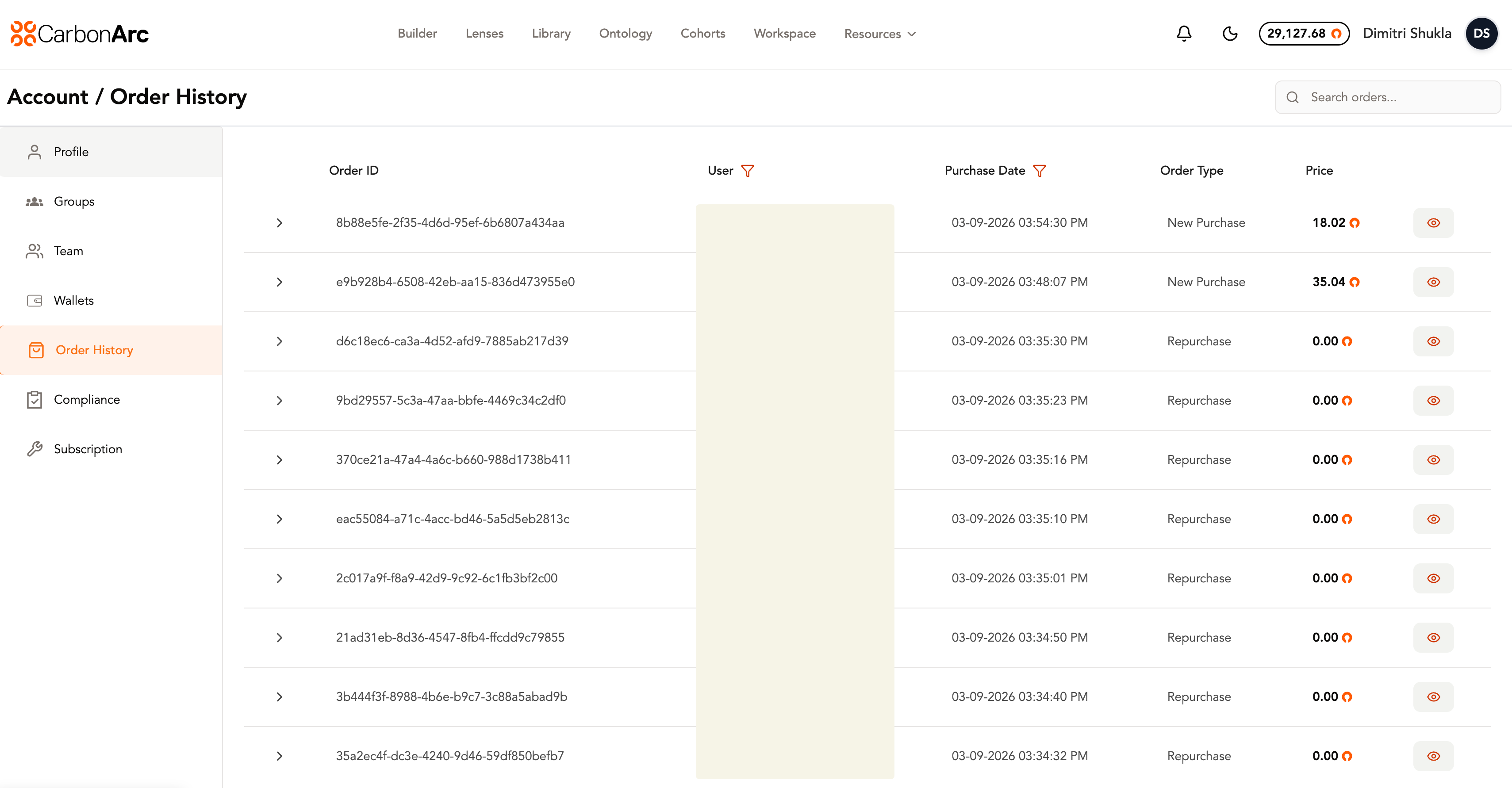
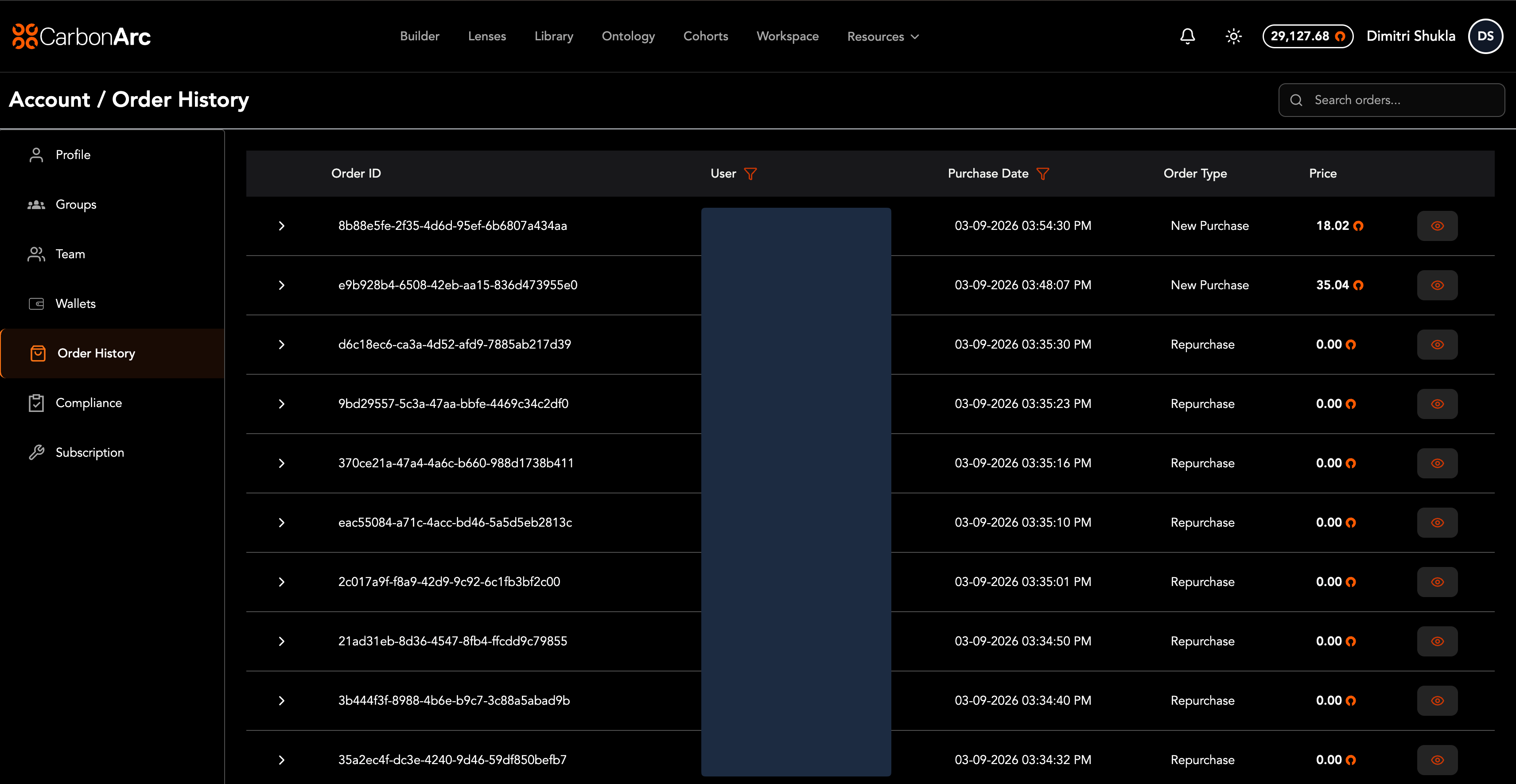
The Order History page shows a table of all your orders, both on the platform and via the Python SDK.
- Client Admins / Super Admins: Can view all orders across the platform.
- Users: Can only view their own orders.
The order table displays the following columns:
- Order ID – Unique identifier for the order, or the custom name if one has been assigned
- User Email – Email of the user who placed the order
- Purchase Date – Date the order was placed
- Order Type – Type of order (e.g., token purchase)
- Price – Total price of the order
To view more details for a specific order, select the View Order icon. This will take you to the Order Details page which contains the timeseries data, framework code, and framework information.
Naming Orders and Frameworks
You can assign custom names to your orders and the individual frameworks within them, making it easier to identify and organize your purchases at a glance.
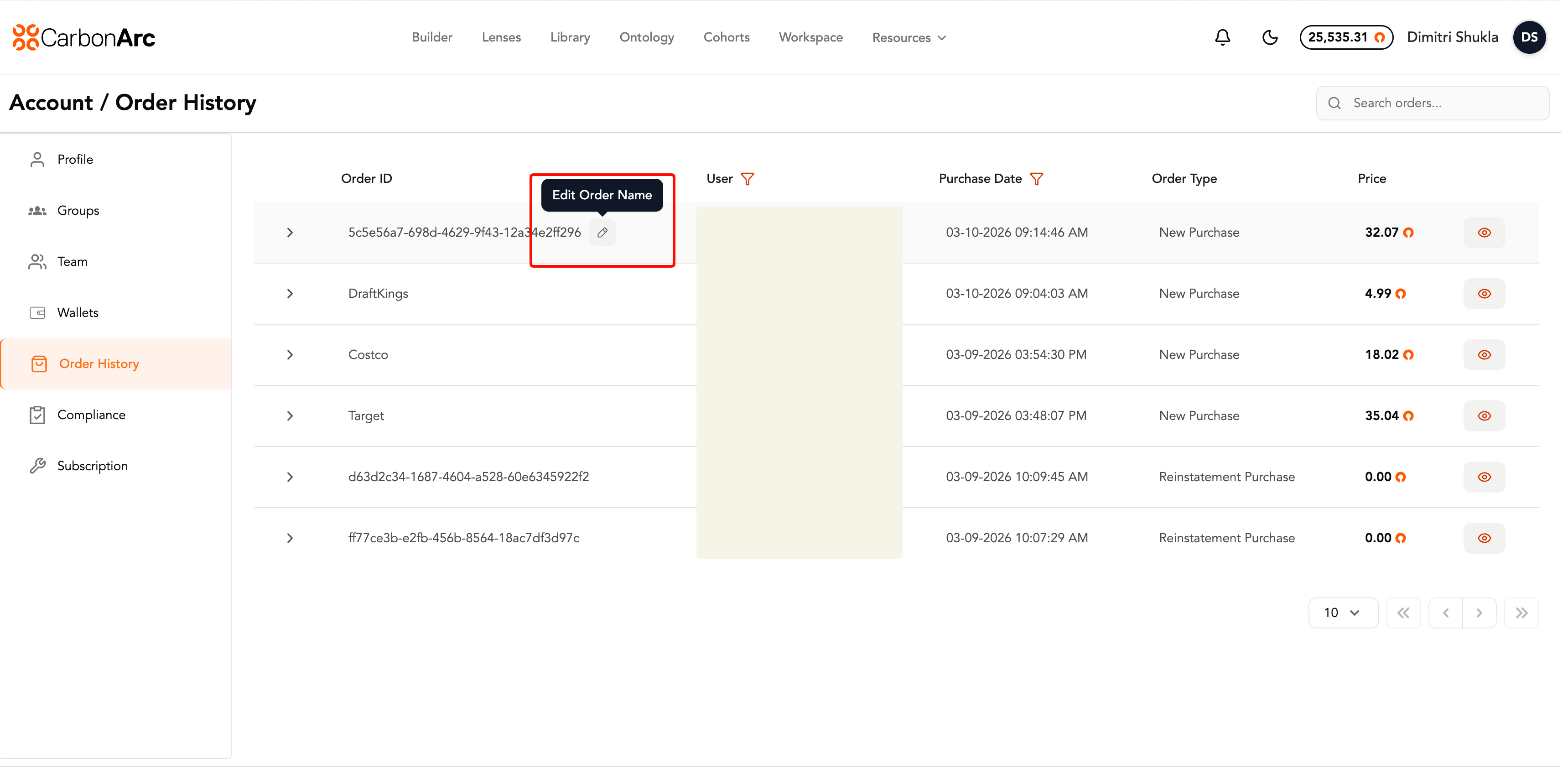
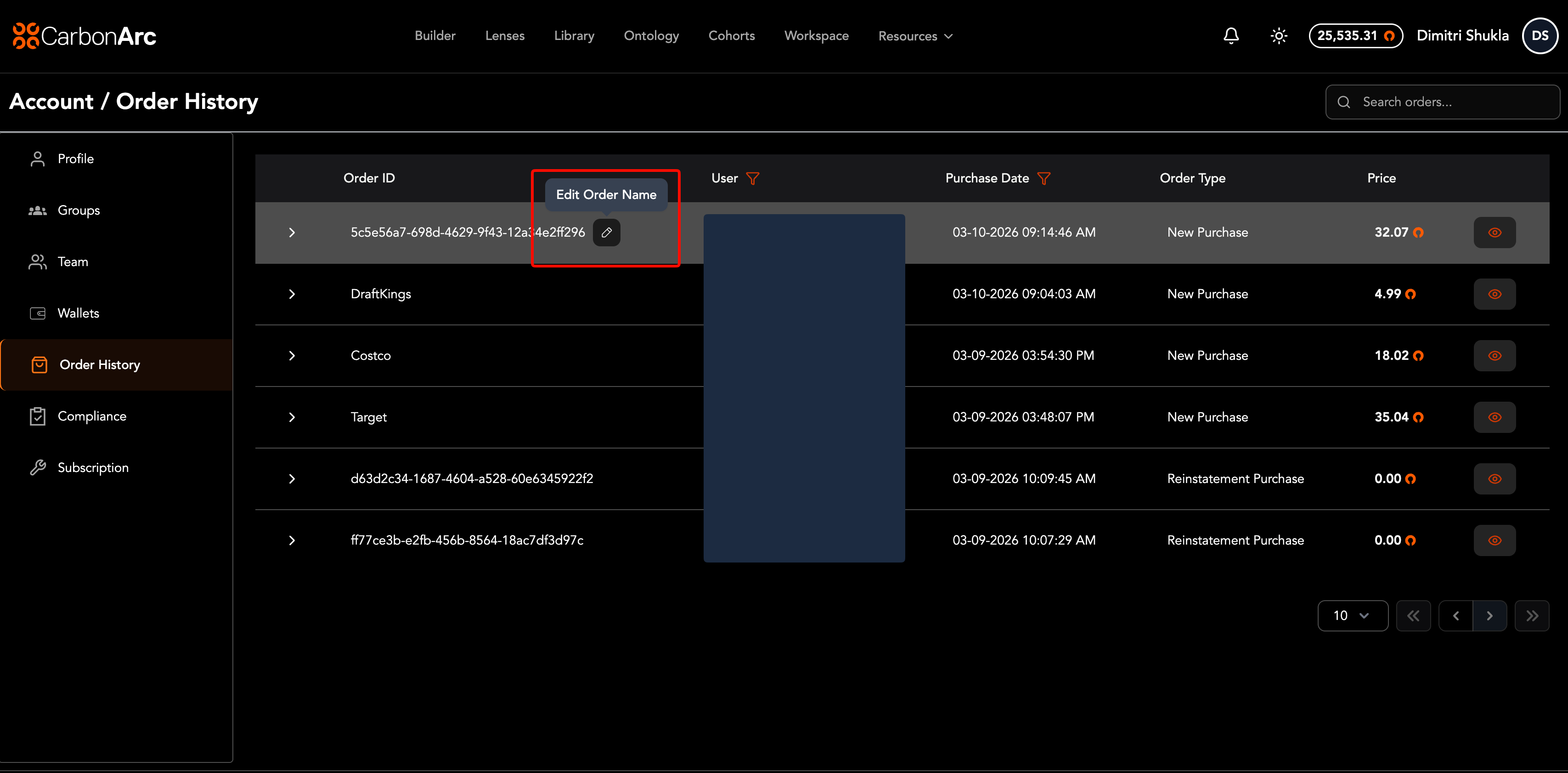
Edit Order Name
- Hover over the Order ID and select the Edit (pencil) icon that appears next to it.
- In the Edit Order Name dialog, enter a custom name for the order.
- Select Update to save the name, or Cancel to discard changes.
Edit Framework Name
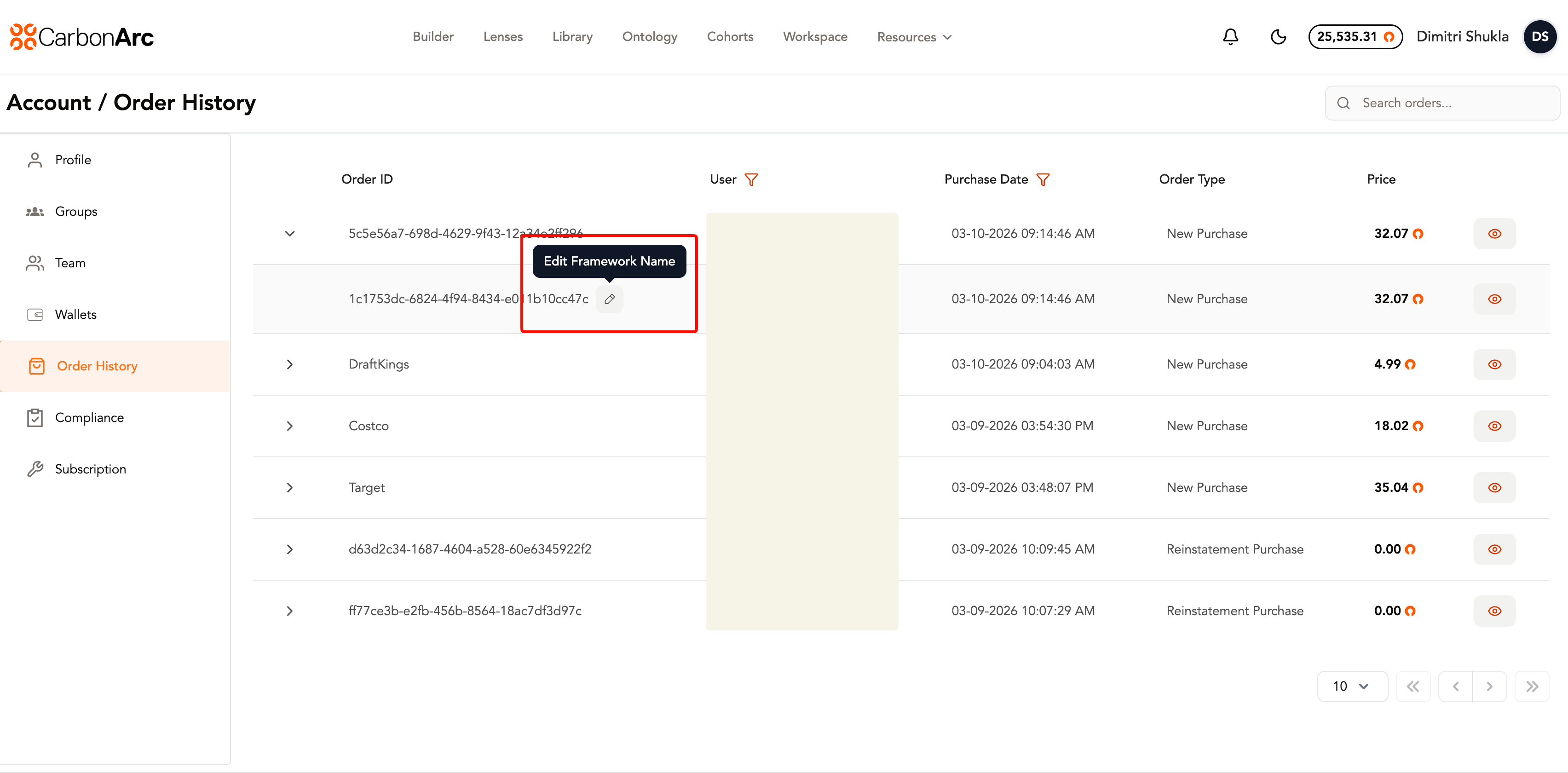
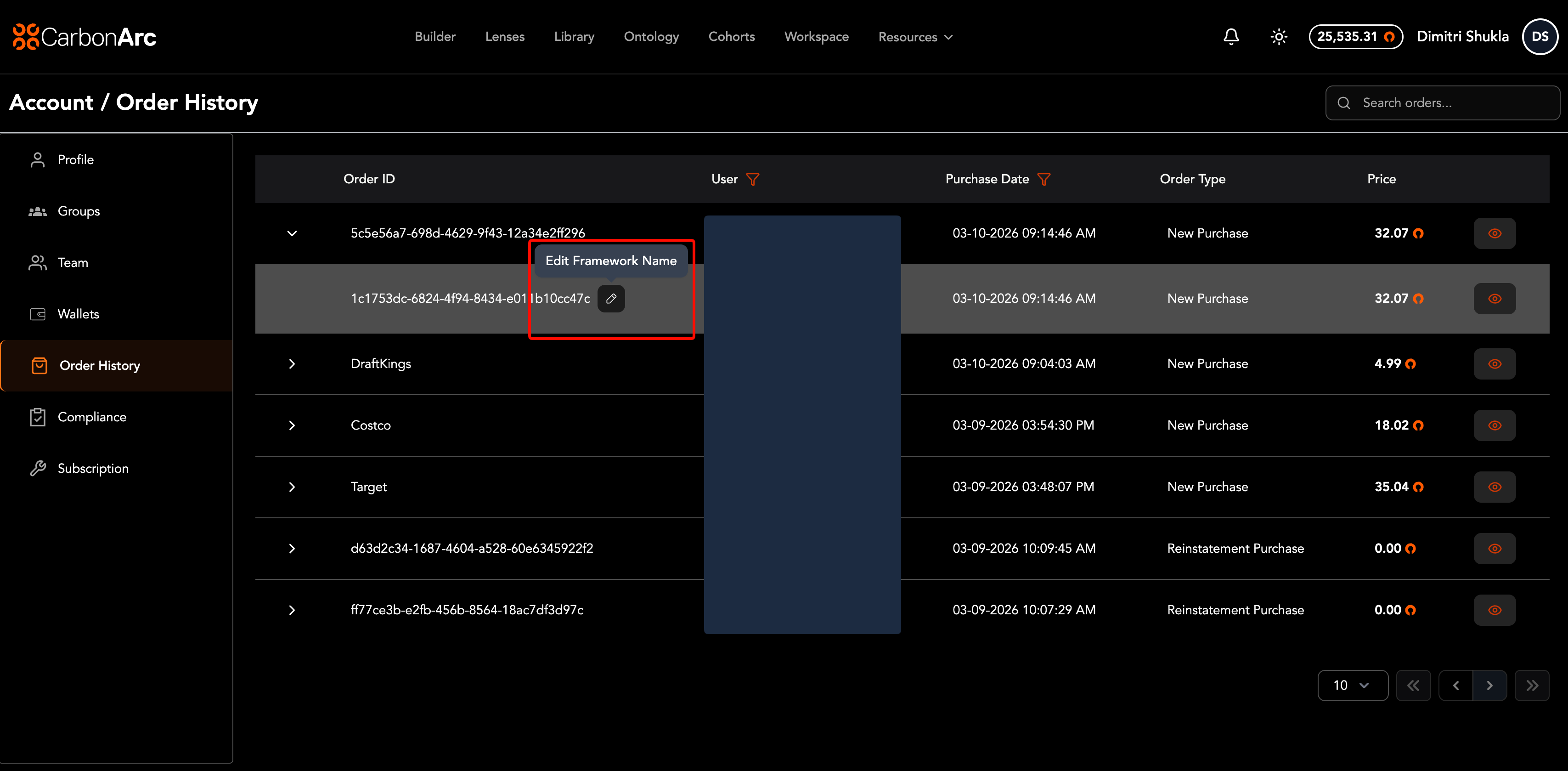
- Expand an order by selecting its row to reveal the frameworks within it.
- Hover over the Framework ID and select the Edit (pencil) icon that appears next to it.
- In the Edit Framework Name dialog, enter a custom name for the framework.
- Select Update to save the name, or Cancel to discard changes.
Custom Names in Action
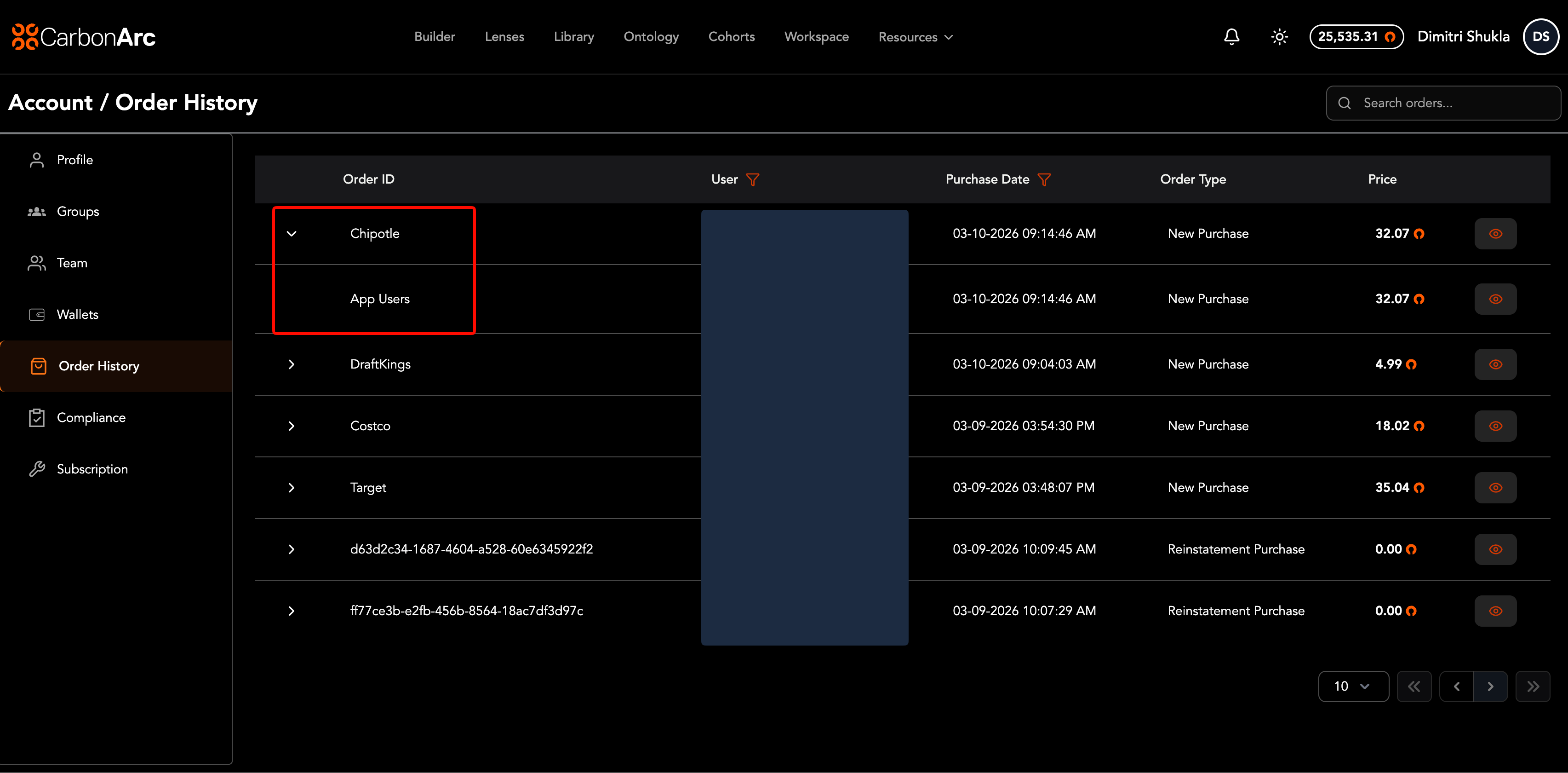
Once named, orders and frameworks display your custom names in place of their IDs, making it easy to find specific purchases.