Lenses Artifacts
Artifacts are saved snapshots of Lenses responses. Pinning a response captures its content at that moment so you can reuse it as context in later messages or new chats — without re-running the underlying queries. This keeps follow-up work faster and reduces Carbon Arc MCP token consumption, since Lenses synthesizes from the snapshot instead of pulling fresh data each time.
Pinning a Response
You can save any response from a Lenses chat as an artifact:
- Click the Pin to Artifacts button at the end of a full response, or
- Click the small pin icon on a summary block or a follow-up insight.
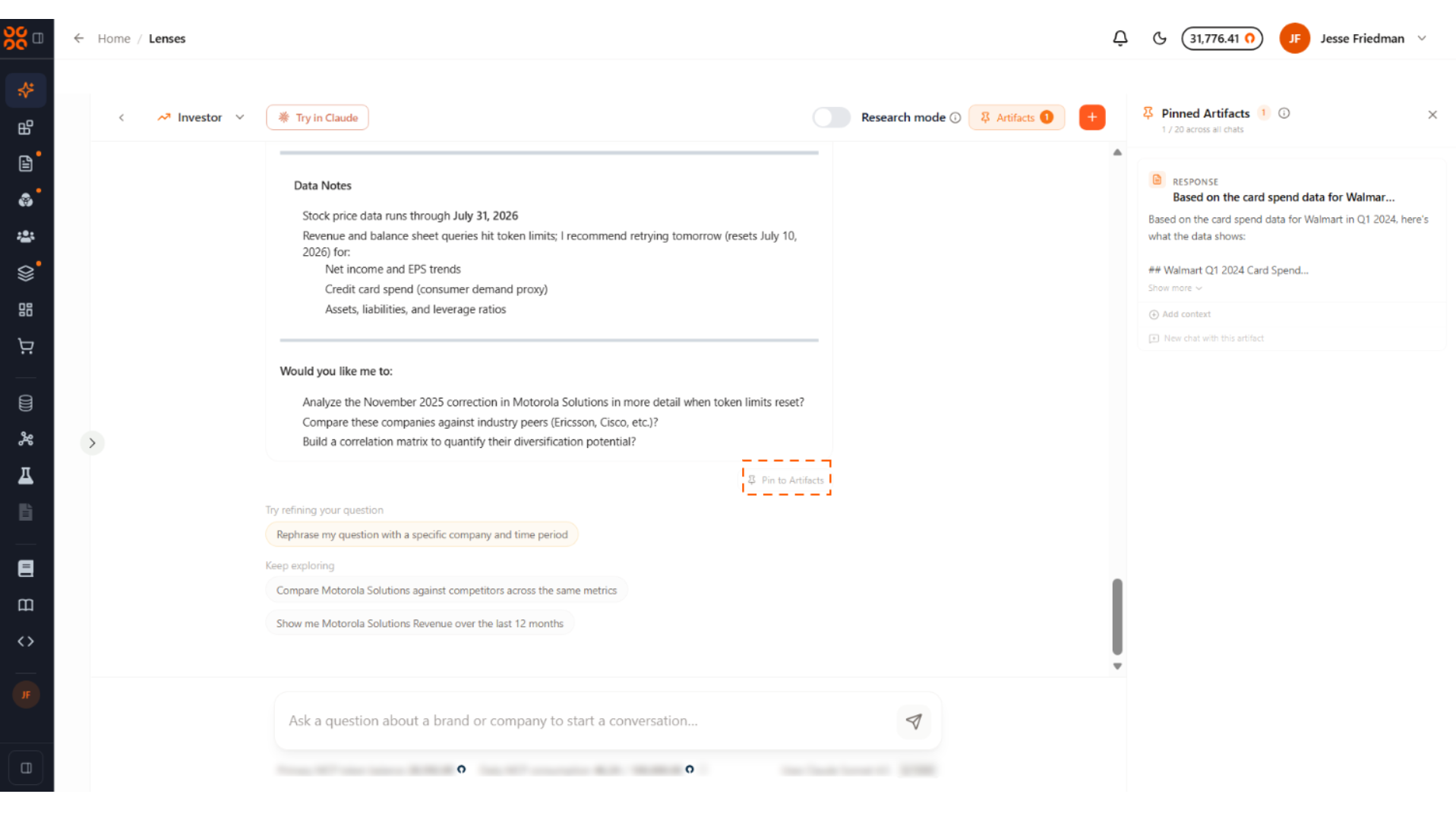
Pinned items show up in the Pinned Artifacts panel on the right side of the Lenses workspace. The panel displays each artifact's title, persona, and a short preview of the content.
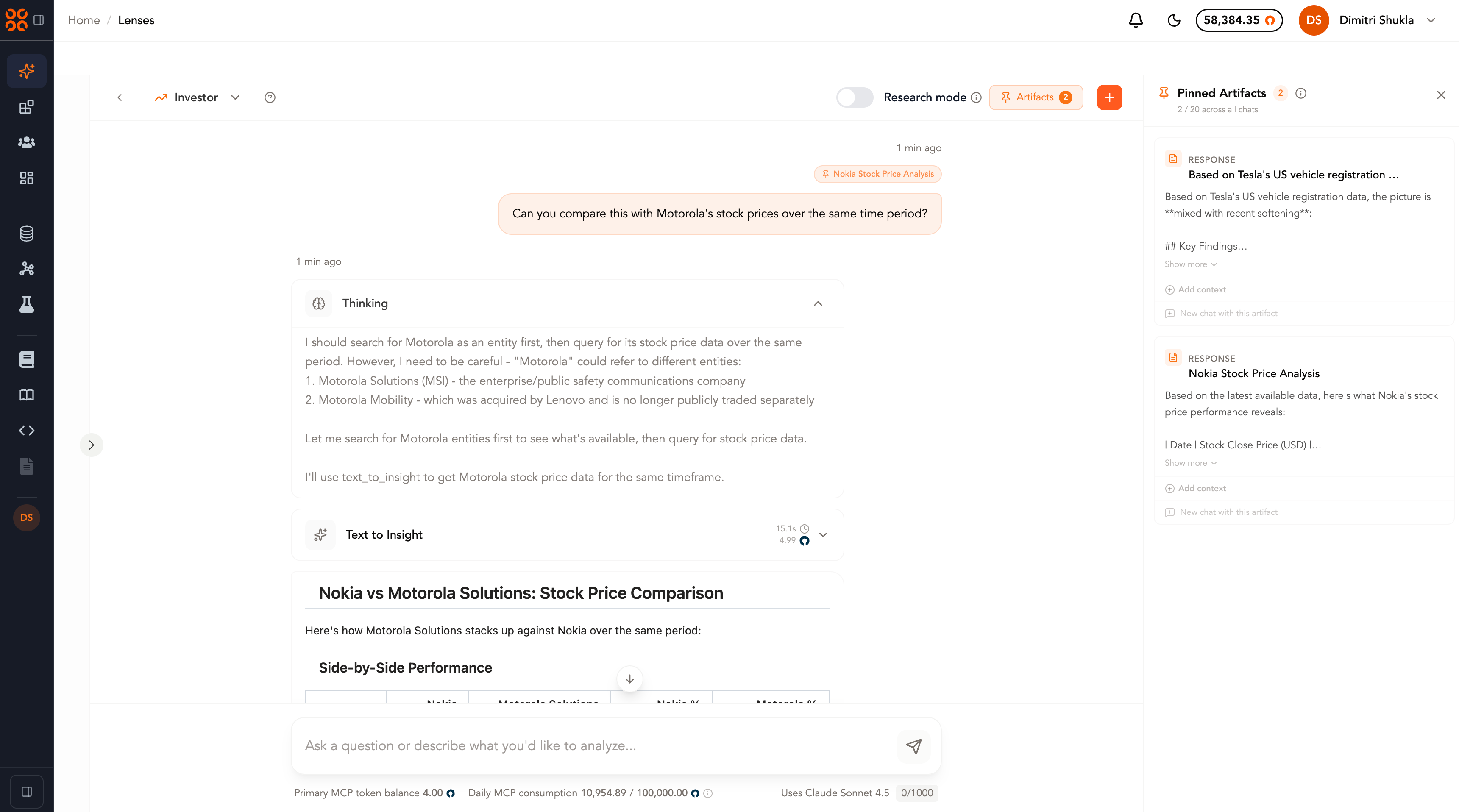
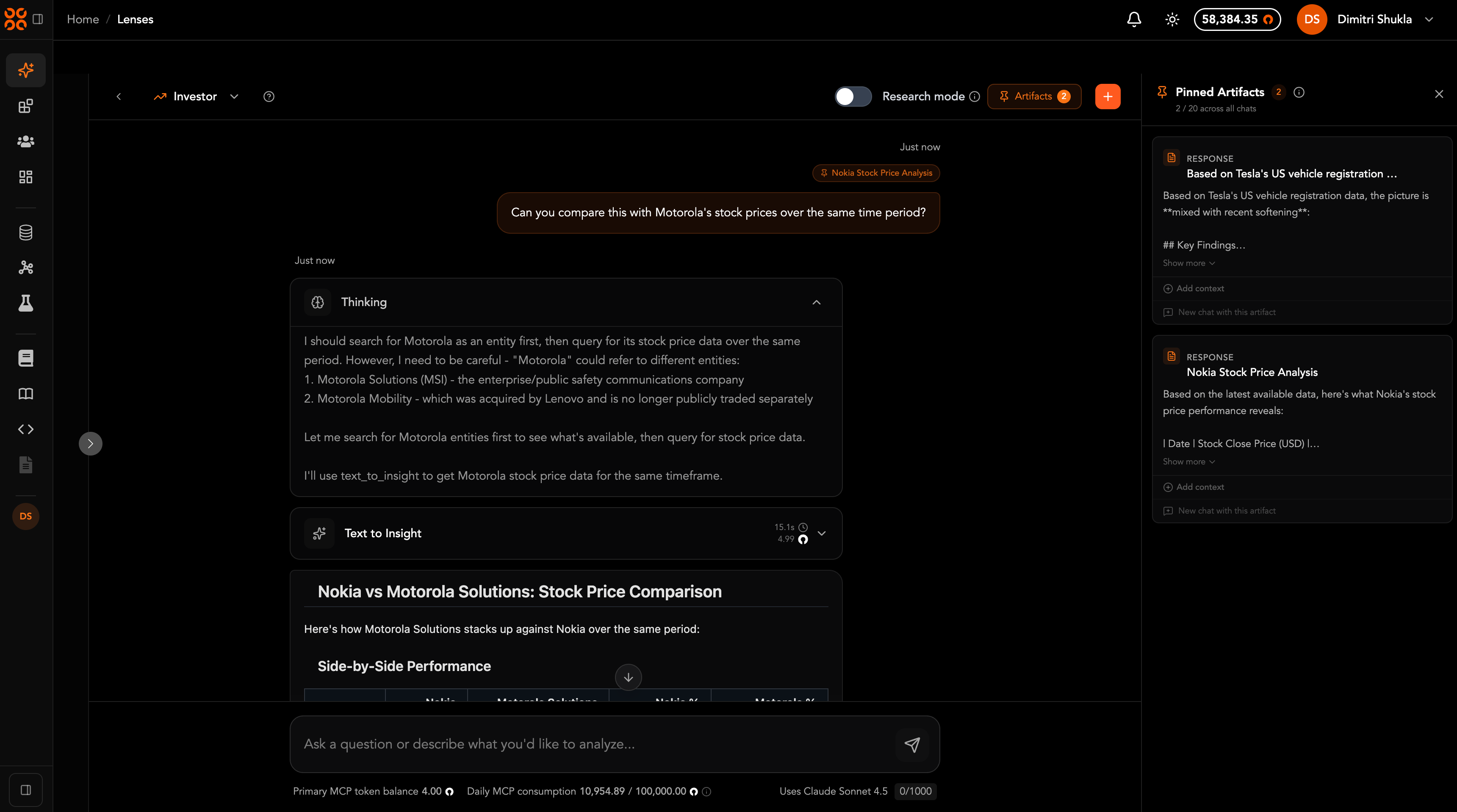
Artifacts capture the response exactly as it appeared when you pinned it. Lenses won't re-run the underlying query, so the artifact will not update if the source data changes. If you need refreshed numbers, re-run the question and pin the new response.
Managing Pinned Artifacts
Each artifact card supports three actions:
| Action | What it does |
|---|---|
| Rename (pencil icon) | Edit the artifact's title inline. Press Enter to save or Esc to cancel. |
| Unpin (trash icon) | Remove the artifact from your pinned list. |
| Add context | Mark the artifact for inclusion in your next message. |
You can pin up to 20 artifacts across all of your chats. Once you reach the cap, the Pin to Artifacts button changes to Pin limit reached — unpin something to make room before saving more.
Using Artifacts as Context
To include pinned content in a new question, click Add context on any artifact card. Selected artifacts display an In context badge, and the chat footer confirms how many artifacts will be sent with your next message.
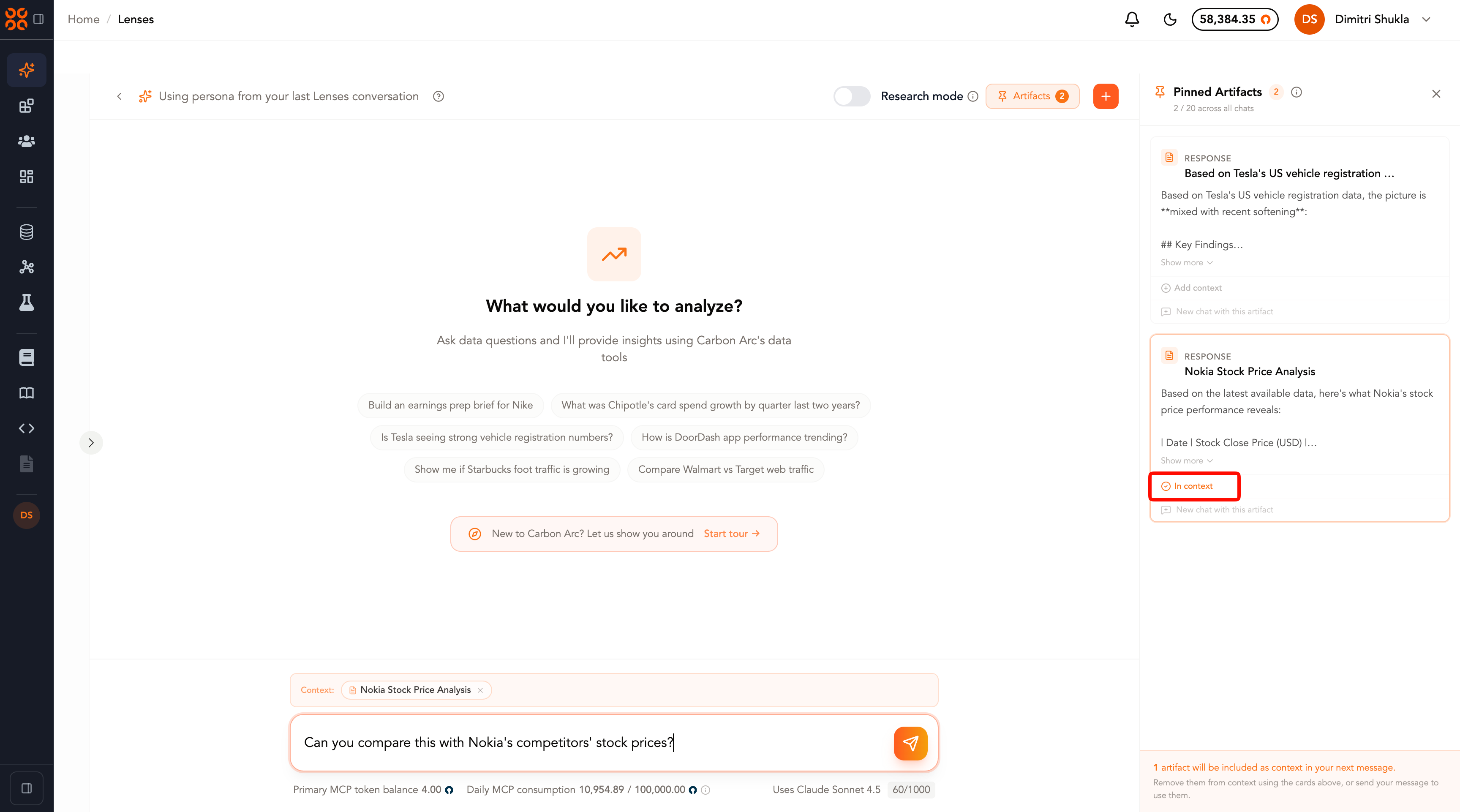
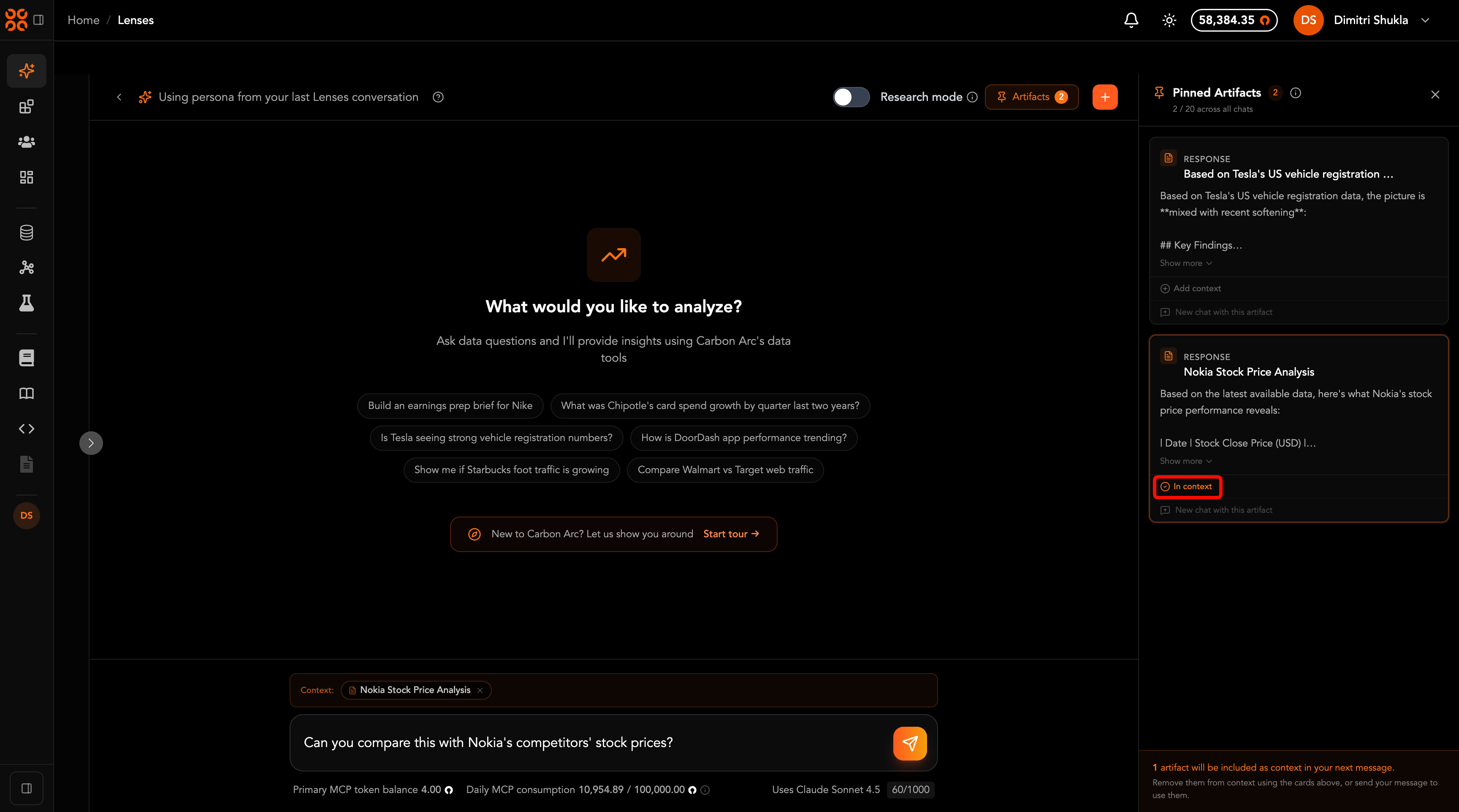
A few things to know when using artifacts as context:
- Up to 5 artifacts can be attached to a single message.
- Lenses uses the snapshotted content rather than re-querying the data sources, so the model synthesizes across material you've already pinned.
- Artifacts can be combined across personas — for example, you can mix an Investor response with a Marketer response in a single follow-up.
- Remove an artifact from the message by clicking the In context badge again, or by clicking the x on the context chip in the input area.
Starting a New Chat From an Artifact
If you'd rather branch off into a fresh session, click New chat with this artifact on any artifact card. This:
- Opens a new Lenses chat with your current persona preserved.
- Pre-loads the selected artifact as context.
- Skips re-querying the source data — the new chat starts from the snapshotted insight.
From there, you can continue pinning, mixing, and unpinning artifacts the same way you would in any other chat.
When to Use Artifacts
Artifacts are most valuable when you want to:
- Build a multi-step analysis without burning tokens on repeated queries (e.g., compare a pinned card spend response with a fresh stock price pull).
- Reuse a baseline across follow-up sessions (e.g., a quarterly snapshot you'll keep referencing for the rest of an earnings cycle).
- Synthesize across personas by pinning insights from different agents and combining them in a single prompt.
- Hand off work to a new chat while preserving a known starting point and persona.
Next Steps
- Review Lenses Best Practices for tips on phrasing prompts and using Research Mode effectively.
- Explore the MCP Tools that Lenses orchestrates behind the scenes.