Web Content via Builder
Builder lets you construct Web Content queries visually — no code required. Select an entity, pick an insight, set your filters, and pull data as a table or chart.
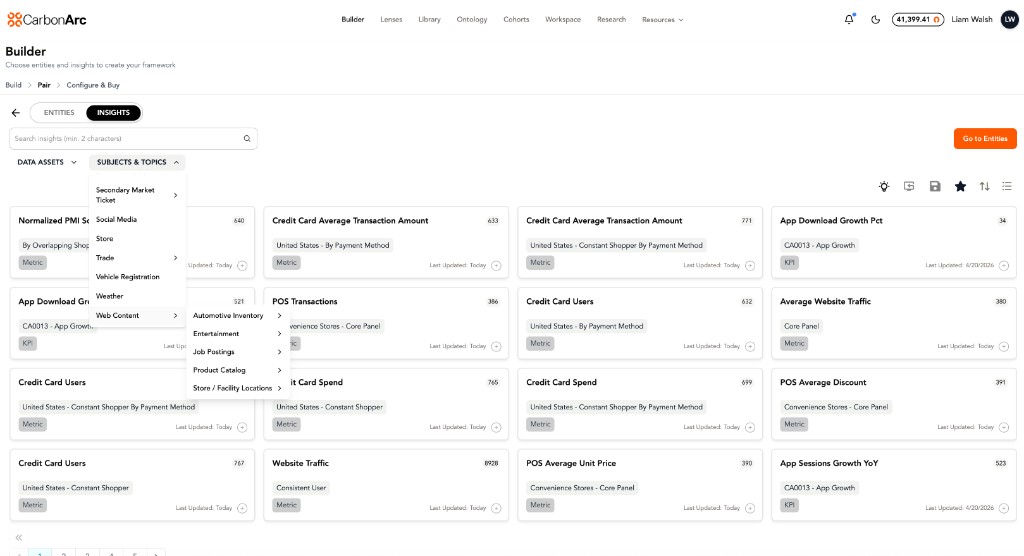
How to Use Builder
- Go to Builder in the top nav
- Search for an entity (e.g., "Chipotle", "Tesla", "Carvana")
- Select an insight from the available list (e.g., "Item Price", "Total Price")
- Configure filters: date range, date resolution, aggregation
- Click Run to pull data as a table or chart
Finding Web Content Insights
In Builder, Web Content insights are listed alongside Platform Content insights. To narrow to Web Content:
- Click the Subjects & Topics dropdown on the Insights tab
- Select Web Content to filter for Web Content-specific insights
- Expand sub-categories (Automotive Inventory, Entertainment, Job Postings, Product Catalog, Store / Facility Locations) to browse by type
Builder Filters
When configuring a Web Content query in Builder, you'll see the following standard filters:
| Filter | Description | Example Values |
|---|---|---|
| Date Range | Start and end dates for the query | 2025-01-01 to 2026-04-01 |
| Date Resolution | Time granularity of results | day, week, month, quarter |
| Location Resolution | Geographic granularity | ww (worldwide), us, state |
| Aggregation | How values are combined | sum, mean, count_distinct |
Some datasets expose additional filters specific to their data (e.g., category for Chipotle, make for Carvana). These appear automatically when available.
Build with Data
From any tearsheet in the Data Library, click the "Build with Data" icon to jump directly into Builder with that data asset preloaded. This saves you the step of searching for the entity and insight manually.
Next Steps
- For programmatic access, see the API / SDK guide
- For natural language queries, see the MCP & Lenses guide