Welcome to Partner Library
Partner Library is Carbon Arc’s catalog containing data docs from partners like Initial Data Offerings (IDO) — a place to browse, evaluate, and request access to new data assets. Think of it as the discovery layer for datasets available through the platform.
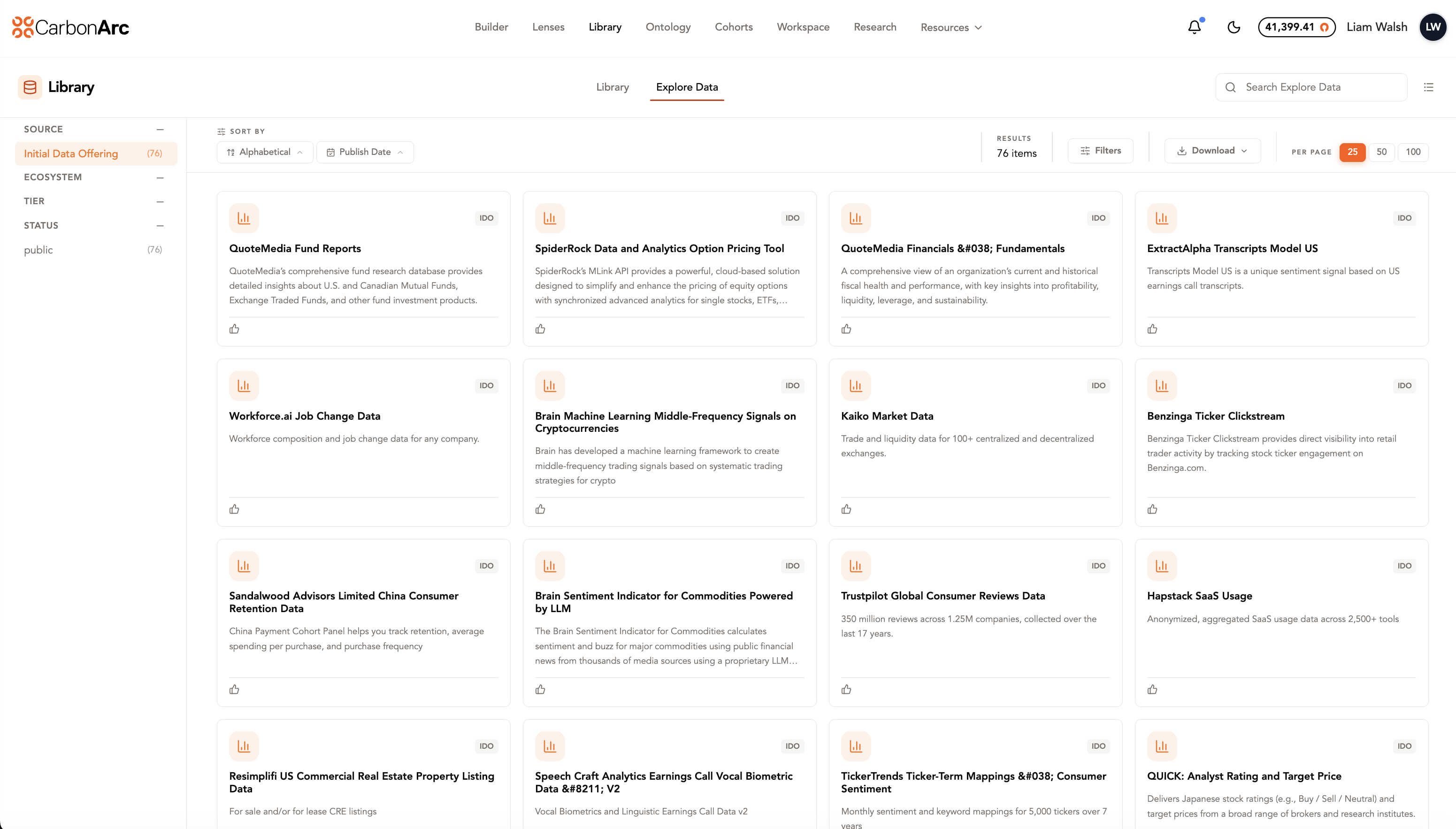
Left Sidebar: Filter the Catalog
The left panel lets you narrow results across several dimensions. All filters are multi-select and show result counts.
Source
Currently always set to “Initial Data Offering,” indicating you are browsing IDO assets.
Ecosystem
Groups datasets by category (Financial, Consumer, etc.). Select one or multiple ecosystems to refine the view.
Tier
Filter datasets by tier level. Multiple tiers can be selected at once.
Status
Filter by visibility or availability status (public, private, etc.).
Access Type
Filter specifically for Premium or Early Access datasets.
Each filter section can be collapsed or expanded to keep the UI clean.
Search Bar: Find Data Fast
The top search bar filters results in real time based on:
- Dataset title
- Dataset ID
- Ecosystem/category
- Overview description
Sort and Controls
The sticky controls bar above the results lets you manage how datasets are displayed.
Sort
- Alphabetical — Sort A→Z or Z→A
- Publish Date — Sort newest or oldest first
Filters
Open a date filter modal to narrow by:
- Publish Date
- Last Validated Date
Early Subscriber Toggle
Filter to only Premium or Free datasets.
Download
Export the current filtered view as:
- CSV
- JSON
Exports include metadata such as title, ID, ecosystem, tier, status, and validation dates.
Results View
Datasets appear as cards by default. Each card includes:
- Ecosystem label + icon
- NEW banner for recently added assets
- Premium / Early Access badges
- Dataset title + overview
- Example use cases
- Upvote button
- Request Access button for gated datasets
Some premium content may appear blurred if access has not been granted.
You can switch into a compact list view showing:
- Dataset Name
- Dataset ID
- Tier
Opening a Dataset
Clicking a dataset opens its detail page, where you can view:
- Metadata
- Schema
- Data samples
- Access / request options
Shareable URLs
All filters, searches, sorts, and pagination state are stored in the URL automatically. That makes it easy to share exact catalog views with teammates or clients.